
How to Export a Claude Chat as a Word Document
Learn how to export any Claude conversation as a Word document using the Claude to PDF Chrome extension. No share link, no copy-paste, no formatting loss.
Claude does not include a built-in Export to Word button, which makes saving conversations for editing, sharing, or documentation more difficult than many users expect. This is especially important before deleting a chat, since deletion is permanent and cannot be undone.
The only official export Anthropic provides is a JSON archive of all your conversations, a format not designed for opening or editing in Word. You can request this archive from Settings > Privacy.
The Claude to Word Chrome Extension solves this by adding a one-click Word export option directly inside claude.ai. You can export any Claude conversation as a Word document without creating an account or generating a share link. For PDF, copy-paste, and browser-based downloads, see how to download chat in Claude.
In this guide, you will learn how to export a Claude chat as a Word document using the Claude to PDF Chrome extension.
Video tutorial: Export a Claude Chat as a Word Document
Step-by-step walkthrough for this guide.
Exporting Using the Claude to PDF Extension
The Claude to PDF extension exports any Claude chat as a Word document directly from claude.ai, with no share link or copy-paste required.
Use Word when you plan to keep editing the content after export, reformatting, adding comments, or moving sections into another document. If you just need a clean, finished copy to share or archive, see how to download chat in Claude instead.
It adds PDF and Word export buttons to conversations and responses, allowing you to export:
- A full chat
- A single response
- Selected messages
- An artifact
All exports can be done with one click.
All formatting is preserved, including headings, lists, tables, code blocks, mathematical equations, and exported artifacts.
Note: The free plan includes a limited number of exports per month. For unlimited exports, open the extension settings and select Manage License.
For more details, see the official Claude to PDF extension documentation.
Installing the Extension
-
Open Claude to Word Chrome Extension in your browser.
-
Click Add to Chrome.
-
Click Add extension in the confirmation dialog.
-
Open or refresh claude.ai in your browser.
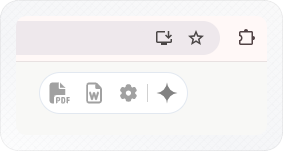
PDF and Word buttons now appear on every Claude response and in the top-right corner of every conversation.
Configuring the Extension
Click the Claude to PDF settings icon in the top-right corner of your browser to open the settings panel.
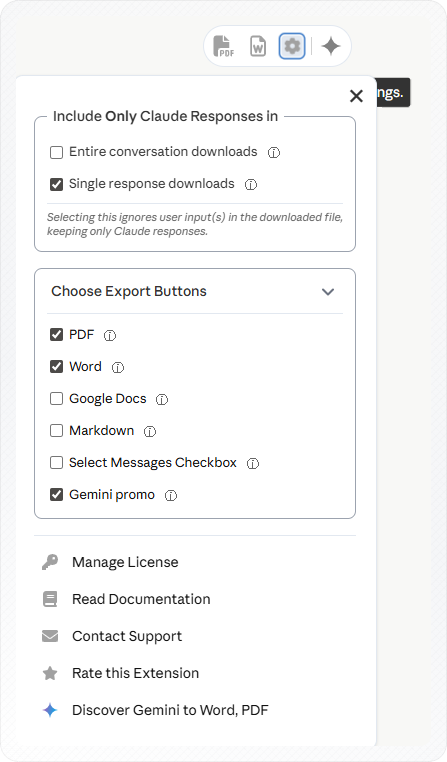
Include Only Claude Responses in
By default, exported Word documents include both your prompts and Claude's responses. Use this setting to export Claude's responses only, without your questions.
Two independent toggles let you control this separately:
- Entire conversation downloads - applies to full conversation exports
- Single response downloads - applies to single response exports
Enable one, both, or neither depending on what you need.
Choose Export Buttons
Controls which buttons appear in claude.ai. PDF and Word are enabled by default. Google Docs, Markdown, and Select Messages Checkbox are off by default.
Check or uncheck any button to show or hide it. If your Word button is not visible in claude.ai, confirm Word is checked here and refresh the Claude tab.
- Select Messages Checkbox - off by default. Enable this to select specific messages for export.
Exporting a Full Conversation as Word
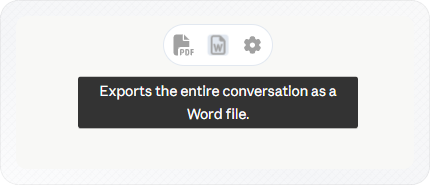
This exports the entire conversation as a single Word document, including both your prompts and Claude's responses. Use it when you want a complete record, such as a Deep Research session, a client briefing, or a long drafting session to share or keep for your records.
-
Open the Claude conversation you want to export.
-
Click the Word button in the top-right corner of the conversation window.
-
Check your Downloads folder. The .docx file is there.
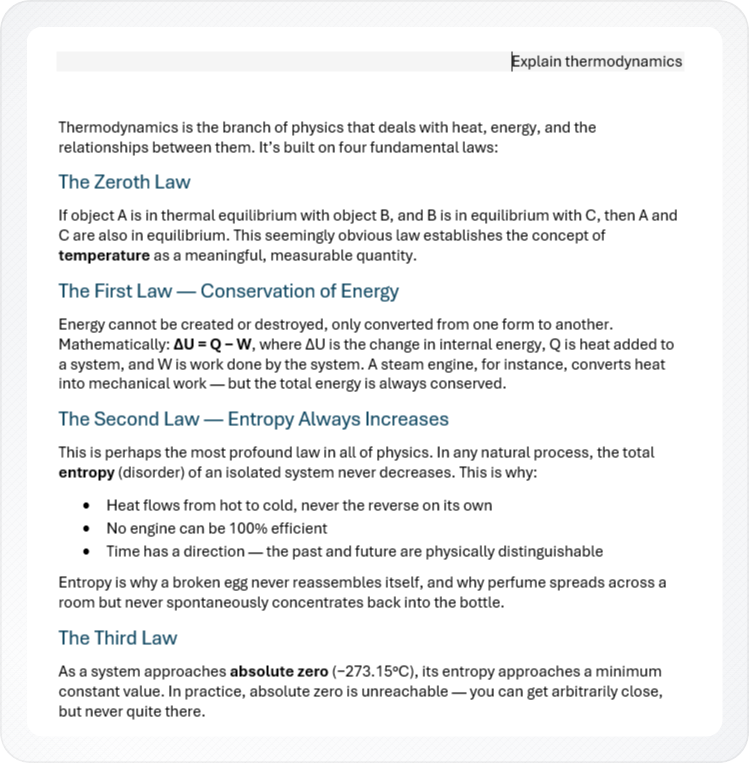
Your full conversation is now available as a Word document in your Downloads folder. By default, the file includes both your prompts and Claude's responses, in order, with headings, lists, and code blocks preserved.
Exporting a Single Response as Word
This option exports only one Claude response instead of the entire conversation, making it useful when you only need a specific answer.
Use it when you only need one answer, such as a code snippet, report section, summary, or explanation. If the response contains an artifact, use the artifact export option instead to preserve the artifact correctly.
- Scroll to the Claude response you want to export.
- Click the Word button at the bottom-right corner of that response.
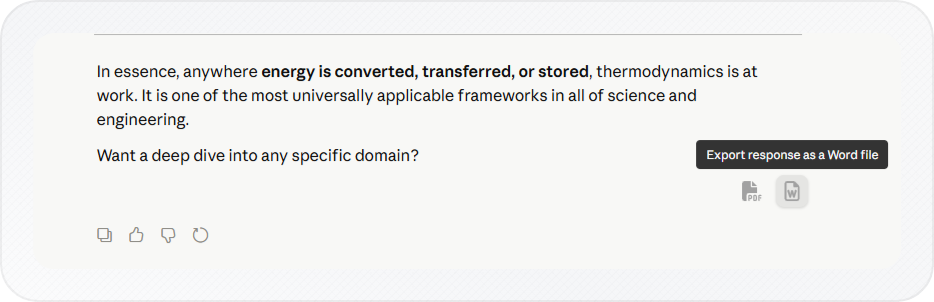
- A .docx file downloads containing only that response.
That one response is now exported as a Word document.
Exporting Selected Messages as Word
This option lets you export only selected messages from a Claude conversation instead of exporting the entire chat.
It is useful for long chats where only a few exchanges matter.
For example, if you spent an hour debugging with Claude but only the final messages contain the working solution, you can export just those messages.
Note: Exporting selected messages requires the Select Messages Checkbox option to be enabled in the extension settings. This option is disabled by default.
-
Open the extension settings and enable Select Messages Checkbox under Choose Export Buttons.
-
Open your Claude conversation and click the Select Messages icon in the top-right corner.
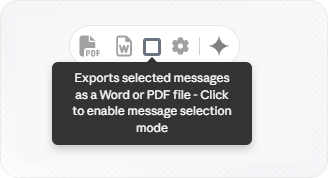
-
Check the messages you want to include in the export.
The extension displays the number of selected messages so you can confirm your selection before exporting.

-
Click the Word button in the top-right corner of the conversation.
The exported Word document includes only the selected messages, in the same order they appear in the conversation.
Exporting a Claude Artifact as Word
Claude artifacts are standalone outputs that open in a side panel next to your chat, such as reports, code files, spreadsheets, diagrams, and structured documents Claude creates.
Use this mode when you only need the artifact itself, not the full conversation.
Important: The export buttons automatically adapt to what you are viewing. If an artifact is open and maximized, the top-right export buttons apply only to that artifact. If no artifact is open, the same buttons export the entire conversation.
-
In your Claude conversation, click the artifact to open it in the side panel.
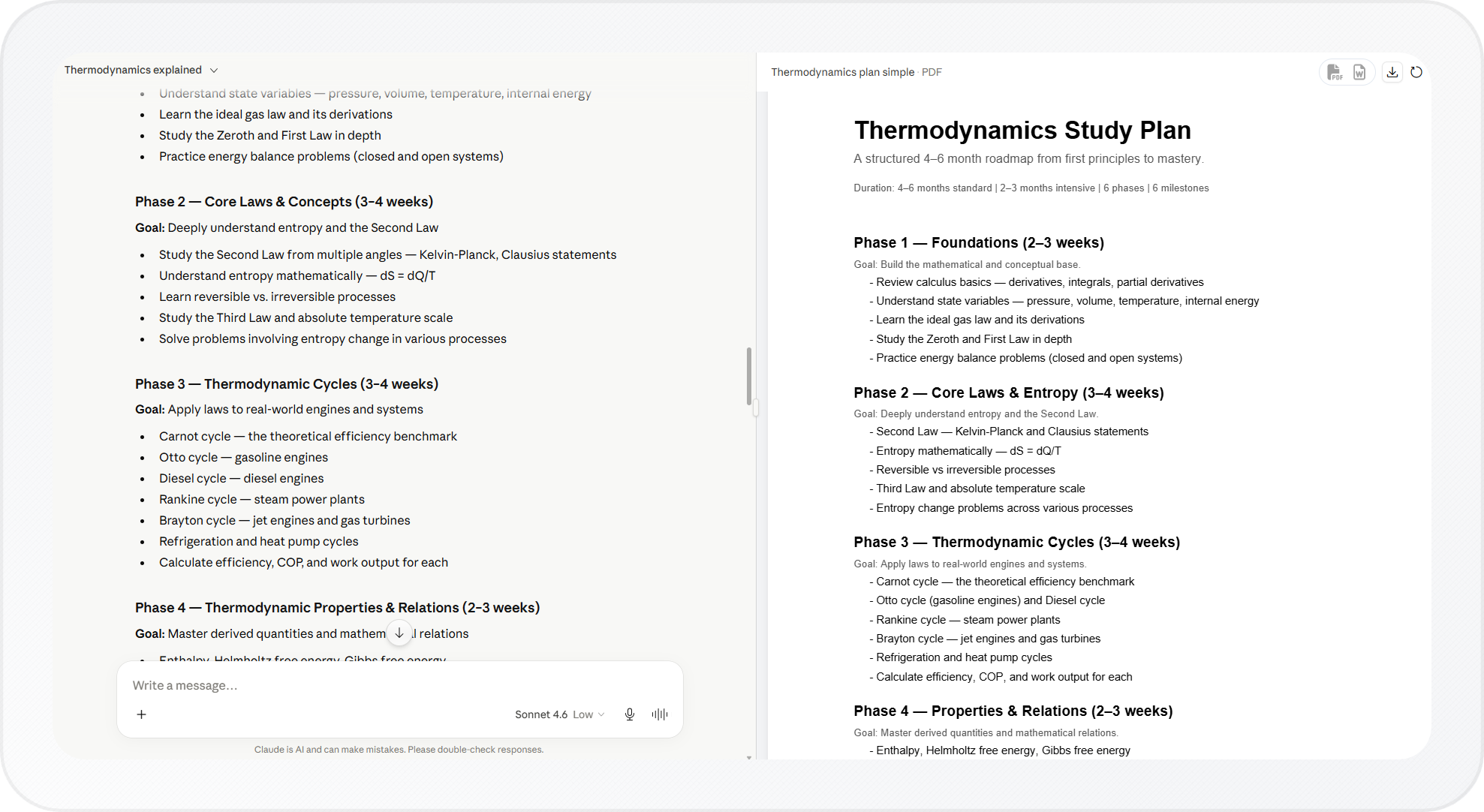
-
Click the Word button in the top-right corner of the artifact panel.
The artifact is exported as a Word document. Only the artifact content is included, the surrounding conversation is not exported.
If you only need to share a conversation without exporting, you can also share a chat as a link.
Once Drive is set up, connect Gmail and Google Calendar too, so Claude can work across your documents, inbox, and schedule in one place.
Conclusion
You can now export Claude conversations, individual responses, selected messages, and artifacts as Word documents while preserving formatting, code blocks, tables, and headings, making them easier to review, edit, archive, and share outside of Claude.
If you use the free plan, you can check your remaining exports under Manage License in the extension settings.