
How to Share a Chat in Claude
Learn how to share a chat in Claude using a snapshot link, control what the link reveals, unshare it anytime, and handle sharing more than one chat at once.
Claude lets you turn any conversation into a shareable link, making it easy to share the conversation with others without manually copying and pasting messages.
However, a shared link is not a live page. It only includes the conversation up to the point when you create the link. If you add more messages later, they will not appear in the shared link unless you create a new one.
In this guide, you'll learn how to share a chat in Claude. For Anthropic's official reference, see Sharing and Unsharing Chats.
Sharing a Chat in Claude
Claude lets you create a shareable link for a conversation, making it easy to send the chat to other people.
-
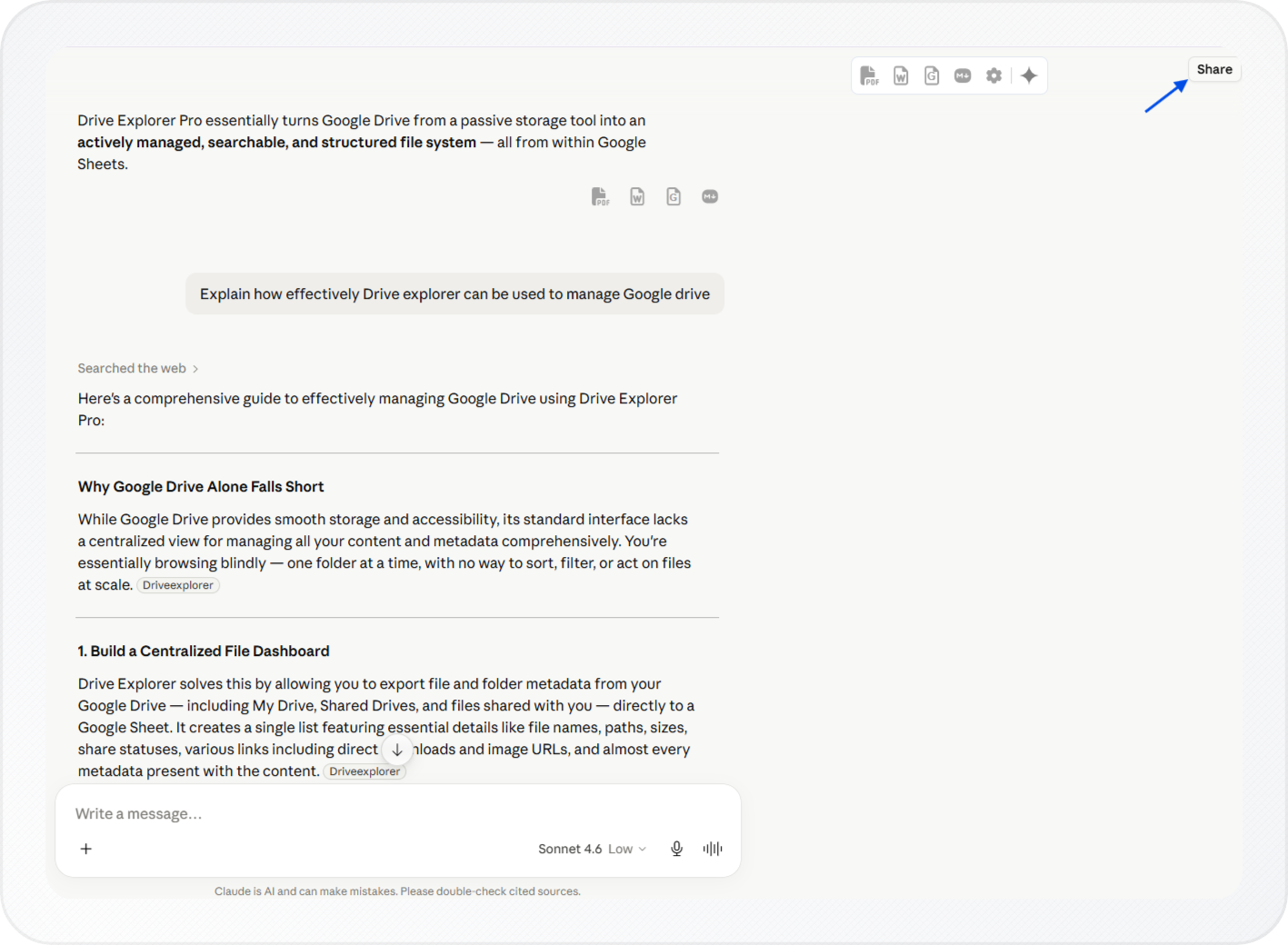
Open the conversation you want to share.
-
Click Share in the upper-right corner of the chat.
-
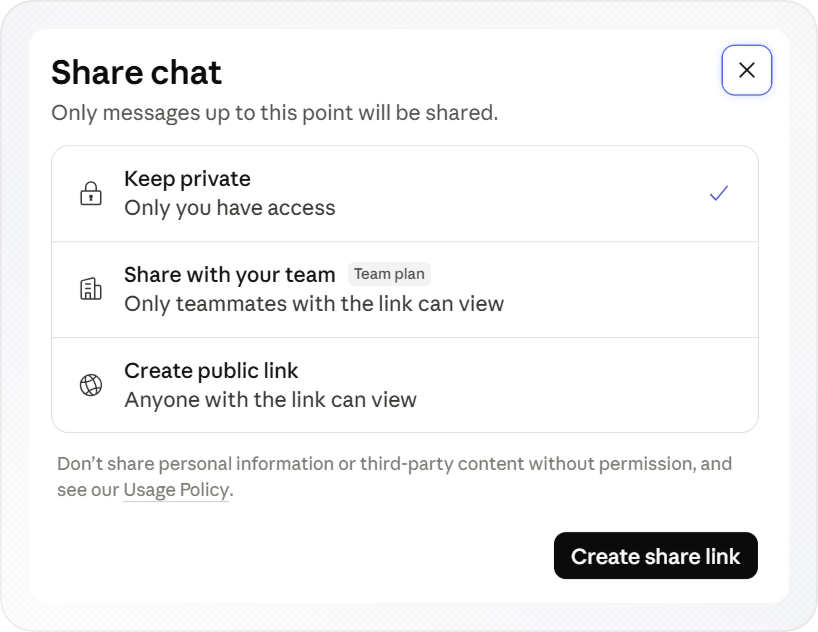
In the pop-up window, click Create share link to generate the link.
-
Click Copy link, then send the link to anyone you want to share the chat with.
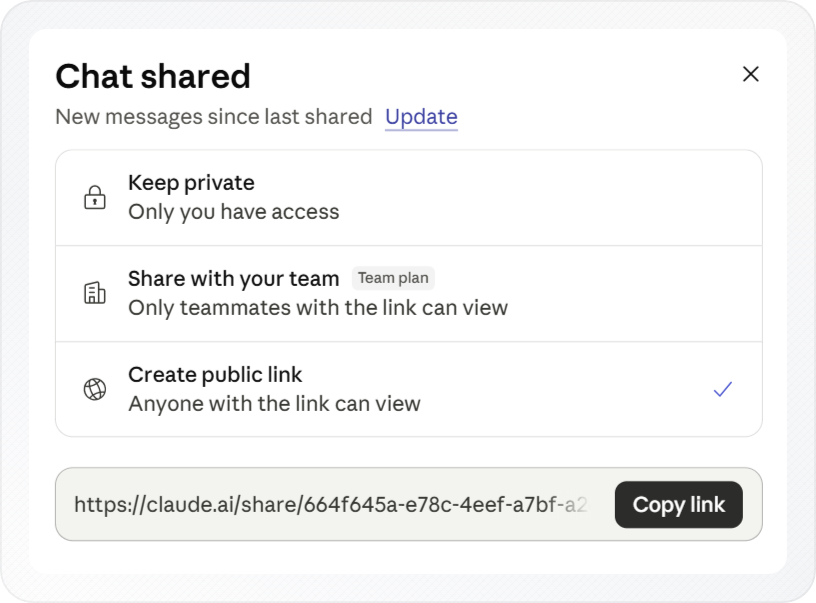
Note: People can view a shared chat even if they do not have a Claude account.
Once created, the link opens a snapshot of the conversation for anyone who receives it.
Tip: Open the shared link in a private or incognito window to see exactly what others can access.
Before sharing, it's important to understand what information is included in the snapshot.
What the Shared Link Reveals
A shared chat link includes the conversation up to the moment you create the snapshot, but some content remains private.
Important: Anyone with the link can read the conversation included in the snapshot. Remove sensitive information before sharing.
Here's what is and isn't included:
- Messages: All messages in the conversation up to the point of sharing are included.
- New messages: Messages added after sharing are not included. To share them, create a new link.
- Uploaded files: Files attached to the conversation are not shared and remain private.
This approach allows you to share conversations while keeping uploaded files and underlying tool data private.
Note: If you need to share multiple chats together, export each conversation with one click using the Claude to PDF Chrome extension, then share the exported files with others.
Unsharing a Chat
If you no longer want others to access a shared conversation, you can disable the link at any time.
- Open the shared chat.
- Click Share to open the sharing settings.
- Under Chat shared, select Keep private.
The shared link is immediately disabled, and only you can access the chat.
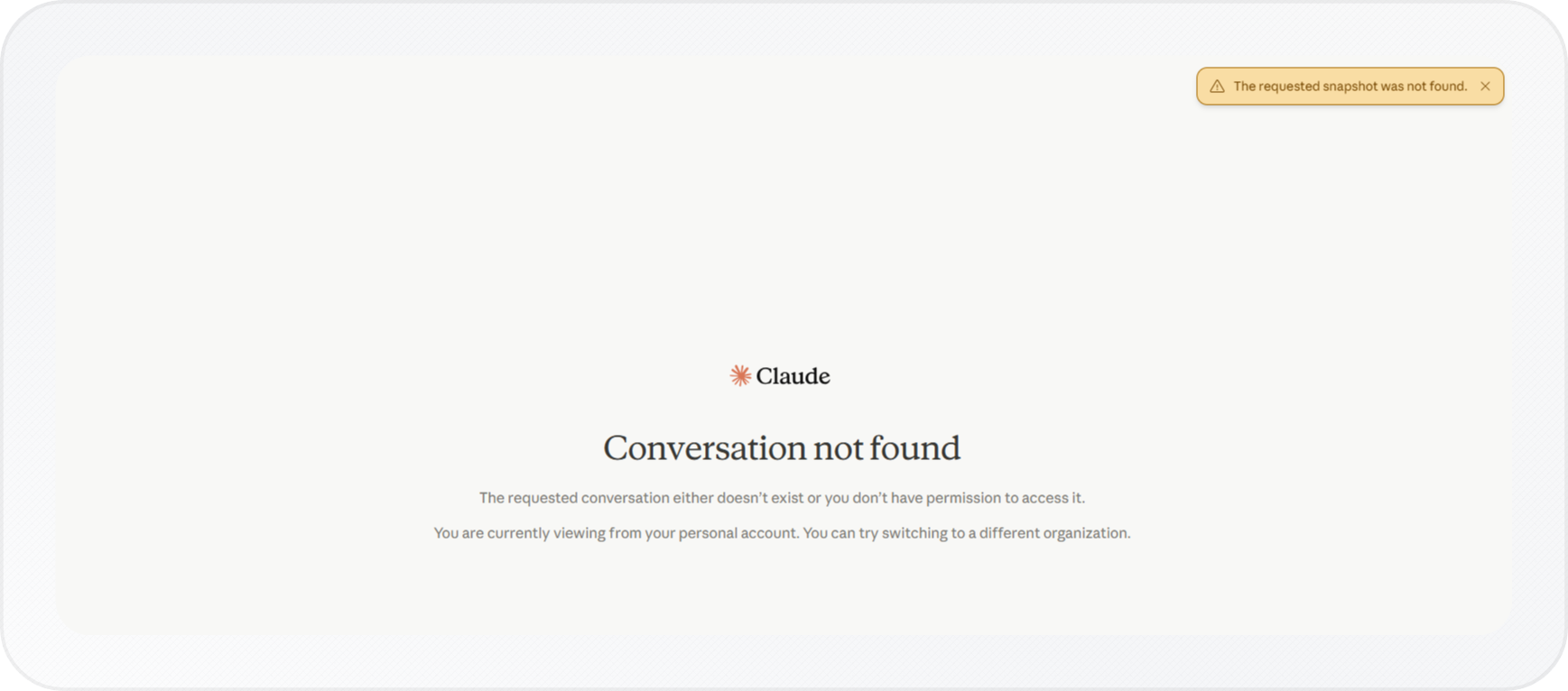
Note: If someone already has the chat open in their browser, they may continue viewing it until they refresh or reopen the page. After that, access is removed.
Managing Your Shared Chats
Claude provides a centralized list of all chats you've shared, making it easy to review and revoke access.
Note: This feature is available on Free, Pro, and Max plans. Team and Enterprise users manage sharing through organizational settings.
To view your shared chats:
-
Click your profile icon in the bottom-left corner.
-
Select Settings.
-
Click Privacy in the left sidebar.
-
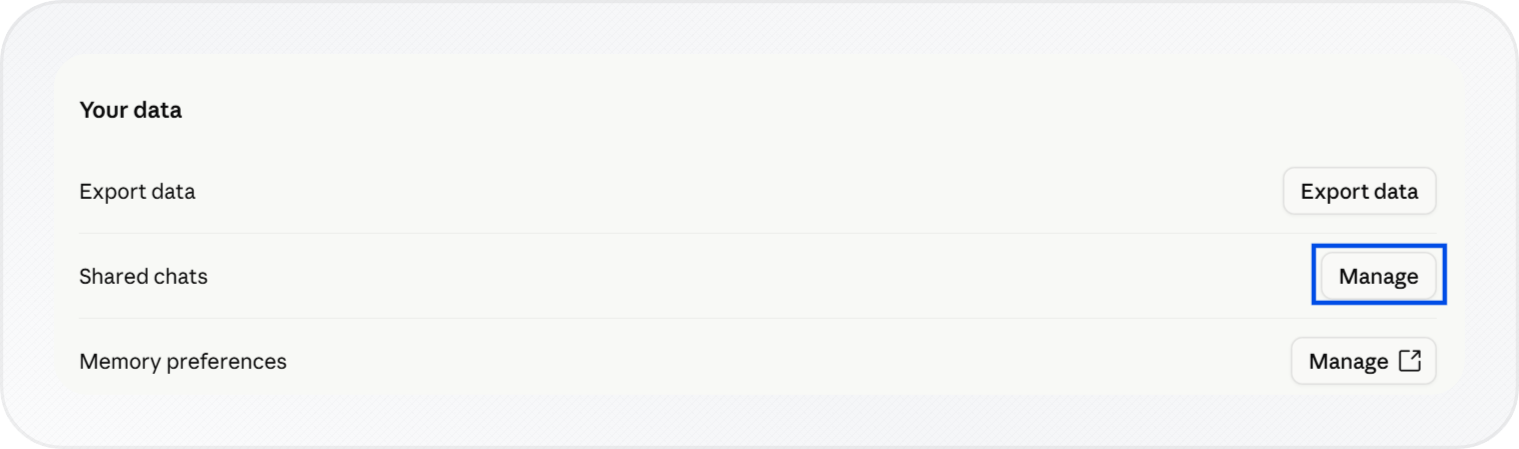
Under Your data, click Manage next to Shared chats.
-
Click the Unshare icon next to any chat you want to stop sharing.
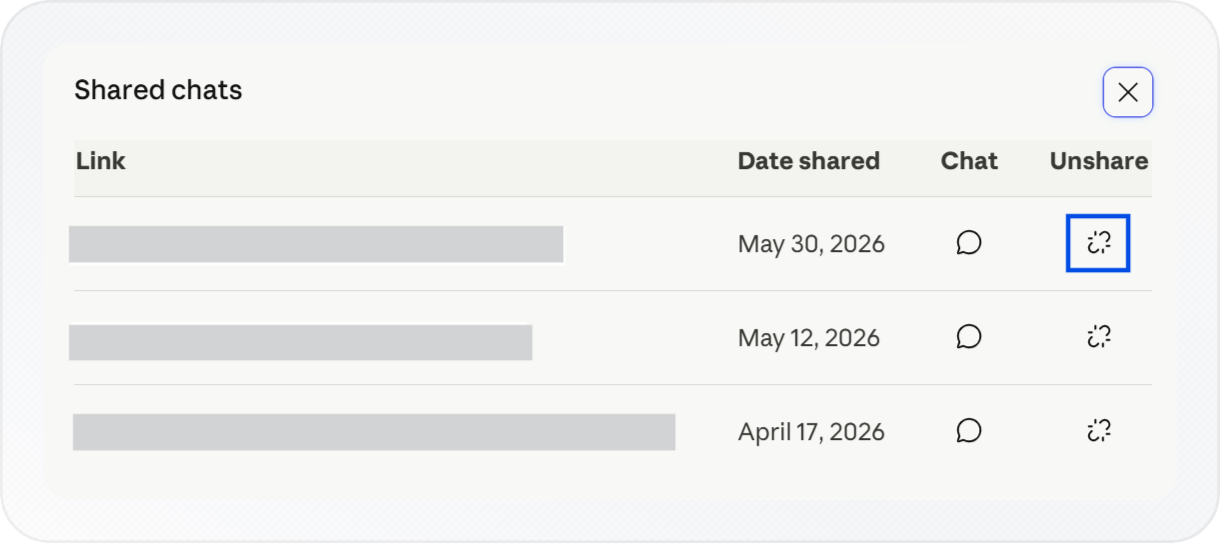
This page shows all chats you have shared. You can open a shared chat, review when it was shared, or revoke access to individual links.
Conclusion
Sharing a chat in Claude lets you give others access to a conversation in a few clicks. The shared link captures the conversation up to the point of sharing, new messages and uploaded files remain private, and you can revoke access at any time.
To download a copy of the chat for yourself before sharing, see how to download chat in Claude. For a formatted Word export you can edit offline, see how to export a Claude chat as a Word document.