
How to Connect Google Calendar to Claude
Learn how to connect Google Calendar to Claude so you can check your schedule, create events and manage invites without leaving the conversation.
Claude can read your Google Calendar and make changes to it. You can check your schedule, create events, find free time, and respond to invites, all without opening Google Calendar.
But many people think Claude needs special permissions. This isn't true. Claude uses the same access you already have. You give permission one time. Then you ask Claude about your schedule.
In this tutorial, you'll learn how to connect Claude to your Google Calendar and use it.
Prerequisites
- A Claude account on any plan, including Free
- A Google account with Google Calendar enabled
Connecting Google Calendar to Claude
This is a one-time setup. Once connected, Google Calendar works in every new chat.
-
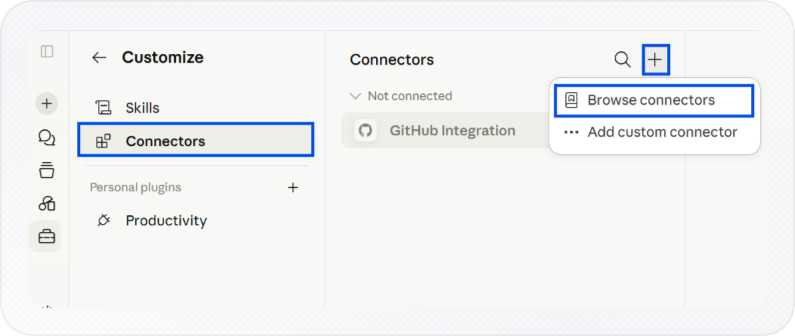
Click Customize in the left sidebar.
-
Select Connectors, then click the + icon at the top.
-
Click Browse connectors.
-
Search for Google Calendar and click the + icon next to it. A Google sign-in window opens.
-
Select your Google account and click Continue.
-
Click Allow on the permissions screen. Google redirects you back to Claude automatically.
Note: Google's permissions screen shows broad access options. Claude only accesses your calendar when you ask and respects your existing permissions in Google Calendar.
-
Back in Claude, confirm that Google Calendar shows as connected on the Connectors page.
After connecting, Claude shows you a Tool permissions screen. You can control what Claude is allowed to do with your calendar. Toggle each action on the right to always allow, needs approval, or blocked.
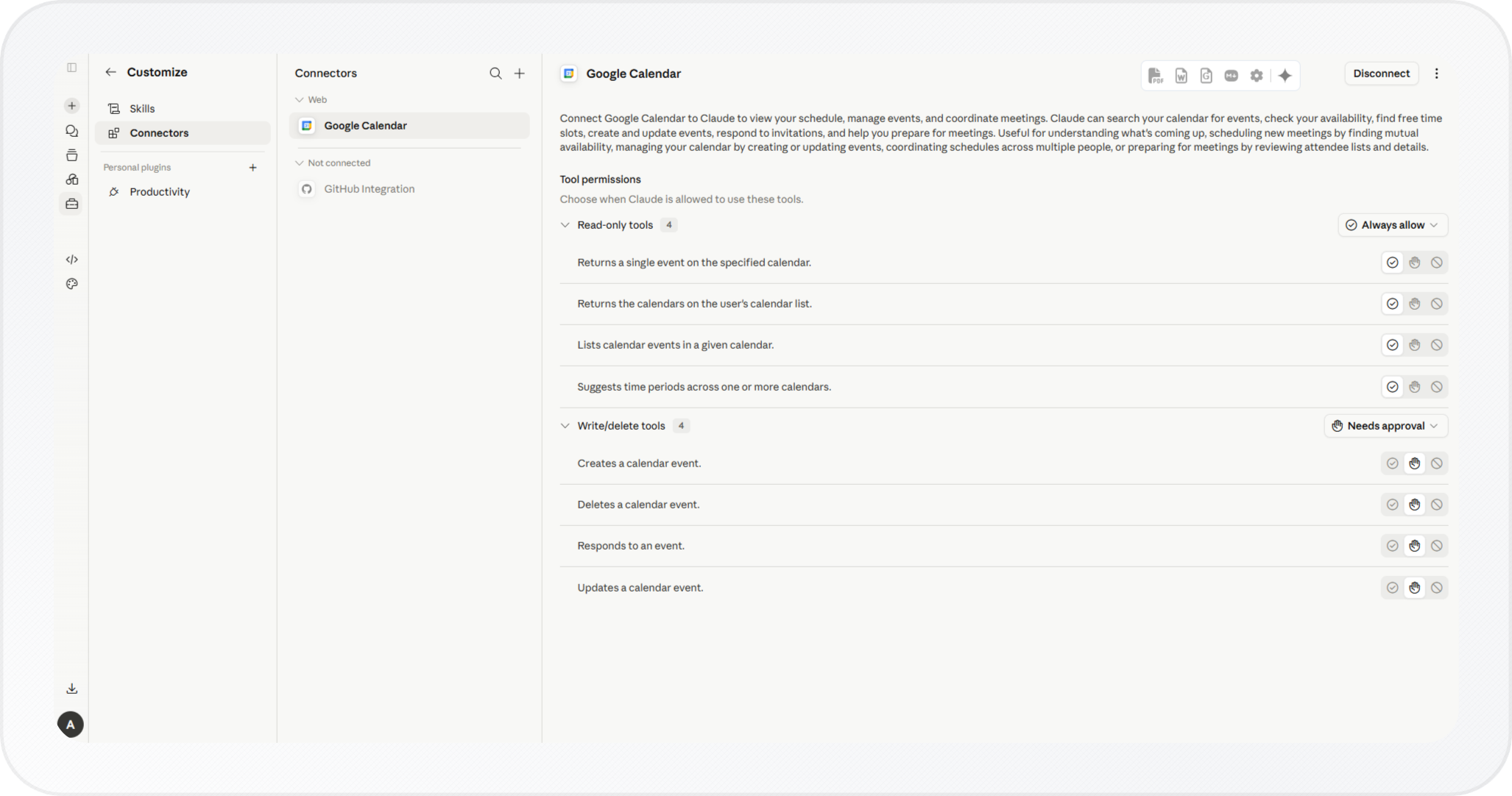
For the full list of what the connector can do, see Google Workspace connectors on Anthropic's help site.
Using Google Calendar with Claude
After connecting Google Calendar, you can use Claude to view events, create and update meetings, find available time, and manage invitations without opening Google Calendar.
Viewing Your Schedule and Events
Claude can show upcoming events, meetings, and schedules from your connected Google Calendar. This is useful when you want to check your availability without opening Google Calendar.
Type your question directly into the chat. For example:
- "What do I have on Thursday?"
- "Show me my meetings this week."
- "When is my next call with the design team?"
Claude checks your calendar and returns the matching events with their dates and times.
Note: Claude reads only the calendars on the Google account you connected.
Creating, Updating, and Deleting Events
Claude can add events, edit existing ones, and remove them from your calendar. Use this when you want to make changes without leaving the conversation.
Important: Claude shows you the event details before it acts. Read the summary and confirm. Once you approve, the change goes through to Google Calendar right away.
To create an event, describe it:
- "Add a standup every Monday at 10 AM starting next week."
- "Schedule a one-hour call with Priya on Friday at 2 PM."
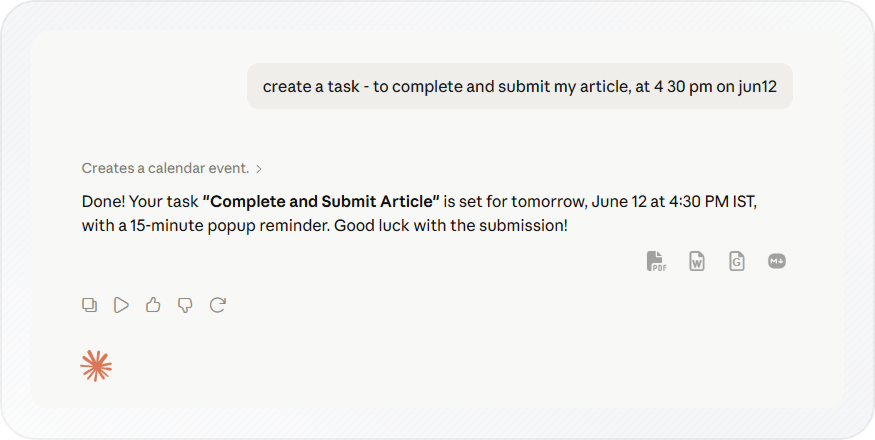
Claude drafts the event with the title, time, recurrence, and attendees. It shows you the details and waits for your go-ahead.
To update an event, say what to change:
- "Move Thursday's client review to 4 PM."
- "Add Rahul to the Wednesday design sync."
Claude shows you the updated event and asks you to confirm before it saves.
To delete an event, ask directly:
- "Cancel tomorrow's 11 AM meeting."
- "Remove the Friday retrospective."
Claude names the event and the time before it deletes anything, so you don't lose the wrong one.
After you approve a create or update, open Google Calendar and confirm the event shows the right details.
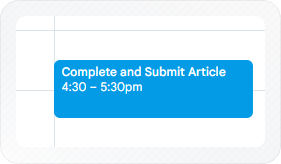
After a delete, confirm the event is gone from that date.
Claude can also manage attendees and meeting invites. For example, you can ask it to add guests, remove participants, or accept and decline invitations.
If you also want Claude to work with your inbox or files, see How to Connect Gmail to Claude or How to Connect Google Drive to Claude.
Privacy and Data Handling
Claude accesses your calendar only when you ask something that needs it. It pulls the least amount of data required to answer.
Your calendar data is not used to train Claude's models. Data from your session is stored with that chat on Anthropic's servers. Delete the chat to remove it.
Claude works within your existing Google Calendar permissions. It can see only the calendars you have access to and make only the changes you're allowed to make.
To have Claude remember your scheduling preferences across chats, see How to Enable Memory in Claude.
Conclusion
You've connected Google Calendar to Claude. You can now check your schedule, create and edit events, find open time, and respond to invites directly from chat, all using the access you already had.