
How to Download Chat in Claude
Learn how to download Claude chat using three methods - copy and paste, save as PDF with your browser, or use the Claude to PDF Chrome extension.
Claude does not include a built-in Download button for individual chats. However, you can still save a conversation to your device.
This is useful when you want to keep a local copy of a conversation, share it with someone else, or save it for future reference.
In this guide, you'll learn three ways to download Claude chat, along with when to use each method.
If you need to export all your conversations and account data instead, see How can I export my Claude data?.
Video tutorial: Download Chat in Claude
Step-by-step walkthrough for this guide.
Copying and Pasting a Chat
This method creates an editable text copy of your Claude conversation that you can save in any app.
It works on all Claude plans, in any browser, and on both desktop and mobile devices. Use it when you want to save a chat to Google Docs, Microsoft Word, Apple Notes, or another text editor.
If you only need to send the conversation to someone else, sharing a chat link is usually faster. For a formatted Word document you can edit offline, see how to export a Claude chat as a Word document.
-
Open claude.ai in your browser.
-
Select the chat you want to save from the left sidebar.
-
Click anywhere inside the chat.
-
Select all visible content using Ctrl+A on Windows or Linux, or Cmd+A on Mac.
Note: This selects all visible messages in the chat, including your prompts and Claude's responses.
-
Copy the selected text using Ctrl+C on Windows or Linux, or Cmd+C on Mac.
-
Open the app where you want to save the chat, such as Google Docs, Microsoft Word, Apple Notes, or any text editor.
-
Click inside the document and paste the content using Ctrl+V on Windows or Linux, or Cmd+V on Mac.
-
Save the file:
- Microsoft Word or Apple Notes: Press Ctrl+S on Windows or Cmd+S on Mac.
- Google Docs: No action is needed because Google Docs saves automatically.
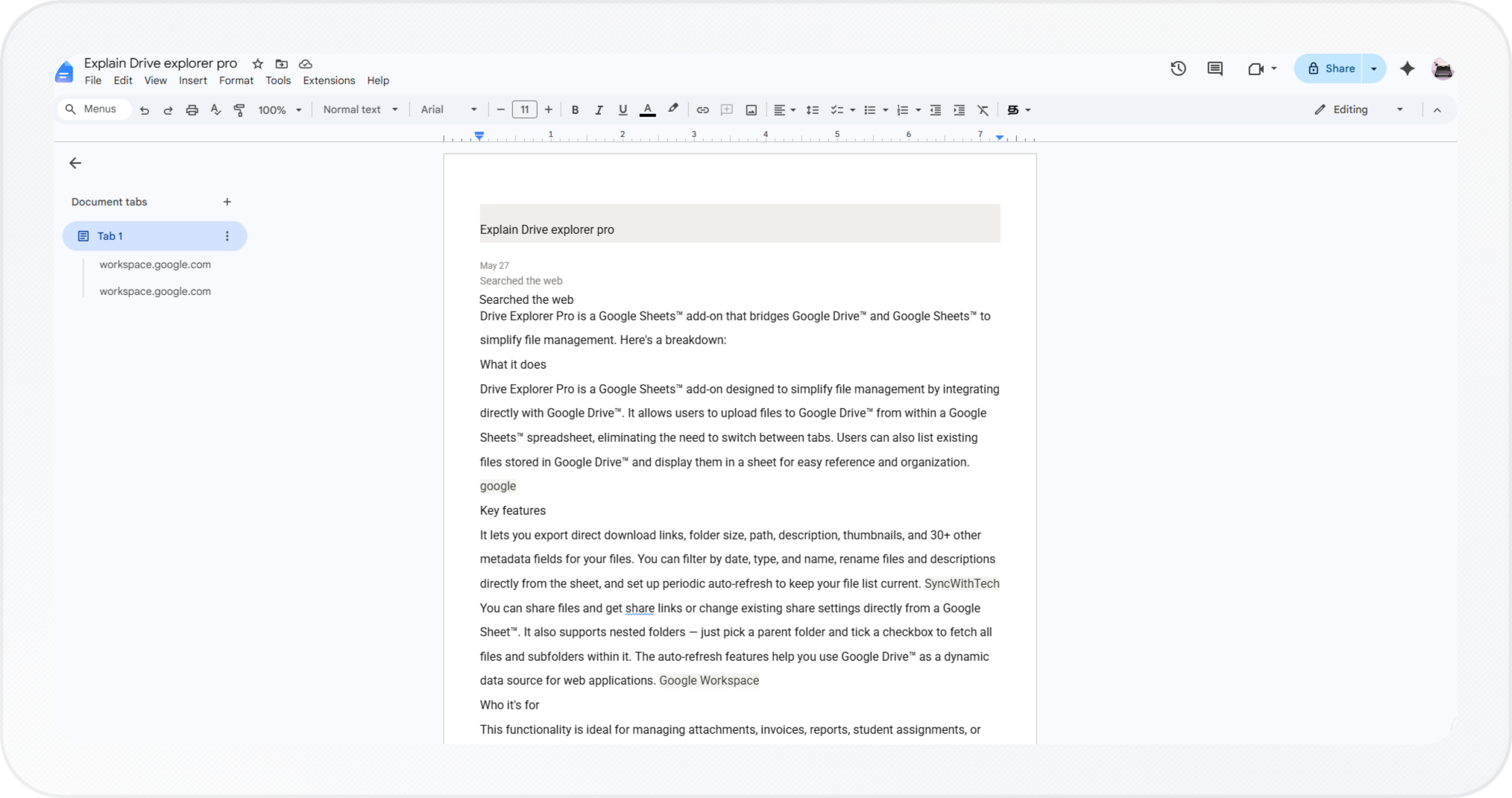
Note: Code blocks, tables, and Markdown formatting may not paste perfectly. If you need a formatted copy, use Claude to PDF Chrome extension method instead.
You now have an editable copy of the chat saved on your device.
If you need a PDF instead, use the next method.
Saving a Chat as a PDF
This method uses your browser's built-in print feature to save a Claude chat as a PDF. Use it when you want a PDF for sharing, printing, or reference without installing an extension.
-
Open the chat you want to save in Claude.
-
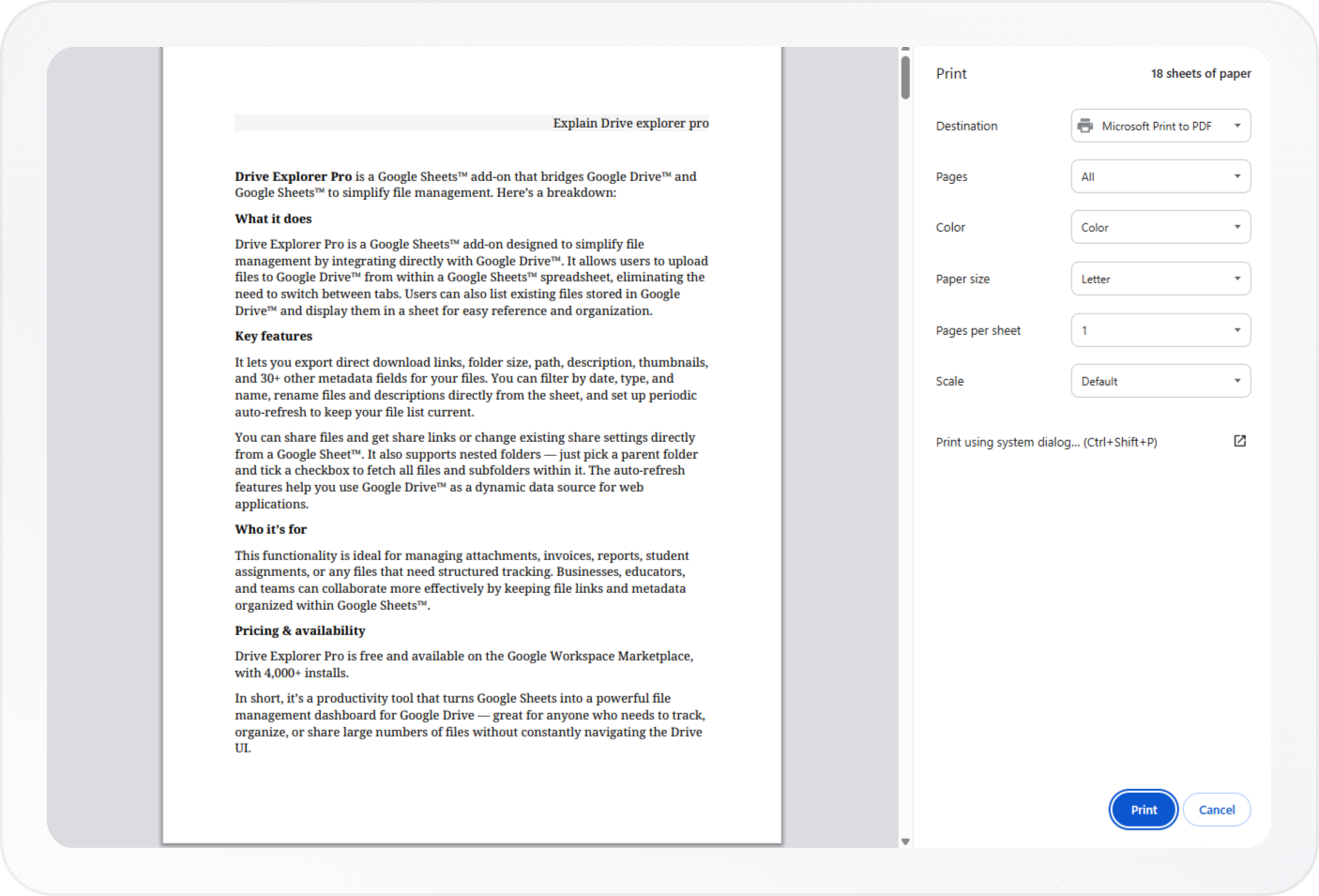
Press Ctrl+P on Windows or Linux, or Cmd+P on Mac to open the print dialog.
-
In the print dialog, click the Destination dropdown and select Save as PDF.
-
Click Save, choose a location on your device, and save the file.
You now have a PDF copy of the chat on your device.
This method is quick and requires no installation, but it offers limited control over formatting and only creates a PDF file.
If you need cleaner exports, better formatting preservation, support for artifacts and rich content, or additional export formats, use the extension method below.
Downloading Using Claude to PDF Extension
The Claude to PDF extension adds export options directly to the Claude interface. Unlike copy-and-paste or browser printing, it preserves formatting for code blocks, tables, artifacts, and other rich content. For Word exports specifically, see how to export a Claude chat as a Word document for format-specific guidance.
It can:
- Export an entire chat.
- Export an individual Claude response.
- Export selected messages from a chat.
- Export artifacts created in Claude.
- Export in multiple formats, including PDF, Word, Google Docs, and Markdown.
Use it when you need a clean export with more control over what gets downloaded.
Installing the Extension
-
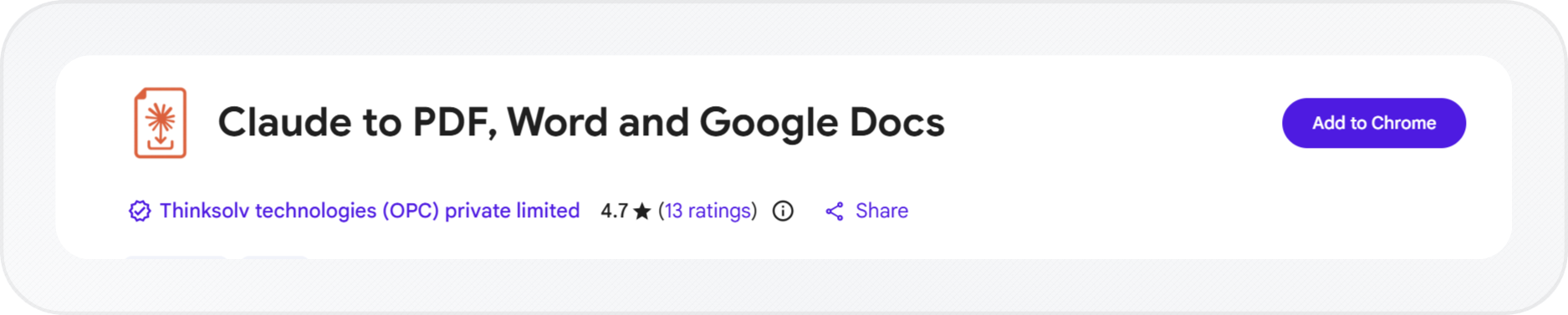
Open the Claude to PDF, Word and Google Docs extension in your browser.
-
Click Add to Chrome.
-
Click Add extension in the confirmation dialog.
-
Open or refresh claude.ai in your browser.
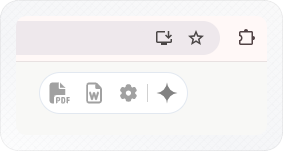
The extension is now installed and ready to use.
Next, configure the extension settings to choose your preferred export format and other options.
Configuring the Extension Settings
Click the Claude to PDF settings icon in the top-right corner of your browser to open the settings panel.
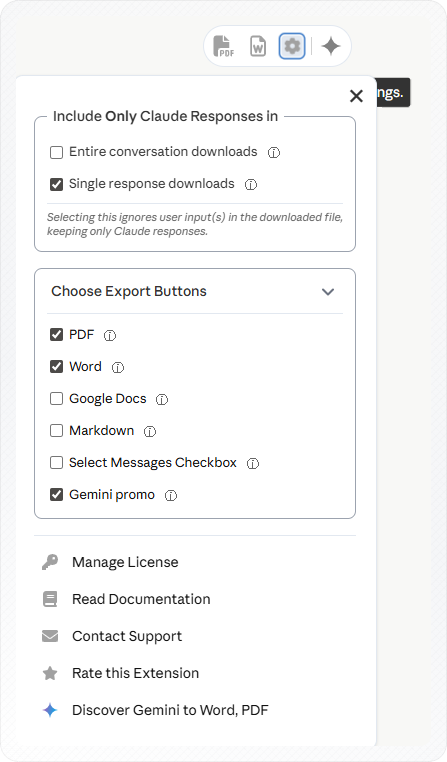
Include Only Claude Responses
By default, exported files contain both your prompts and Claude's responses. Enable this option if you want to export only Claude's replies.
You can configure this separately for:
- Entire conversation downloads - Applies to full chat exports.
- Single response downloads - Applies when exporting an individual Claude response.
Enable either option, both options, or neither depending on your needs.
Choose Export Buttons
This section controls which export buttons appear in Claude. PDF and Word are enabled by default.
You can also enable:
- Google Docs - Export directly to Google Docs.
- Markdown - Export as a Markdown file.
- Select Messages Checkbox - Lets you choose specific messages to include in an export.
If an export button does not appear in Claude, confirm it is enabled here and refresh the Claude tab.
Downloading an Entire Chat
This option exports the entire chat, including both your prompts and Claude's responses. Use it when you want a complete record of a conversation, such as a Deep Research session, client briefing, or long drafting project.
-
Open the Claude conversation you want to export.
-
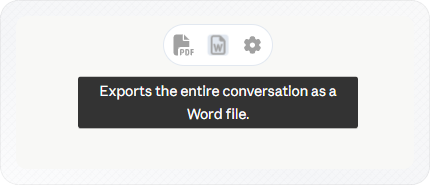
Click the export button for your preferred format:
- Word
- Google Docs
- Markdown
-
Check your Downloads folder. The file is saved there automatically.
-
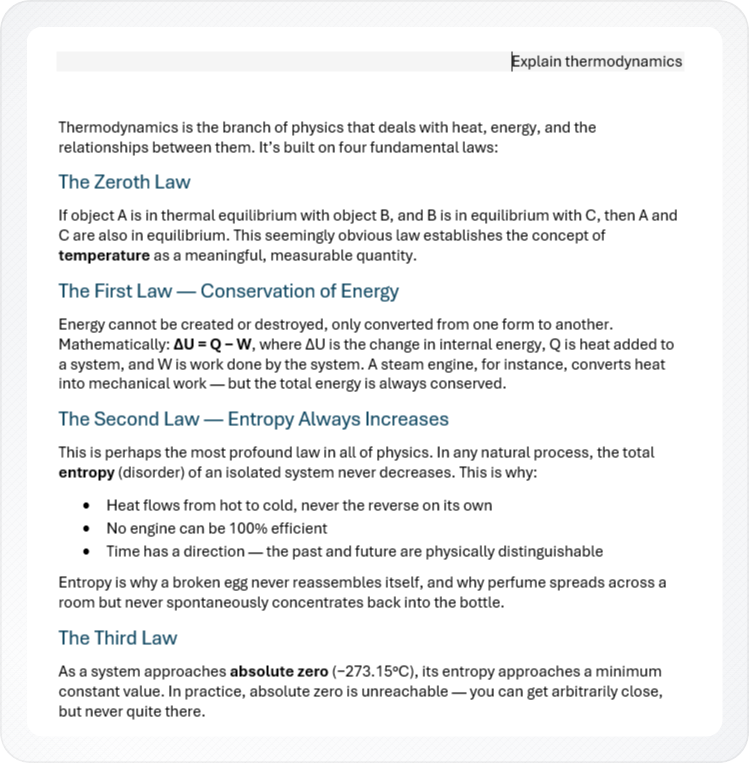
Open the downloaded file.
Downloading a Single Claude Response
This option exports only one Claude response instead of the entire chat.
Use it when you need a specific answer, such as a code snippet, report section, summary, or explanation.
-
Scroll to the Claude response you want to export.
-
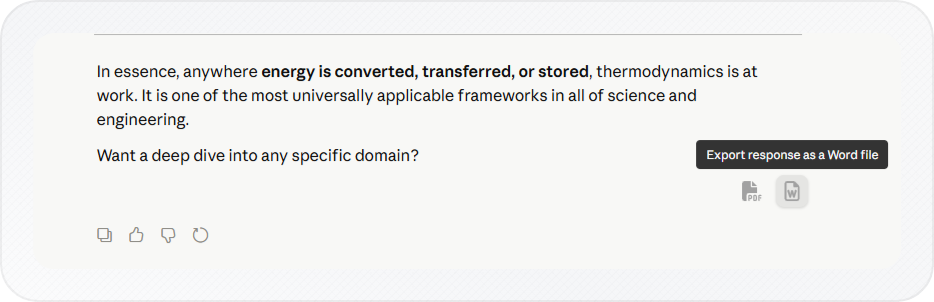
Click the export button below that response.
-
Choose your preferred export format.
-
Check your Downloads folder. The file is saved there automatically.
Only the selected response is included in the exported file.
Downloading Selected Messages
This option exports only the messages you choose from a chat.
It is useful when only part of a conversation is relevant. For example, you might want to save only the final solution from a long troubleshooting session.
Note: This feature requires Select Messages Checkbox to be enabled in the extension settings.
-
Open the extension settings and enable Select Messages Checkbox.
-
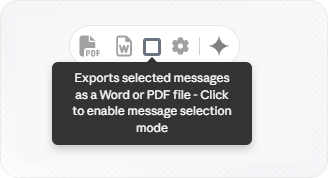
Open the chat and click the Select Messages icon.
-
Select the messages you want to include.
The extension displays the number of selected messages before export.

-
Click the export button for your preferred format.
The exported file contains only the selected messages, in the same order they appear in the chat.
Downloading a Claude Artifact
Claude artifacts are standalone outputs that open in a side panel, such as reports, code files, spreadsheets, diagrams, websites, and structured documents.
For more on creating and managing artifacts before exporting them, see How to Create Artifacts in Claude.
Use this option when you want to download only the artifact rather than the surrounding chat.
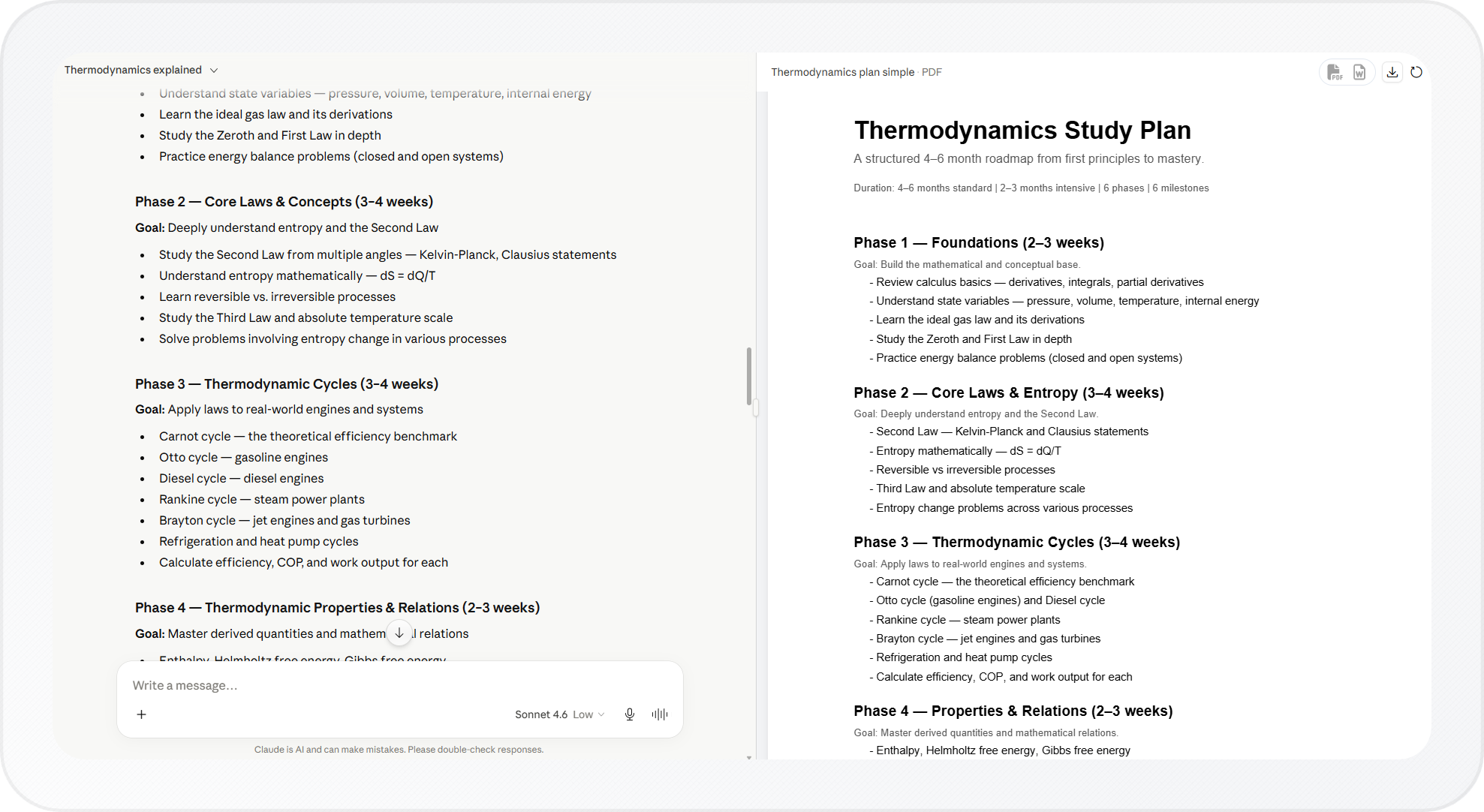
Important: If an artifact is open, the export buttons apply to the artifact. If no artifact is open, the same buttons export the entire chat.
-
Open the artifact from the chat.
-
Click the export button in the top-right corner of the artifact panel.
-
Choose your preferred export format.
-
Check your Downloads folder. The file is saved there automatically.
Only the artifact content is included in the export. The surrounding chat is not exported.
To share the artifact with others, see Publishing and sharing artifacts.
Conclusion
You now know three ways to download chat in Claude:
- Copy and paste for editable text you can work with in another app.
- Print to PDF for a quick download without installing anything.
- Claude to PDF for cleaner exports, additional formats, and more control over what gets downloaded.
For Word exports specifically, see how to export a Claude chat as a Word document.
Choose the method that best fits your needs, whether you're saving a chat for reference, sharing it with others, creating a backup, or exporting specific responses, messages, or artifacts.