
How to Delete Chats in Claude (Single and Multiple Chats)
Learn how to delete single or multiple chats in Claude, understand what happens to your data after deletion, and manage your chat history with confidence.
Deleting a chat removes it from your history immediately. Anthropic retains the data for up to 30 days before permanent deletion, but you cannot access or recover it during that period. If you need a copy, export the chat as a Word document before you delete it.
You can delete individual chats or remove multiple conversations from your Claude history.
In this guide, you will learn two ways to delete chats in Claude and when to use each method. For Anthropic's official reference, see How can I delete or rename a conversation?.
Important: Deletion is permanent. Claude has no trash folder and no undo option. Once you confirm, the chat is gone from your history right away.
Note: On Claude for Work and Enterprise plans, workspace admins can manage conversation retention and deletion settings. Check with your admin before deleting chats. If you want to keep conversations without deleting them, organise them into a project instead.
What Deletion Does and Does Not Do
| Removed immediately | The chat disappears from your sidebar, recents list, and any project it belonged to. |
| Not recoverable | No undo and no trash folder. |
| Shared links | The chat is removed from Settings > Privacy > Shared chats and the link stops working. |
| Claude memory | Not cleared. Edit or delete saved memories in Settings > Capabilities. |
| Usage limits | Unaffected. Deleting old chats does not reset message quotas. |
Deleting a Single Chat in Claude
You can delete any chat from the sidebar. Use this method when you want to remove one specific chat.
If you want to keep a local copy on your device, you can download the chat using your browser or a Chrome extension before deletion.
- Go to claude.ai.
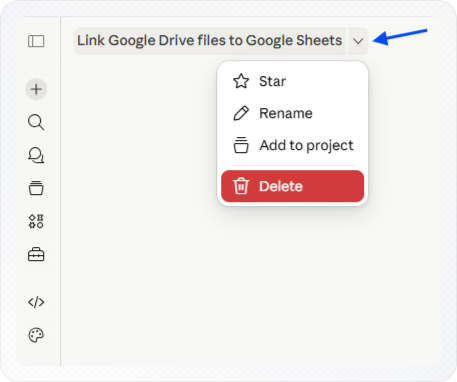
- Click the down arrow next to the chat name.
-
Select Delete.
-
Click Delete to confirm.
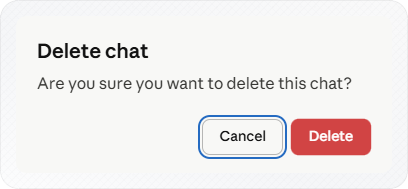
The chat no longer appears in your sidebar or your recents list.
Alternatively, if you only need to give someone else access to the conversation, you can share the chat as a link without deleting it.
Deleting Multiple Chats in Bulk
You can select and delete multiple chats at the same time from the Chats page. Use this method when you have a large number of old chats to remove.
- Click Chats in the left sidebar.
- Click Select Chats.

- Check the boxes next to the chats you want to delete.
Tip: Review your selections before you confirm. There is no way to undo a bulk deletion once it's done.
- Click Delete.
- Click Delete again to confirm.
All the selected chats are now gone from your history.
Conclusion
You can delete chats in Claude individually or remove multiple conversations at once from the Chats page, making it easy to clean up your chat history whenever you no longer need older conversations.