
How to Use Deep Research in Claude
Learn how to use Claude's Deep Research feature to get detailed, cited reports, including where to find the button, how to turn it on, and how to write prompts that work.
Claude has a built-in Deep Research feature that works like a personal research assistant by searching the web, analyzing multiple sources, and generating detailed reports with citations.
Many users enable Deep Research but still receive a short response instead of a full research report. Deep Research performs best when the prompt clearly defines the topic, goal, and expected output.
In this tutorial, you will learn how to use Deep Research in Claude, how to enable it, and how to write prompts that produce better research reports.
Prerequisites
- A paid Claude plan: Pro, Max, Team, or Enterprise. You can check your current plan and usage from Settings, or compare plans to find the right fit.
- Access to claude.ai in a browser or through the Claude desktop app
Enabling Deep Research in Claude
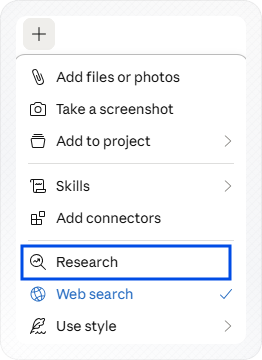
The Research button is available directly in the chat interface, not in Settings. You'll find it at the bottom of the chat near the message box.
Note: These steps apply to the Claude web and desktop app. On the Claude mobile app, tap the + button at the bottom of the chat to access the Research and Web search options.
For more details, see the official documentation on Using Research on Claude
-
Open claude.ai and start a new or existing chat.
-
Click the + button at the bottom of the chat.
-
Select Research from the menu.
Note: If you don't see the Research option, your current Claude plan doesn't support it. Research is available on Pro, Max, Team, and Enterprise plans.
- Web search is automatically enabled.
Note: Research requires Web search to be enabled. If Web search is off, Claude responds from its existing knowledge instead of running a live research session.
Both buttons remain highlighted when enabled. Claude is ready to run a full automated research session on your next message.
Understanding the Difference Between Web Search and Research
Web search and Research both use online sources but serve different purposes. Knowing which to use saves you time.
Web search runs one quick search and adds the result to Claude's answer. You get a short reply, usually one or two paragraphs, with a link to the source. Use it for fast, factual questions.
- "What's the latest version of Python?"
- "Who won the Champions League in 2025?"
Research performs multiple connected searches automatically. Claude uses earlier findings to guide subsequent searches. Claude reads full pages, checks sources, and writes a full report. The final output is a structured report with cited sources. Use it for topics that need depth.
- "Compare the top project management tools for remote teams in 2026."
- "What are the pros and cons of Drive Explorer Pro for managing Google Drive files?"
A good rule: if you'd spend 30 minutes researching it yourself, use Research. If you'd Google it once, use Web search.
For Anthropic's full guidance, see When should I use web search, extended thinking, and research?.
Writing a Prompt That Gets a Good Report
A vague prompt gives Claude very little direction. A detailed prompt tells Claude exactly what to find and how to present it.
Think of it like briefing a colleague before they go off to do research for you. The more context you give, the better the result.
Adding Context Before Your Request
Always tell Claude:
- Who you are: your background or role
- Why you need this: what you'll use the report for
- What you already know: so Claude doesn't cover basics you don't need
This context shapes the entire report. Without it, Claude assumes.
Note: Vague prompts often cause Claude to ask follow-up questions before starting the research. Adding more context upfront usually produces a more focused report.
Using a Descriptive Prompt
Here's the difference between a vague prompt and a strong one.
Vague prompt:
Tell me about Drive Explorer Pro.
Descriptive prompt:
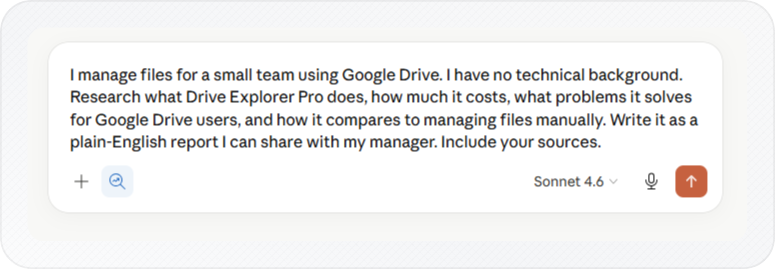
I manage files for a small team using Google Drive. I have no technical background. Research what Drive Explorer Pro does, how much it costs, what problems it solves for Google Drive users, and how it compares to managing files manually. Write it as a plain-English report I can share with my manager. Include your sources.
The descriptive prompt defines your situation, goal, knowledge level, key angles, output format, and source requirements.
Use this structure for your own prompts:
[Who you are and your context]

Research [topic].

Cover:
- [specific angle 1]
- [specific angle 2]
- [specific angle 3]

Include:
- Sources and links
- Key risks or downsides
- A clear recommendation

Write it as [format, e.g. a plain-English report, a comparison table, a summary I can share].
Once your prompt is ready and both Research and Web search are enabled, you can start the research session.
Running Deep Research on Claude
Claude begins searching, analyzing sources, and building the report automatically after you send the prompt.
Note: Research performs multiple searches and generates longer responses, so it uses more of your Claude usage limit than a standard chat. Monitor your remaining quota from Settings > Usage before running long sessions.
-
Click Send after writing your prompt.
-
Check the progress display above the response area. You'll see a live list of actions, things like "Searching for..." and "Reading source...", appearing as Research runs. This confirms Research mode is working.
-
Wait for it to finish. Most reports take 1 to 15 minutes, simple topics finish faster, multi-angle research takes longer.
-
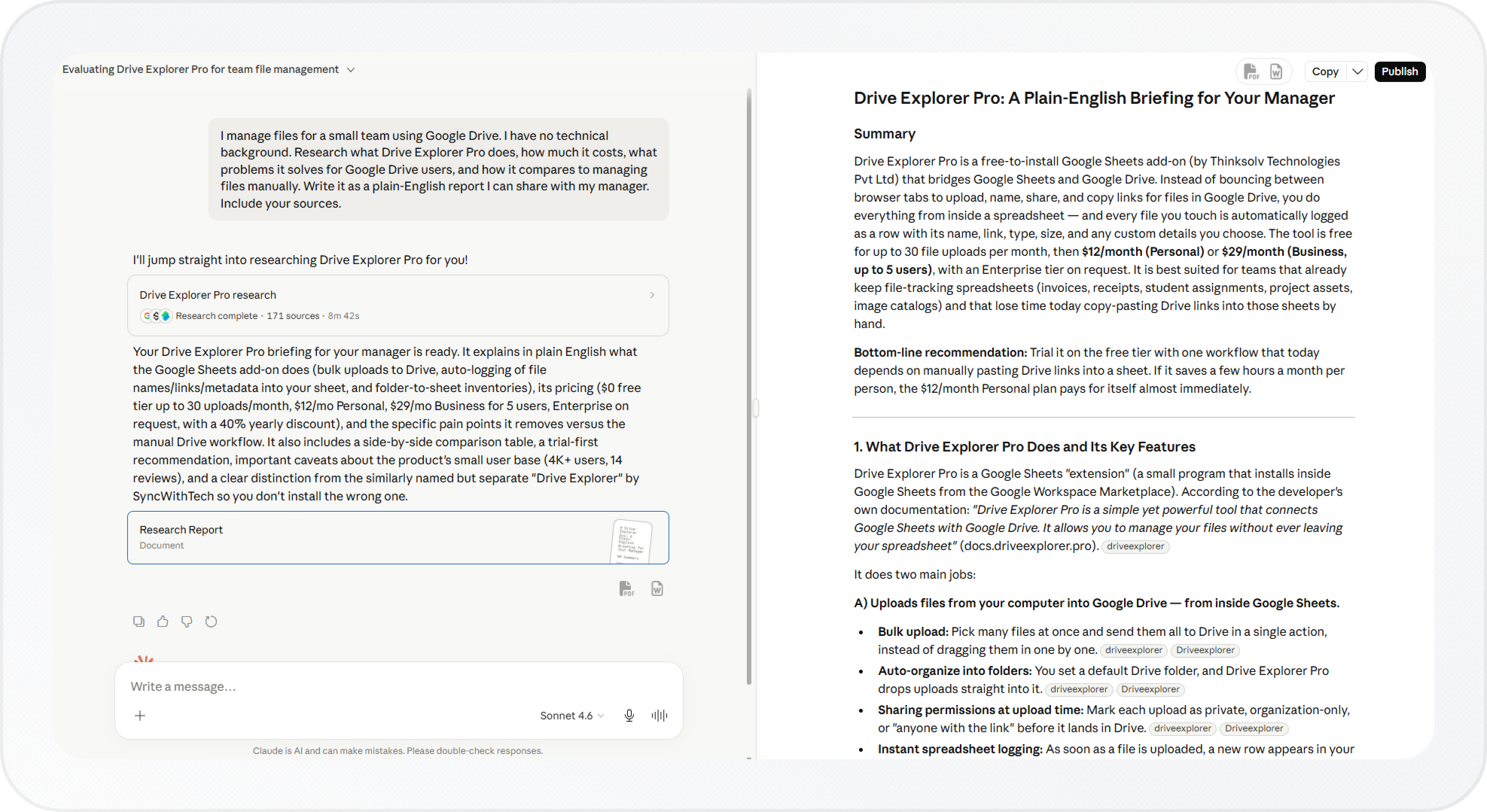
Read through the report when it's done.
-
At the end of the report, Claude lists the sources it used. Click through them to verify the information.
Important: Research can occasionally misinterpret sources or rely on outdated information. A quick source check helps spot errors before you act on them.
You now have a full research report in your chat. Treat it as a first draft rather than a final document, and verify important findings before relying on the conclusions. Once you're satisfied, export it as a Word document to share or archive it outside Claude. If Claude also generated a standalone artifact alongside the report, see how to create artifacts in Claude.
Getting Better Results With Follow-Up Messages
You can refine any part of the report by sending a follow-up message in the same chat. Ask Claude to expand, rewrite, or go deeper on any section.
Claude uses the current conversation in follow-up responses, so you build on what it already found without starting over.
Try these after your first report:
- "Go deeper on the cost breakdown section."
- "Rewrite the summary so a non-technical reader can follow it."
- "What are the strongest arguments against this?"
- "Add more recent sources, only from 2025 and 2026."
Note: If the report feels too broad or shallow, your original prompt lacked scope. Use a follow-up to add constraints: a timeframe, a specific audience, or criteria to compare. Or start a new chat with a more detailed prompt.
Each follow-up sharpens the report. You stay in the same chat the whole time.
Choosing Between a New Chat and the Same Chat
Your choice of chat affects how much previous context Claude uses in future research responses. Use the same chat to continue existing research, or start a new one when switching topics.
Start a new chat when:
- You're researching a completely new topic
- You want a clean report without earlier conversation context
- You're hitting your message limit in the current chat (see how to reduce token usage in Claude to extend your sessions)
Stay in the same chat when:
- You want to explore part of the report in more detail
- You're refining or rewriting a section
- You want Claude to compare new information with earlier findings
For example, if you researched Drive Explorer Pro and now want to compare it with a competitor, stay in the same chat. If you're starting research on a completely unrelated topic, begin a new chat instead.
To explore a different direction without losing your current thread, branch the conversation instead of starting a new chat.
Conclusion
You now have Deep Research enabled, a prompt structure that gets real reports, and a way to refine results without starting over.
Before relying on any findings, review the cited sources and verify important details. Deep Research can save significant research time, but treat every report as a first draft until you have checked the sources.
Next, try it on a real topic. Write a detailed prompt, send it, and use a follow-up message to go deeper on the section that matters most.