
How to Create Artifacts in Claude
Learn how to create artifacts in Claude, from picking a category in the Artifacts sidebar to describing what you want directly in chat.
Claude can turn a description into a working app, document, or tool and display it in a dedicated panel next to your chat. These outputs are called artifacts. The artifact panel sits beside your chat, giving you a workspace where you can view, edit, and reuse the content Claude creates.
In this guide, you will learn how to create artifacts in Claude using two methods, along with guidance on when to use each one.
Prerequisites
- A Claude account - free, Pro, Max, Team, or Enterprise.
- Access to Claude on the web or desktop app.
Artifacts are on by default. You do not need to configure anything before you start. For Anthropic’s official reference, see What are artifacts and how do I use them?.
In most cases, Claude automatically creates an artifact when the output is substantial enough to stand on its own, such as a document, website, diagram, code file, or app.
Claude can create many different types of artifacts.
| Artifact Type | Examples |
|---|---|
| Documents | Blog posts, reports, meeting notes |
| Code | Scripts, functions, applications |
| Websites | Landing pages, portfolios, product pages |
| Images | Icons, logos, simple illustrations |
| Diagrams | Flowcharts, workflows, process diagrams |
| Interactive tools | Calculators, dashboards, trackers |
Creating from the Artifacts Sidebar
You can create an artifact directly from the Artifacts section in the Claude sidebar. This method works by showing you a menu of categories. Claude then asks you a few questions before building.
Use this method when you want a structured starting point, or when you are not sure exactly what to ask for yet.
To share, publish, or embed an artifact, see Publishing and sharing artifacts.
After these steps, you will have a finished artifact open in the artifact panel, ready to use or refine.
-
Open Claude.ai in your browser or desktop app.
-
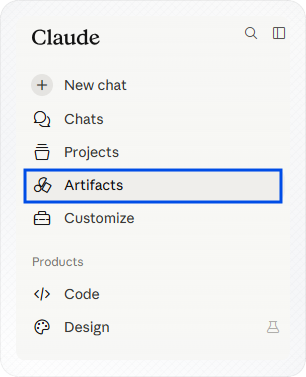
Click Artifacts in the left sidebar.
-
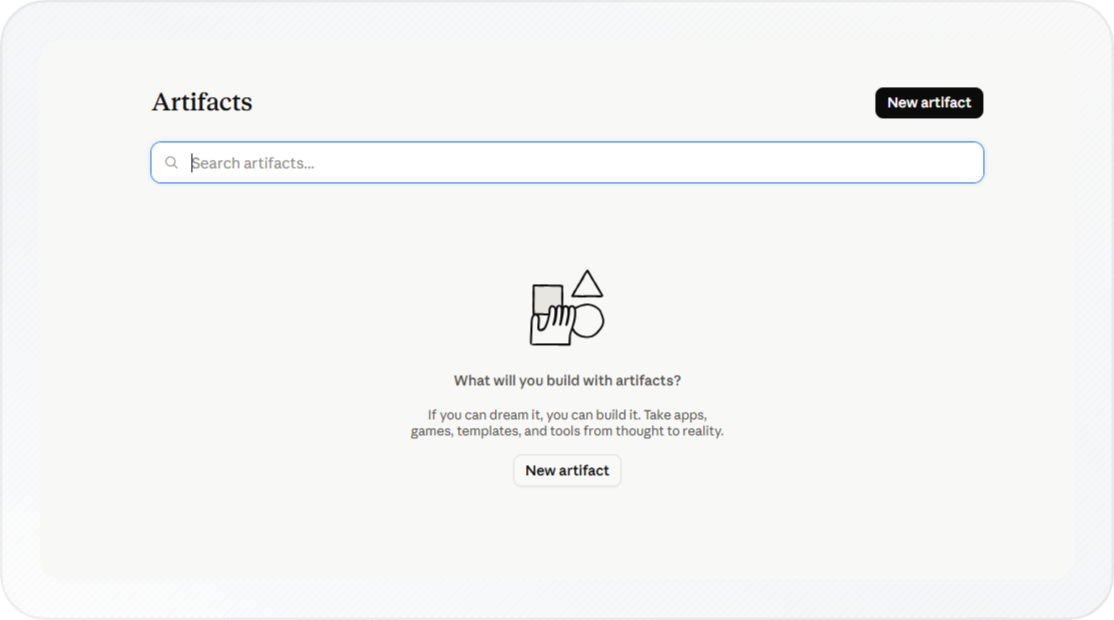
Click New artifact.
-
Select a category from the picker. The options are: Apps and websites, Documents and templates, Games, Productivity tools, Creative projects, Quiz or survey, and Start from scratch.
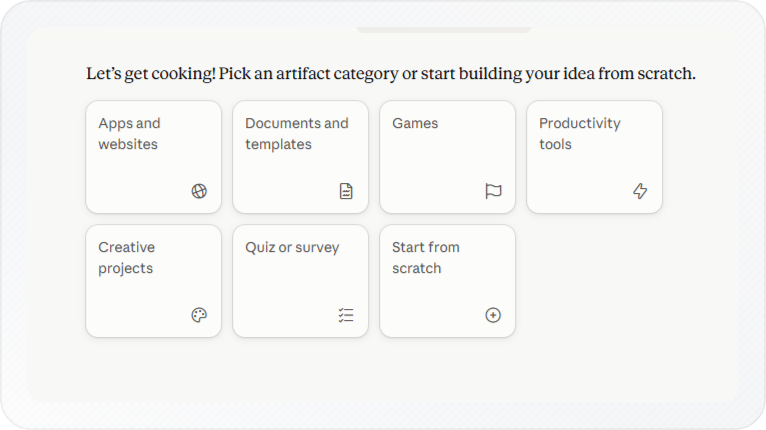
Claude asks what kind of artifact you want, what it is for, and any format preferences.
-
Enter your answers in the chat input and press Enter.
If your request is clear, Claude starts building. If not, it asks a few follow-up questions.
-
Watch the right side of the screen. Claude builds the artifact and displays it in the artifact panel.
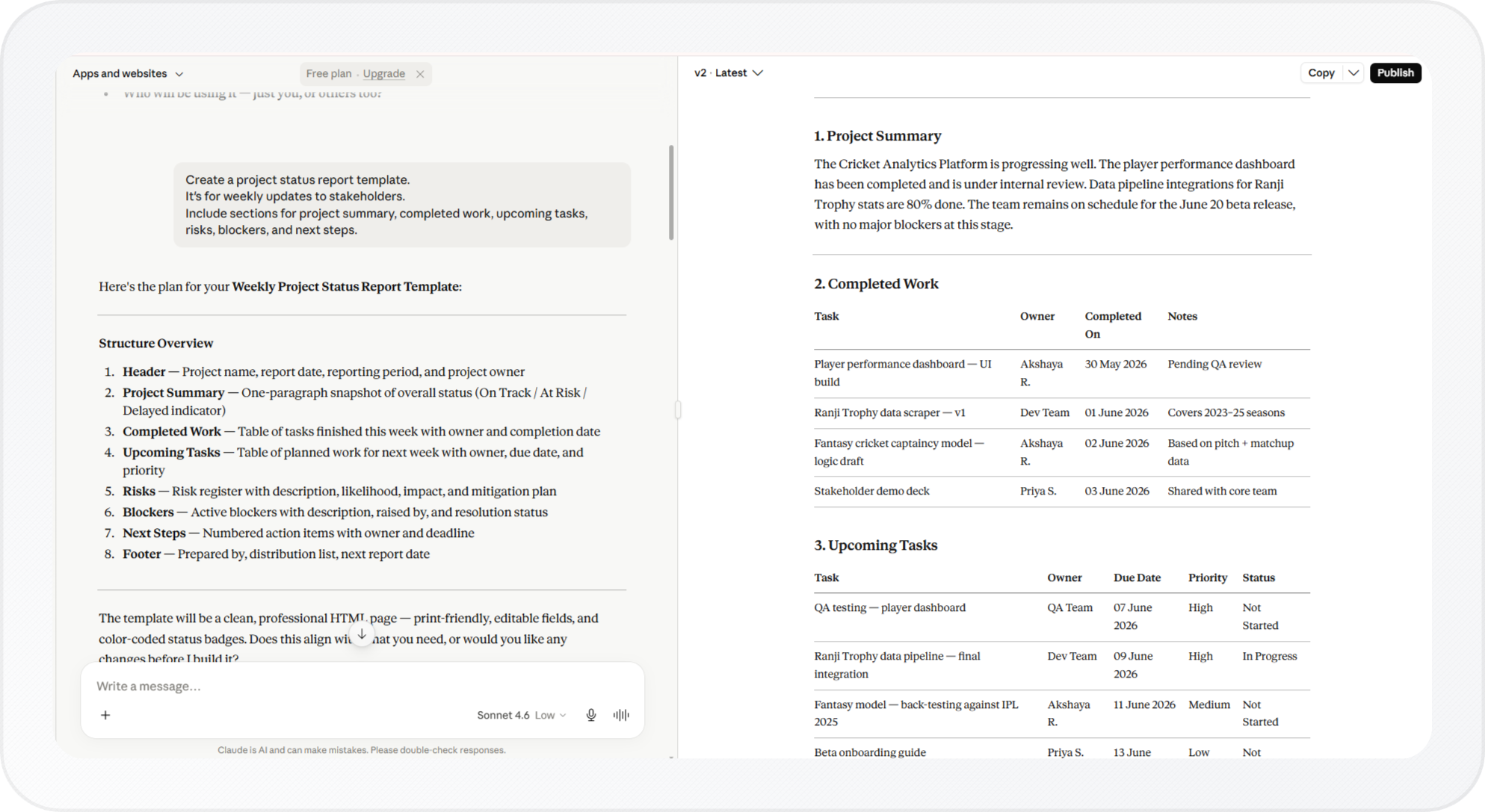
You now have a working artifact in the artifact panel. Claude stays open in the chat so you can request changes right away.
Editing and Exporting the Artifact
-
Quick-edit buttons - highlight any text in the artifact and two options appear:
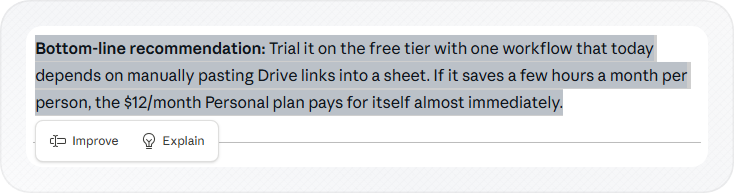
- Improve - opens a text box where you describe how to improve that section.
- Explain - explains the highlighted text in the chat.
-
Version history - Claude automatically saves each change to your artifact. Click the back and forward arrows at the top of the artifact panel to move between saved versions. The current version number appears between the arrows.
-
Export options in a dropdown at the top right:
- Copy - to your clipboard
- Download as Markdown -
.mdfile - Download as PDF -
.pdffile - Publish - create a shareable link that lets other people view and use the artifact without accessing your chat.
To share a finished artifact with a public link instead of downloading it, see How to Publish Artifacts in Claude.
Tip: If the result is not what you expected, type a follow-up in the chat. For example: "make the layout two columns" or "change the tone to formal." Claude updates the artifact without starting over.
Creating by Prompting in Chat
You can also create an artifact directly from a Claude chat by describing what you want to create.
When Claude determines that the response is better suited as a standalone output, it automatically opens it in the artifact panel. This typically happens for larger outputs such as documents, websites, diagrams, apps, and other content you may want to edit, reuse, or share.
Use this method when you're already chatting with Claude and want to turn an idea into a document, tool, diagram, or other artifact.
After completing these steps, your artifact opens in the panel beside the chat.
-
Open any chat in Claude, a new chat or an existing one.
-
Enter your request in the chat input in plain English. Be specific about what you want.
For example:
- "Build me a weekly habit tracker with checkboxes for seven days and five habits."
- "Write a one-page project brief template for a software launch."
-
Press Enter to send.
-
Watch the right side of the screen. When Claude creates an artifact, the artifact panel opens with the output inside it.
You now have an artifact built from your prompt, displayed in the artifact panel.
Tip: If Claude puts your output in the chat instead of the panel, add this to your next message: "Put the output in an Artifact." Claude will move it to the panel.
Editing and Exporting the Artifact
- Edit via chat - type your changes directly in the conversation. Claude updates the artifact.
- Export options in a menu at the top right:
- Copy - to clipboard (Copy as Markdown for documents, Copy as code for scripts)
- Download - as a file (
.mdfor documents) - Print as PDF - generate a PDF
- Publish artifact - create a shareable link that lets other people view and use the artifact without accessing your chat.
Conclusion
You now know how to create artifacts in Claude using either the Artifacts sidebar or a chat prompt.
After creating an artifact, you can continue refining it directly in Claude and share or download it when it's ready. To export an artifact as a Word document, see how to export a Claude chat as a Word document.