
How to Reduce Token Usage in Claude
Learn how to reduce token usage in Claude by changing a few habits and settings, so your usage limit lasts longer every session.
Claude lets you write, research, and think through problems in one conversation. Your usage limit controls how much you can do in a single session.
But that limit isn't a flat message count. Claude measures usage in tokens. Tokens are pieces of text that Claude reads and generates while responding. Longer chats, large file uploads, active tools, and more capable models all use more tokens per message. Two users on the same plan can hit their limit at very different speeds.
In this guide, you will learn how to reduce token usage in Claude using six habits and settings changes.
Prerequisites
- A Claude account (Free, Pro, Max, Team, or Enterprise). Some tips in this guide require a paid plan, these are marked with a Note callout in each section.
Reducing Your Token Usage
The habits and settings below target the most common sources of token waste. Apply the ones that match how you work. Free plan users can use the first four without a paid plan.
For more ways to stay within your limits, see Anthropic's Usage limit best practices.
1. Combining Questions Before Sending
Every message makes Claude re-read the conversation from the beginning. Sending three separate follow-up messages can use more context than combining those requests into a single message.
When you have multiple questions about the same topic, try grouping them before sending.
For example, instead of sending "Can you shorten this?" followed by "Also fix the tone"
You can send:
"Shorten this and adjust the tone to be more direct."
One message gives Claude all the instructions at once, reducing the need for additional follow-up messages.
2. Starting a New Chat When Switching Tasks
Every message in a chat includes the context of previous messages. When you switch to a completely different task, starting a new chat can help reduce unnecessary context.
For example, if you've been editing a document and now want to plan a new project, click New chat in the left sidebar.
Your previous conversation remains in your chat history, but Claude starts the new chat without the earlier discussion. This gives you a clean starting point for the new task.
3. Turning Off Unused Tools
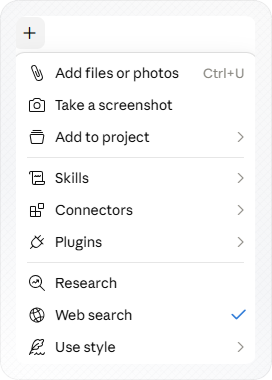
Use this if you have Web search, Research, or other tools enabled that you aren't currently using. Active tools add extra context to your messages, which can increase token usage.
-
Click the + icon at the bottom of the chat input bar.
-
Click Web search to turn it off. The checkmark disappears when it's disabled.
-
If Research has a checkmark next to it, click it to turn it off as well.
For details about Research, see how to use Deep Research in Claude.
You now have only the tools you need enabled. Next, you can reduce context usage by letting Claude pull information from past chats when needed.
4. Using Memory and Chat Search
Retyping your context at the start of every new chat uses tokens. Claude's memory and chat search let Claude pull context from past chats, so you don't have to repeat it.
Note: Memory and chat search require a paid plan: Pro, Max, Team, or Enterprise.
-
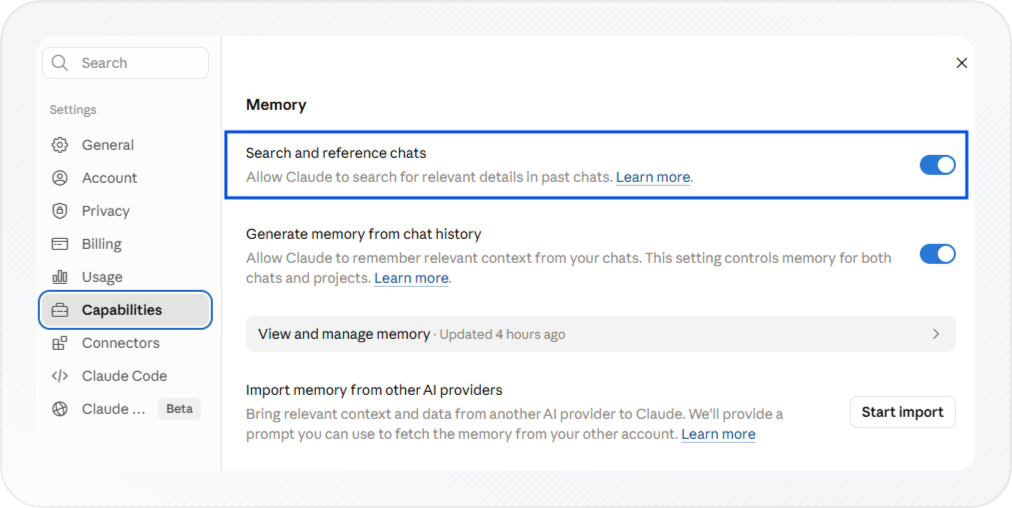
Open Settings → Capabilities.
-
Enable Search and reference chats.
-
Open a new chat in claude.ai.
-
Ask Claude to find information from a previous conversation. For example:
Search my past chats for the project brief we discussed last week.
-
Claude searches your chat history and brings the relevant information into the current chat.
-
Continue the conversation using the retrieved context instead of retyping it.
You now have past context on hand without copying and pasting it each time. To set up memory so Claude builds context automatically, see how to enable memory in Claude.
Next, you can reduce the token cost of working with the same files by storing them in a project.
5. Using Projects for Repeated Files
Use this if you work with the same documents across multiple chats, such as research notes, briefs, or reference files. By storing these files in a project, you can reuse them across chats without uploading them each time.
Note: If you update a file later, upload the new version to the project. Claude won't automatically detect changes made to files on your device.
-
Open claude.ai and select Projects from the left sidebar.
-
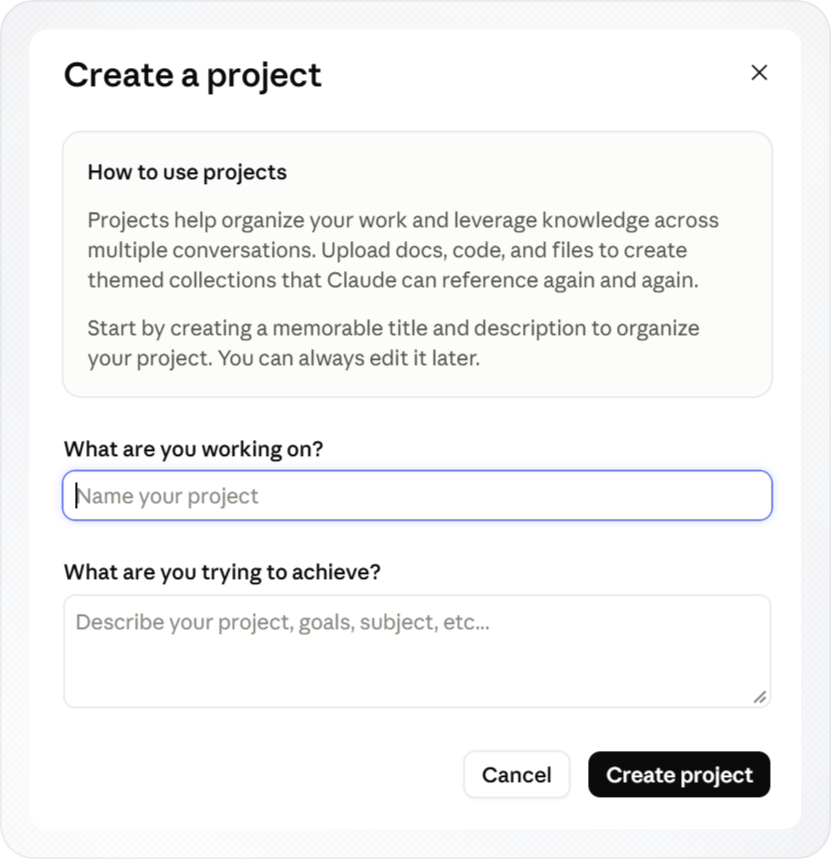
Click New Project.
-
Enter a project name and description, then click Create project.
-
Click +, then upload your files or add project instructions.
-
Start a chat inside the project and ask your questions there.
Your files are now available across chats within the project, so you don't need to upload them again each time.
To learn more about Projects, see how to create and manage a project in Claude.
Once your files are in place, the next step is choosing the right model and effort level for your task.
6. Switching Models and Adjusting Effort for Everyday Tasks
Claude offers multiple models. Faster models use fewer tokens, while more advanced models use more tokens but handle more complex work. You do not need the most powerful model for every task.
| Task Type | Recommended Model |
|---|---|
| Quick questions, short edits, summaries | Haiku |
| Writing, research, moderate tasks | Sonnet |
| Complex reasoning, long tasks | Opus |
| Your hardest reasoning or analysis tasks | Fable 5 |
For the full model picker walkthrough, see How to Switch Models in Claude.
-
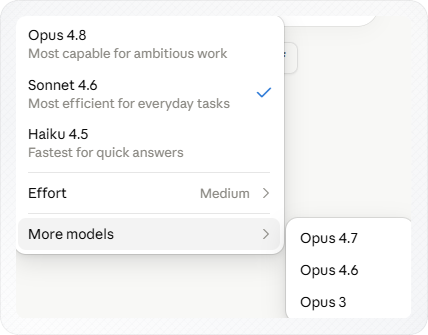
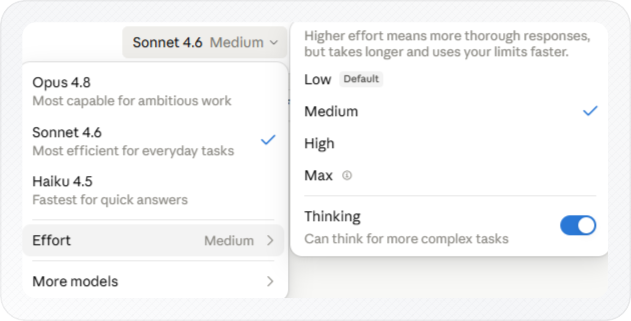
Click the model name at the bottom of the chat input bar (for example, Sonnet 4.6 Medium).
-
Select the model that fits your task from the list.
-
Click Effort and choose Low or Medium for most everyday tasks. Use higher effort only when you need deeper analysis or complex reasoning.
-
Locate the Thinking toggle and turn it off for routine tasks such as editing text, summarizing content, or drafting emails. Turn it back on only for multi-step analysis or complex problem solving.
You now have the right model settings for the task, which stops your limit from draining faster than it needs to.
To monitor how much usage remains, go to Settings > Usage. The usage page shows your current session usage. This view is available on Pro, Max, Team, and seat-based Enterprise plans only.
Conclusion
You now know several ways to reduce token usage in Claude, including improving prompt habits, disabling unused tools, reusing past context, storing files in projects, and choosing the right model for the task.
For many everyday tasks, using a lighter model such as Haiku or Sonnet can significantly reduce usage compared to Opus. Free plan users can apply most of the techniques in this guide, while features that require a paid plan are noted throughout.
As a general rule, start a new chat when you switch to a different task. This helps keep conversations focused and avoids carrying unnecessary context from earlier messages.