
How to Branch Conversations in Claude
Learn how to branch conversations in Claude by editing an earlier message to explore a new direction without losing your original thread.
Claude lets you go back to any earlier message and edit it. This creates a branch, a separate version of the conversation that continues from that point. Everything before the edit stays intact in both versions.
Most users assume the Edit button is only for fixing mistakes. So when Claude goes off track, they either start a new chat and lose all previous context, or if the topic is ongoing, move it into a project or keep correcting Claude while the conversation continues to build on earlier mistakes.
In this tutorial, you will learn how to branch a conversation in Claude using the Edit button. You will also learn how to navigate between branches and when branching works better than starting over.
Prerequisites
- A Claude account (Free, Pro, Max, Team, or Enterprise). Not sure which plan you have? See Choose a Claude plan.
- An active conversation in Claude.ai on web or desktop
Understanding How Branching Works in Claude
When you edit an earlier message, Claude doesn't delete what came after it. It saves that content as the original branch and starts fresh from the point you edited.
Claude re-reads the active conversation history with every new message. When a conversation goes off track, those earlier mistakes and corrections remain part of Claude's context.
Editing clears the noise from that point forward. Everything after your edit is removed from the active context, while all the context from before the edit stays in place.
Think of it as a tree. If you edit your second message, the conversation splits like this:
Message 1 -> Response 1
                 |
    Message 2 (original) -> Response 2 -> Message 3 -> Response 3
                 |
    Message 2 (edited)   -> fresh start from here
The new branch starts with a clean response from Claude. Everything before your edit is still there. Everything after it, on the original branch is hidden until you switch back with the arrows.
Branching a Conversation by Editing a Message
You can branch any conversation in Claude by editing one of your own messages. Use this method when Claude misunderstands your prompt, when you want to try a different angle, or when a long session has drifted from your goal.
This method works by removing everything after your edit from Claude's context. It then generates a new response from that point. After the steps, you will have two branches in the same thread and you can move between them using the branch arrows.
-
Open your conversation in Claude.ai.
-
Find the message where you want to create a new branch. You can only edit your own messages, which appear on the right side of the conversation.
-
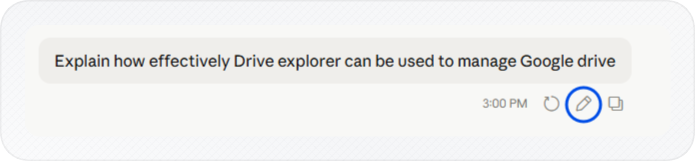
Hover over the message and click the Edit (pencil) icon. On mobile, tap and hold the message instead.
-
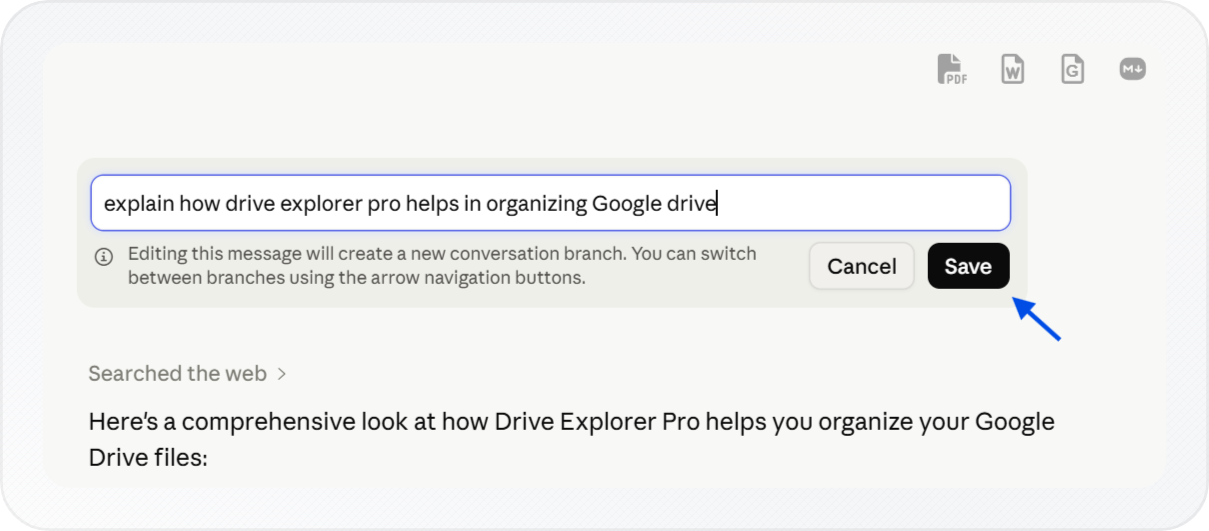
Edit the message to change the direction of the conversation.
-
Click Save.
-
If you want a different answer to the same prompt, click Save without changing the text. Claude generates a fresh response each time.
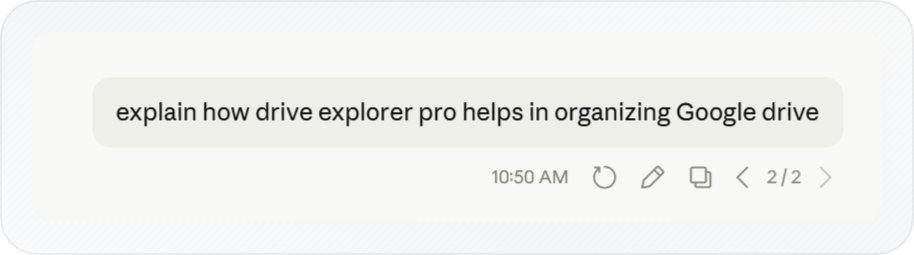
Claude generates a new response from that point. You will see the arrows ◀ 1/2 ▶ appear directly below the message you edited. That is your confirmation the branch was created.
Tip: Copy anything worth keeping before you edit. Once you save, the responses on the original branch leave Claude's active view. They're still there via the arrows, but Claude won't see them unless you switch back.
Navigating Between Branches
After you create a branch, Claude lets you switch between the original conversation and any new branches. Use the arrows below the edited message to move between them.
-
Find the arrows below the message you edited. They appear directly under that message.
The arrows look like this: ◀ 1/2 ▶
-
Check the numbers between the arrows. The first number shows the branch you are viewing. The second shows the total number of branches at that point.
-
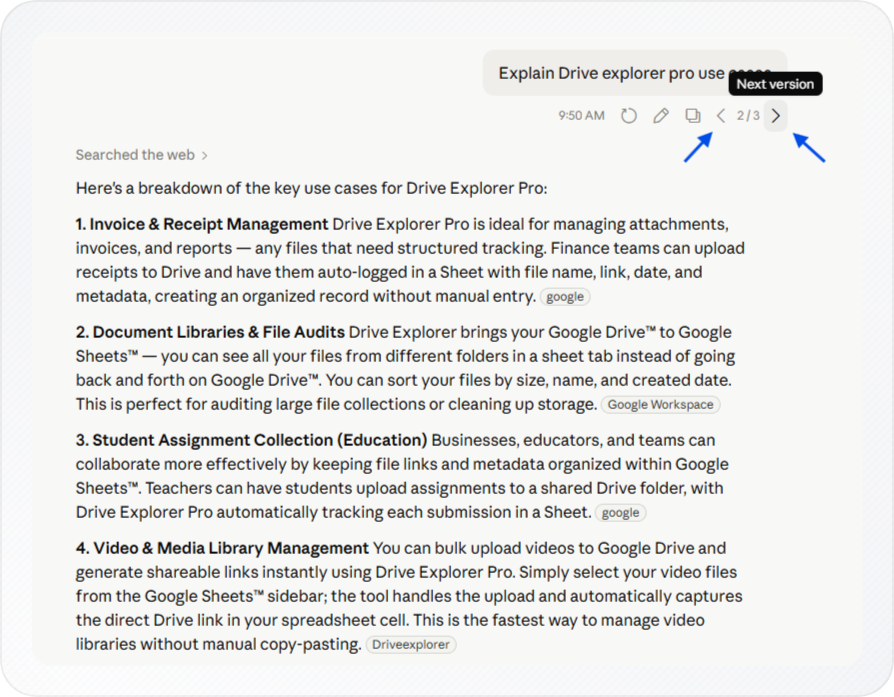
Click ◀ to move to the previous branch. Click ▶ to move to the next branch.
-
If you edit the same message multiple times, the branch count increases. For example, you may see ◀ 1/3 ▶ or ◀ 2/3 ▶. Each edit creates a new branch from that message.
-
Switch between branches to compare different conversation paths. Everything before the edited message stays the same, while everything after it changes based on the branch you select.
You can return to any branch at any time, even after continuing the conversation further in another branch.
When to Use Branching Instead of Starting a New Chat
Branching works best when you want to change direction without losing the context you have built. Here are four situations where it gives you a better result than starting over.
Claude misunderstood your prompt. Don't add a follow-up to fix it. Every correction becomes part of the conversation. Claude carries its own mistake forward. Go back and edit the message that caused the confusion. The bad response never enters Claude's context on the new branch.
For example: you asked "Summarise this report" and Claude gave a bullet list when you wanted a paragraph. Instead of typing "No, write it as a paragraph", go back and edit your original message to "Summarise this report in one paragraph." The bullet list never happened as far as Claude is concerned.
You want to try a different angle. Say you're drafting a report and want to try a different tone. Instead of opening a new chat and re-explaining your brief, edit the message where you gave the original direction. The same context loads in both branches, only the instruction changes.
A long conversation is drifting. The longer a session runs, the more Claude has to read before it gets to what matters. If responses start repeating or losing focus, scroll back to the last message where things worked. Edit from there instead of pushing forward.
You were asking the wrong question. Sometimes mid-session you see the problem. You needed a decision framework but kept asking for summaries. Go back and fix the question. Don't try to redirect from the bottom of a thread already pointed the wrong way.
Knowing the Limits of Branching in Claude
Branching works cleanly for most tasks. But there are a few limits to keep in mind before you rely on it.
| What works | What doesn't |
|---|---|
| Edit any of your own messages to create a branch | Branch directly from a Claude response |
| Original branch stays accessible via arrows | See branches as separate chats in the sidebar |
| Switch between branches at any time | Name or label a branch |
| Works on all plans - Free, Pro, Max, Team, Enterprise | Merge two branches together |
| Everything before the edit stays intact in both branches | Surfacing old branches gets harder once a conversation becomes very long |
Branches live inside the thread. No new chat is created. The branches exist as versions within the same conversation. If you need a clearly labeled separate record, start a new chat and bring the relevant context with you. If you’re running into message limits, see how to check usage limits in Claude.
If you have gone many messages deep into one branch and want to return to another, scroll up to the edited message. The arrows remain there, even in long conversations. Any messages you added on the current branch stay on that branch and do not carry over when you switch.
For anything worth keeping long-term, export the conversation as a Word document before you switch branches.
Note: Branching is not the same as starting a new chat. Both branches share the same history up to the edit point. Claude sees all the context you built before the edit in both branches.
Conclusion
You now have a clean way to branch any Claude conversation. Edit an earlier message, switch between versions with the arrows, and keep your full context while exploring a new direction.
Branching is one of the easiest ways to improve long Claude sessions without rebuilding context from scratch. Instead of restarting conversations or stacking corrections onto bad prompts, you can rewind to the point where things went wrong and continue from there cleanly.