
How to Check Usage Limits in Claude
Learn how to check your Claude usage limits, session reset timers, and weekly quotas from the Settings page, and understand what each limit type means.
Claude applies usage limits to messages, tools, and some premium features. If you're unsure how much usage you have left or when your limits reset, you can check everything from the Usage page in Settings.
In this guide, you'll learn how to check Claude usage limits, understand the different limit types, and see what happens when you reach them.
Checking Claude Usage Limits in Settings
The Settings page shows your session usage, weekly limits, feature quotas, and credits in one place.
You can also open Claude Usage while logged in to Claude to jump directly to the Usage page.
-
Open claude.ai.
-
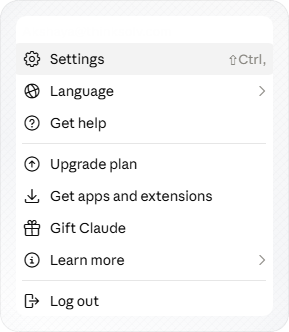
Click your profile initials in the bottom-left corner of the screen.
-
Select Settings from the menu.
-
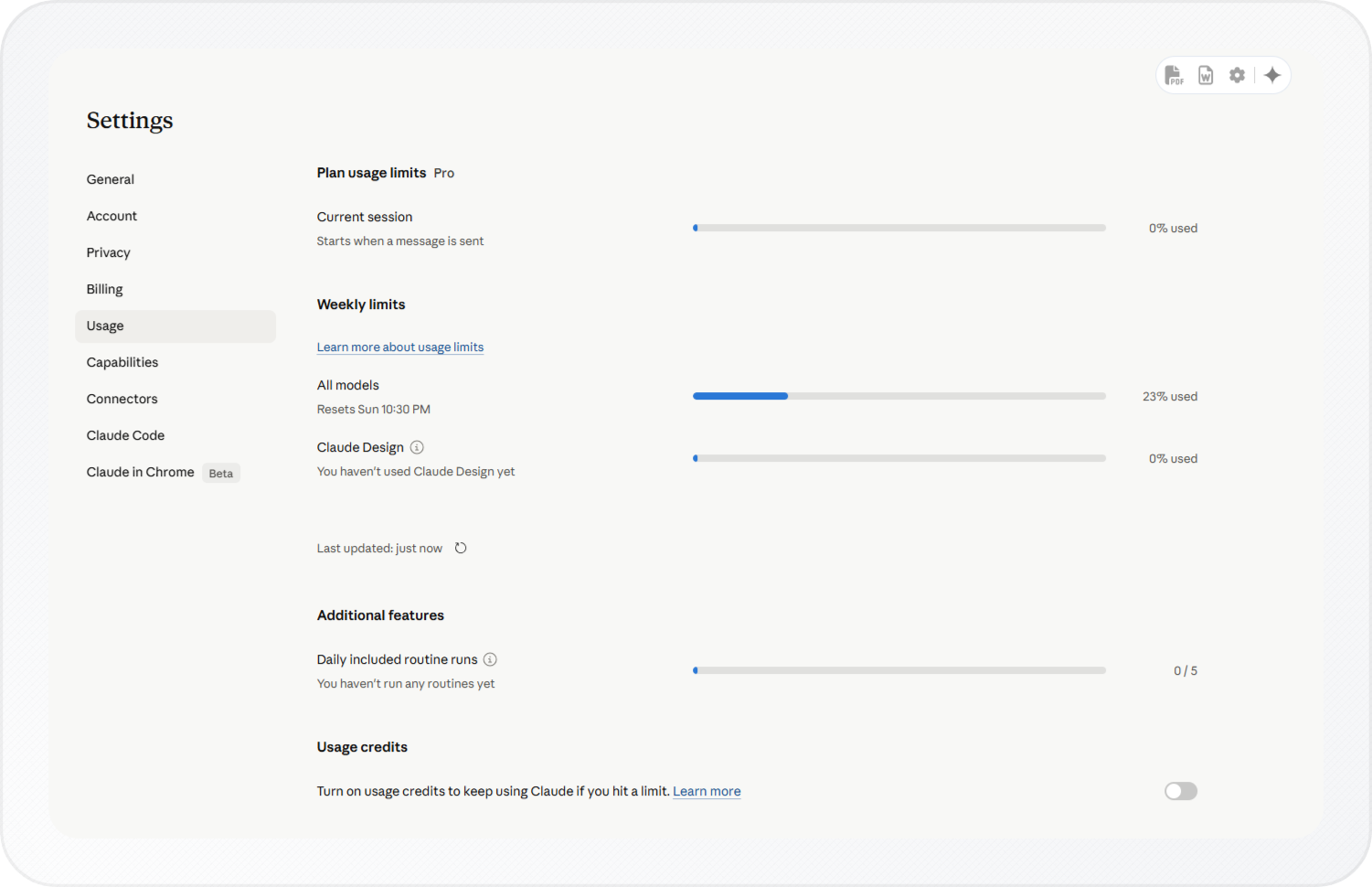
Click Usage in the left sidebar.
-
Check each tracker section on the Usage page to see your current usage, reset timers, and credit status.
Understanding the Usage Page
The Usage page has four sections.
Plan usage limits: Current session
This bar shows how much of your current session you have used. Below the bar, Claude shows when your current session window resets.
Note: Session resets are rolling, not daily. If you hit your limit at 2 PM, the timer counts down from 2 PM, not from midnight.
Weekly limits
This section tracks your usage across the full week using two bars.
- All models tracks your total usage across all model types for the week. The reset day and time appear below the bar. For example, Resets Sun 10:30 PM.
- Claude Design tracks usage of this feature separately, with its own bar and weekly quota.
Note: Your session limit and your weekly limit are independent. A full session bar does not mean your weekly limit is full. Check both bars before deciding to upgrade or wait.
Daily included routine runs
This section tracks automated routine tasks Claude runs on a schedule, not standard chat messages.
This shows as a count, for example, 0 / 5. Routine runs use a separate daily quota. If you haven't set up routines, this counter stays at 0.
Usage credits
The Usage credits toggle is off by default. Turn it on to continue using Claude after reaching your plan limit. Claude then uses separately purchased credits instead of blocking new messages.
Note: Usage credits are available on Pro, Max, Team, and seat-based Enterprise plans. To purchase credits, go to Settings > Billing.
Reading Usage Warning Messages
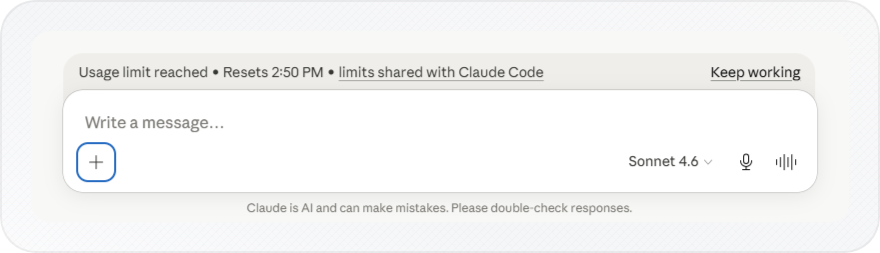
Claude shows an inline warning above the chat box when you approach or hit a limit.
-
Look above the chat input box for Claude's inline limit message.
-
Check the reset timer shown in the message.
-
Open Settings > Usage if you want the full breakdown of which limit you hit.
Note: The inline warning shows when your session resets, but it doesn't show your weekly usage or whether you hit a length limit.
Not every warning message means the same type of limit. Claude uses separate systems for overall usage and conversation length.
Understanding Claude's Two Limit Types
Claude has two separate limit systems, and the warning messages don't always make clear which one you reached.
| Limit type | What it controls | What to do when hit |
|---|---|---|
| Usage limit | How much you can use Claude across all chats over a rolling time period | Wait for reset, upgrade your plan, or turn on usage credits |
| Length limit | How long one single conversation can grow | Start a new chat |
The most common reason people hit limits unexpectedly is that claude.ai, Claude Code, and Claude Desktop all share the same session quota. Check the Usage page before assuming you're starting fresh.
You can identify which limit you hit based on when Claude stopped.
- If Claude stops after a very long chat with many messages, uploaded files, or lengthy replies, you hit a length limit.
- If Claude stops at the start of a new conversation or after a short exchange, you hit a usage limit.
Waiting fixes a usage limit. Starting a new chat fixes a length limit. For example, your session limit may reset in a few hours even if your weekly usage is still low because these two limits work independently.
Comparing Usage Across Claude Plans
Your Usage page shows your current Claude plan at the top, such as Plan usage limits: Pro.
| Plan | What you get | Weekly limits | Usage credits |
|---|---|---|---|
| Free | Basic access with a smaller message allowance every 5 hours | No | No |
| Pro ($20/mo) | Significantly higher limits than Free | Yes, for very heavy usage | Yes |
| Max ($100–200/mo) | Much higher limits than Pro for power users | Yes | Yes |
| Enterprise | Team and company plans with usage-based billing | No fixed session caps | Separate billing |
- Free plan sessions reset after five hours, but active users often hit the cap within an hour.
- Pro provides substantially higher session capacity.
- Max suits intensive workflows such as all-day coding, document analysis, or research.
If you're approaching limits often, switching to a lighter model for routine tasks is one of the fastest fixes.
Note: Using Claude Code, Claude Desktop, or the Claude in Chrome extension during the day also affects your available usage on claude.ai.
Managing Your Claude Usage More Efficiently
Start New Chats for Long Conversations
Start a new chat when conversations become very long or include many uploaded files. Before switching, ask Claude to summarise the conversation so you can continue with the important context. For a full list of ways to lower your token usage, see how to reduce token usage in Claude.
Edit Prompts Instead of Sending Corrections
When possible, edit your earlier prompt instead of sending multiple follow-up corrections, editing creates a branch so your original thread is never lost. This helps keep conversations shorter and easier to manage.
Turn Off Features You Are Not Using
Disable tools like extended thinking, web search and Research when you do not need them because they can increase usage.
For more ways to avoid hitting limits too quickly, see Anthropic's Usage limit best practices.
Conclusion
You can check your Claude session usage, weekly limits, reset times, and feature quotas from Settings > Usage or by opening the direct Usage page link while logged in.
If Claude suddenly stops responding, compare your session tracker, weekly limits, and conversation length to identify which limit you reached. Remember that claude.ai, Claude Code, and Claude Desktop all share the same account quota.