
How to Prompt Claude Effectively
Learn how to prompt Claude effectively and stop getting generic responses - six techniques that make every answer more accurate, specific, and useful.
Claude can write, analyze, code, and answer questions. But response quality depends almost entirely on how clearly you ask.
When you don't explain what you want, Claude guesses. A vague prompt returns a vague answer. Without context or format, the response could be written for anyone, which means it's written for no one.
In this guide, you will learn how to prompt Claude effectively using six techniques that make responses more accurate, useful, and specific to your needs.
1. Being Specific With Your Prompts
You can improve almost any Claude response by stating the format, length, audience, and context upfront. The more Claude knows about what you want and who you are, the less it has to guess.
Stating the Format
Tell Claude exactly how to structure its response. Without a format instruction, Claude picks the structure it thinks is best and that structure often doesn't match what you need.
Compare these two prompts:
❌ "Explain the difference between RAM and storage."
✅ "Explain the difference between RAM and storage. Use a short comparison table with two columns: RAM and Storage. Add a one-sentence summary at the end."
The second prompt tells Claude exactly how to structure the response.
Common format instructions:
- Numbered list
- Bullet list
- Comparison table
- Short paragraph
- Step-by-step guide
- Outline
Stating Length and Audience
Length requirements and audience details change the output just as much as format does. "Keep it under 100 words" produces a different response than no limit at all. So does "write for a non-technical reader."
✅ "Summarize the key risks of using public Wi-Fi. Keep it under 80 words. Write for someone with no IT background."
Claude adjusts response length based on the task. If you need a short answer, say so explicitly, Claude won't assume.
Adding Context About Yourself
Claude uses context to adjust its tone, depth, examples, and ideas. When you tell Claude who you are and what the output is for, the response shifts from generic to genuinely useful. If you want Claude to remember your preferences across every conversation, see How to Enable Memory in Claude.
A prompt without context:
❌ "Write a follow-up email."
A prompt with context:
✅ "I'm a freelance designer. I sent a project proposal to a client three days ago and haven't heard back. Write a follow-up email that's professional but not pushy. Keep it under 100 words."
The background doesn't need to be long. Two or three sentences about your role, situation, and goal work well. A short, relevant explanation beats a long prompt full of details that don't matter. And explaining why you're asking helps Claude focus on what you actually want.
Knowing When a Prompt Needs More Detail
Not getting the response you want? Check whether your prompt covers these five things:
- What you want Claude to do
- Why you are asking
- Who will use the result
- The format you want
- Any length, tone, or style requirements
For example:
❌ "Write a blog post about backups."
Claude has to guess the audience, purpose, length, and detail level.
✅ "Write a 700-word blog post explaining cloud backups for small business owners. Use beginner-friendly language and include three common mistakes to avoid."
Adding detail doesn't mean writing longer prompts. It means giving Claude the information it needs. Another way to reduce guessing is to show Claude an example.
2. Using Examples to Show Claude What You Want
Pasting a sample of the result you want is one of the most reliable ways to match a specific style. Claude picks up patterns from examples far better than from descriptions alone.
Paste three to five examples into your prompt and label them clearly. If you only have one or two, use them, more examples help Claude pick up the pattern and avoid inferring things you didn't intend.
"Rewrite the following product description in this style:
Example: 'Built for long days. The Ridgeline jacket keeps you dry in unpredictable weather without slowing you down.'
Description to rewrite: 'This jacket is waterproof and lightweight, suitable for outdoor activities in wet conditions.'"
Once you've set the style, you're ready for tasks with more than one step.
3. Breaking Complex Tasks Into Steps
When you ask Claude to do too many things at once, it may miss a step or muddle the output. Breaking the task into stages keeps each phase clean and reviewable.
Use this technique for tasks with multiple distinct phases: research and then write, outline and then draft, draft and then revise.
A good rule: if you'd need to check the first output before moving to the second, split it into separate prompts.
Instead of:
❌ "Research the top three trends in remote work and write a 500-word article about them."
Break it into two prompts:
✅ Prompt 1: "List the top three trends in remote work in 2025. For each trend, give me two concrete examples and one statistic."
✅ Prompt 2: "Using those three trends, write a 500-word article for HR managers. Use a direct tone and end with one practical recommendation."
Working in stages lets you correct each phase before moving on. This reduces mistakes and surfaces problems faster. If you want to explore a different direction without losing your current thread, branching conversations in Claude lets you do exactly that.
When the first response is close but not quite right, refine it with follow-up instructions.
4. Refining Instead of Restarting
You don't need to open a new chat every time Claude misses the mark. When the response is close, specific feedback in the same chat is faster and more accurate than starting over.
Vague feedback produces vague changes:
❌ "Can you make this better?"
Specific feedback produces the change you want:
✅ "The second paragraph is too formal. Rewrite it in a conversational tone. Keep everything else the same."
You can stack corrections across multiple turns. "Shorten the intro to two sentences" followed by "replace the third bullet with a real example" is faster than rebuilding the prompt from scratch.
Tip: If Claude misunderstood your original request, correct the assumption directly. Say "I meant X, not Y. Please redo the third section with that in mind." Claude will adjust.
If Claude answered the wrong question entirely, not just a paragraph that missed the tone. Open a new chat and start with a clearer prompt. Correcting from inside a broken thread rarely works.
If you want to save a refined conversation before starting over, read How to Export a Claude Chat as a Word Document.
For tasks that need more careful thinking, the Effort control gives you what you need.
5. Using the Effort Control for Harder Tasks
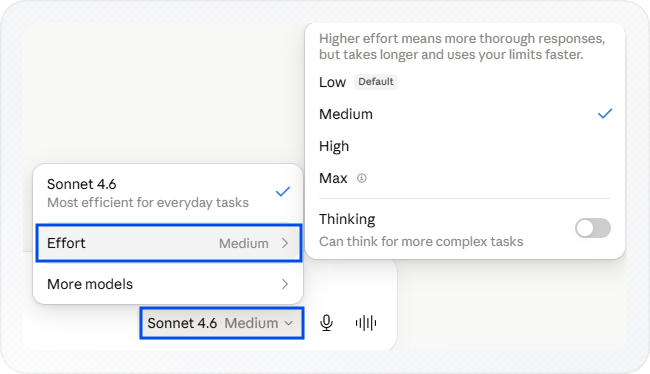
The Effort control tells Claude how much time to spend reasoning before it replies. On the claude web, it appears below the message box.
The Effort control has four levels: Low, Medium, High, and Max.
- Higher effort means better reasoning but slower responses and faster limit usage, use it for tasks where a wrong answer costs you time.
- Lower effort is fine for quick questions where speed matters more.
Changing the Effort Level
- Open a new chat on claude.ai.
- Click the model name at the bottom of the message box.
- Click Effort to expand the effort levels.
- Select the level that matches your task.
The Effort level stays at whatever you set until you change it, so adjust it whenever your task changes.
For the full model picker walkthrough, including how Effort and Thinking work together, see How to Switch Models in Claude.
6. Setting Persistent Context With Projects
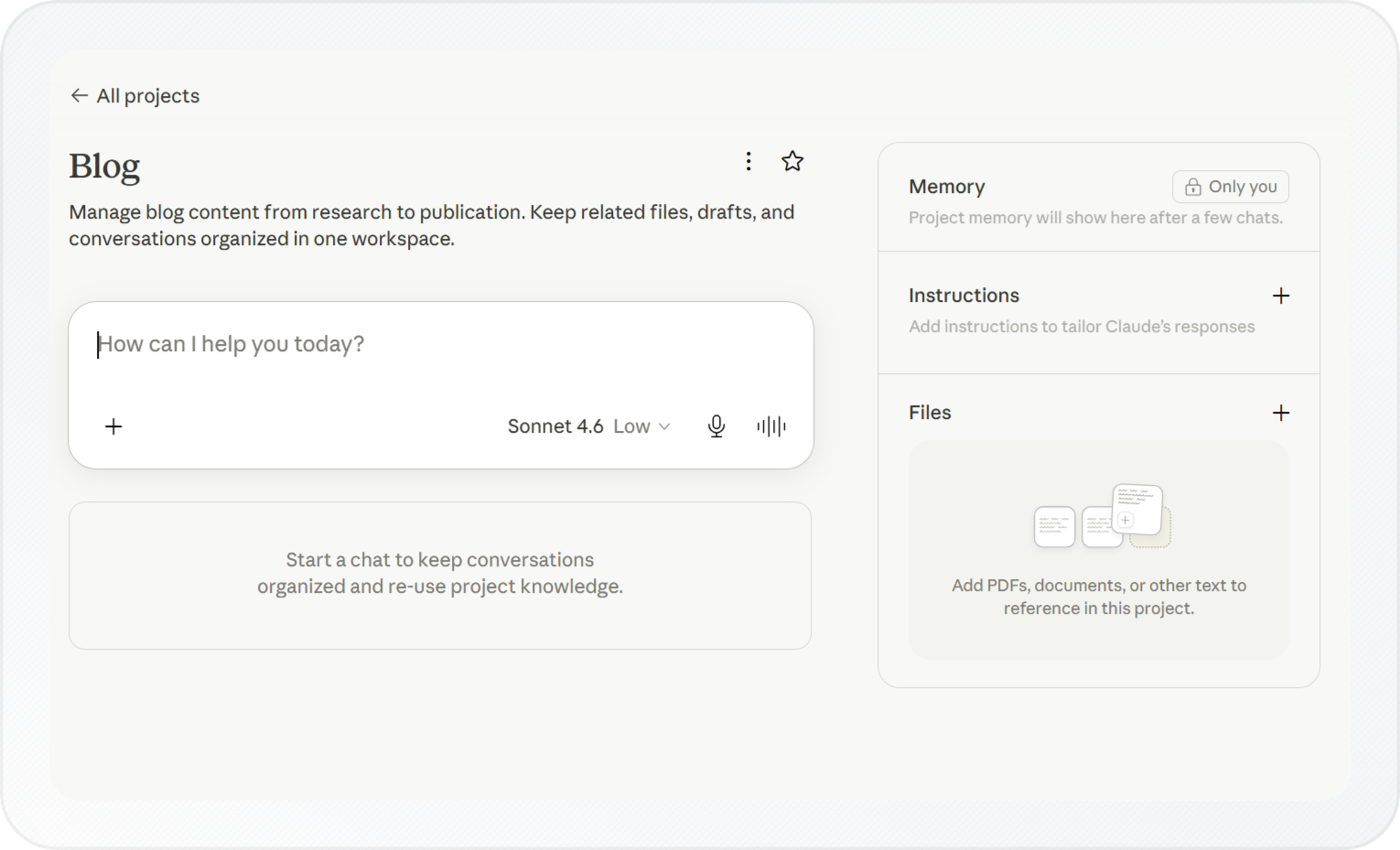
Re-explaining your setup in every chat takes time. Projects let you write instructions once and apply them to every chat inside that project.
Use Projects when you return to the same type of task regularly, writing in a specific voice, working on one product, or reviewing content for the same client.
Creating a Project
-
Open claude.ai on the web.
-
Click Projects in the left sidebar.
-
Click New project.
-
Enter a name and description.
-
Click Create project.
-
Click the + button next to Instructions.
-
Type the context Claude should use in every chat inside this Project.
Tip: A useful instruction covers three things: who you are, the type of task you'll ask Claude to help with, and your consistent preferences for tone, format, and audience.
Example: "I'm a content writer. I'll ask you to draft and review how-to articles. Write in plain language, use short sentences, and avoid jargon."
- Click Save instructions.
Claude uses those instructions in every chat inside that Project.
To keep specific files and reference material available across chats too, see How to Create and Manage a Project in Claude.
Putting It All Together
Compare these two prompts:
Prompt 1:
❌ "Help me create a training plan."
Claude has to guess your goals, experience level, timeframe, and preferred format.
Prompt 2:
✅ "I'm a recreational runner who has never run more than 5K. I want to finish my first half marathon in four months without getting injured. Create a 16-week training plan. Use a week-by-week table with four columns: week number, daily runs, long run distance, and rest days. Schedule rest days on Wednesdays and Sundays. Keep the language beginner-friendly."
The second prompt gives Claude context, audience, and format. That's all it needs to produce something useful.
When Claude gives a vague response, the prompt usually needs more detail, not a completely different question.
Conclusion
You now have six techniques for getting more accurate and useful responses from Claude. The key idea is this: Claude can only work with what you give it. Specific prompts produce specific results. Vague prompts produce guesses.
These techniques work on their own. Together, they work even better. Use a Project for persistent context. Use individual prompts to set the format, examples, and effort level for each task.