
How to Enable Memory in Claude
Learn how to enable memory in Claude so it remembers your role, preferences, and working style across every chat.
Claude lets you have context-rich conversations without repeating yourself every time you start a new chat. Over time, it can build a working profile based on your role, preferences, communication style, and ongoing projects, so that context is already available in future conversations.
By default, Claude does not automatically remember information from previous chats. To use memory features and let Claude remember relevant details across conversations, you need to enable them in your account settings.
In this guide, you will learn how to enable memory in Claude web using three approaches, along with guidance on when to use each one.
For more details, see the official documentation on Use Memory in Claude.
Enabling Memory from Settings
The Capabilities section in your account settings is where all of Claude's memory controls live. The steps below walk you through each one.
-
Go to claude.ai and sign in.
-
Click your profile icon in the bottom left corner.
-
Select Settings from the menu.
-
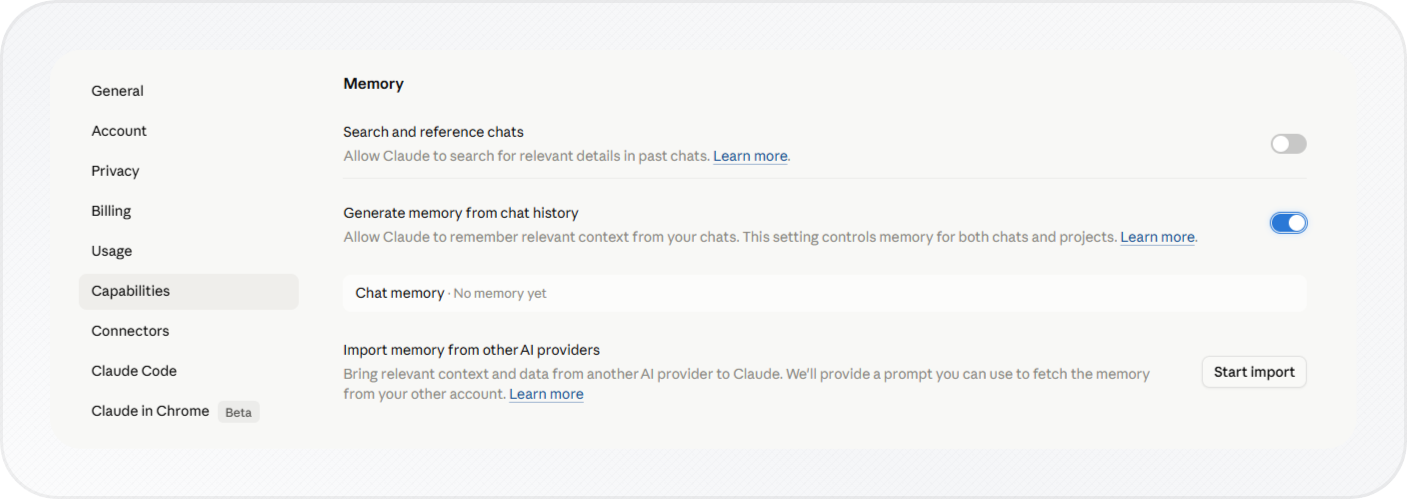
Click Capabilities in the left sidebar. This is where you find all of Claude's feature and memory controls.
-
Under the Memory section, you'll see two toggles and a Start import button.
The next three sections walk through each control in the Memory section.
Turning On Memory and Chat Search
The Memory section has two toggles.
Toggle 1: Generate memory from chat history
This is the main memory setting. When it's on, Claude reads your past chats and builds a profile based on your role, projects, working style, and preferences. Claude then uses that profile as context in future conversations.
Note: This memory summary covers your standalone chats only. Projects have their own separate memory space and are not included here. To learn how project knowledge works across chats, see How to Add a Chat to a Project in Claude.
Turn on Generate memory from chat history.
The profile regenerates each night. You won't see a full summary immediately, but Claude starts building it as soon as you enable this setting.
Toggle 2: Search and reference chats
Note: Chat search is available on paid plans only (Pro, Max, Team, and Enterprise). If you're on the Free plan, skip this toggle. You can check your current plan from Settings > Usage, or compare plans to upgrade.
This setting goes a step further. Instead of relying only on a stored memory profile, Claude can search your chat history and retrieve relevant information when needed.
For example, you can ask, "What did we discuss about my project last week?" and Claude can look up that conversation.
Turn on Search and reference chats.
Claude can now use your memory profile and search past chats for relevant context when needed.
Importing Memory from Other AI Providers
If you've been using ChatGPT or Gemini, you don't have to build your Claude memory profile from scratch. The Import memory from other AI providers option in the Memory section lets you bring your existing context over.
If you're switching from ChatGPT specifically, see How to Import ChatGPT Memory into Claude for the full copy-paste workflow. For more details, see the official documentation on Import and export your memory from Claude.
Important: Memory imports are experimental and still in active development. At this stage, Claude may not always successfully incorporate imported memories.
- In the Memory section, click Start import.
- The Import memory to Claude flow opens. It shows a ready-made prompt at the top with a Copy button. This prompt is what you'll send to your other AI. It asks that service to export everything it knows about you.
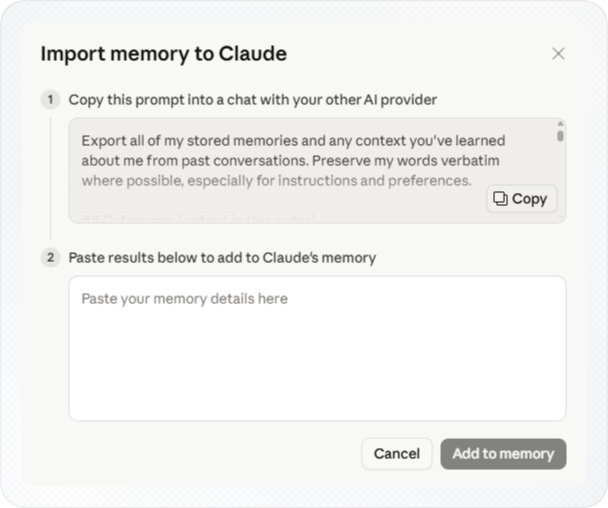
- Click Copy to copy the prompt.
- Open a chat in ChatGPT or Gemini and paste the prompt. Send it.
- Copy the full response from ChatGPT or Gemini.
- Paste the response into the text box in the Claude import flow.
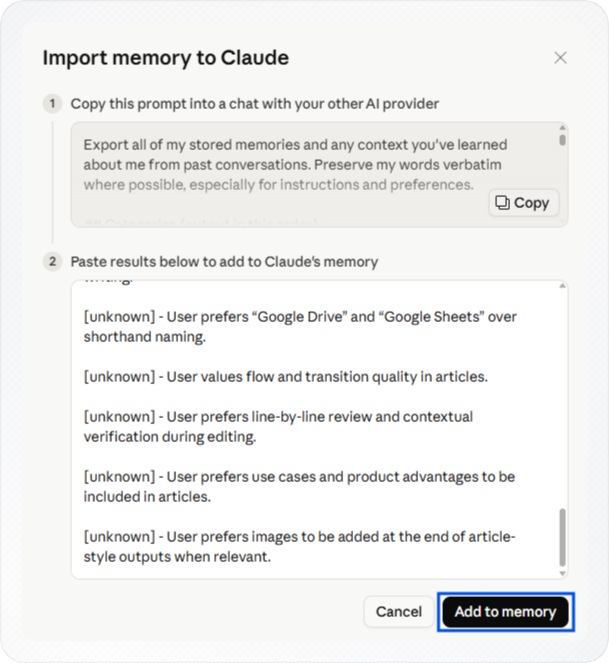
- Click Add to memory.
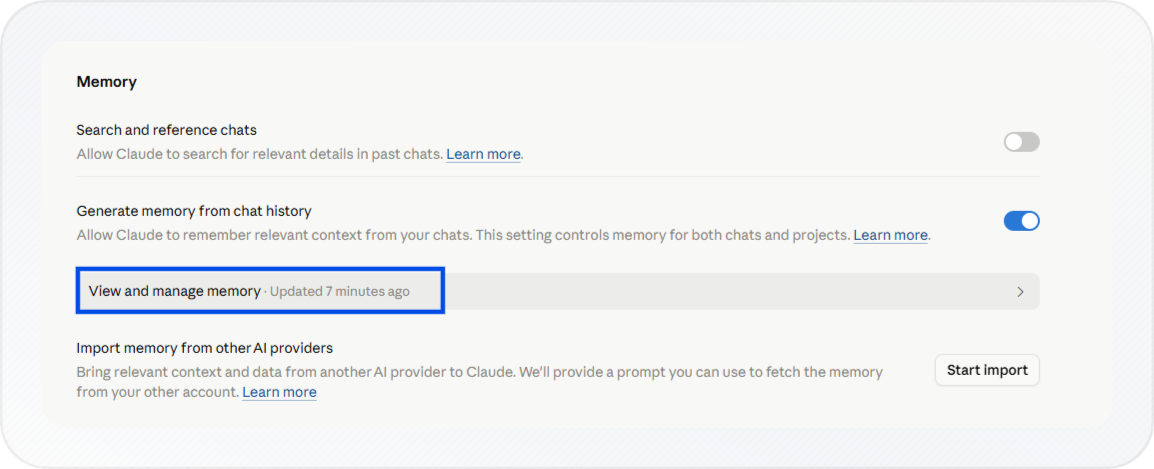
Your updated memory will be visible within 24 hours. Click See what Claude learned about you to open a new chat and confirm what Claude stored.
If anything is missing, go to Settings > Capabilities, click View and manage memory, and use the pencil icon to add it manually.
Telling Claude What to Remember from Chat
The toggles and import handle the broad setup. But memory also works in real time. You can tell Claude what to remember from any chat, and it updates your profile on the spot. For reusable task instructions rather than personal context, skills are a better fit, memory saves who you are, skills save how you want things done.
Any time you want Claude to remember something specific, tell it directly. The change takes effect in your next chat and does not require waiting for the nightly profile regeneration.
- Open a new chat on claude.ai.
- Type what you want Claude to remember. For example:
- "Remember that I'm a product designer at a SaaS company."
- "Remember that I always want responses in bullet points."
- Claude will confirm it saved the update.
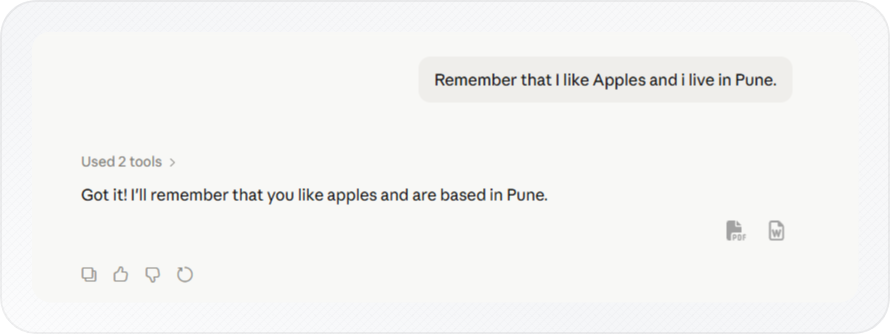
- To verify, ask Claude: "What do you remember about me?"
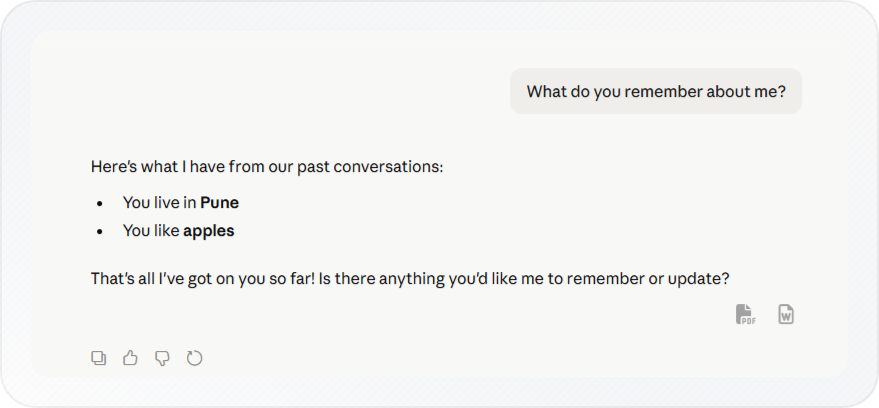
You can also check what Claude saved by going to Settings > Capabilities > View and manage memory.
You now have a way to keep Claude's memory accurate without going back into settings every time.
Conclusion
You now have Claude memory enabled. From your next chat onward, Claude can use your saved profile as context, so you do not need to re-introduce yourself or repeat your preferences each time.
Claude mainly remembers work-related context such as your role, Projects, tools, and communication preferences. If something is missing or incorrect after setup, tell Claude directly in a chat to update what it remembers about you.