
How to Switch Models in Claude
Learn how to switch models in Claude using the model selector next to the send button, and what happens to your chat when you do.
Claude gives you a choice of models, including Haiku 4.5, Sonnet 4.6, Opus 4.8, and Fable 5, so you can pick the one that fits your task. A lighter model gives faster responses for quick questions. A heavier model works through complex problems with more depth.
When you switch models, the change applies right away in the same chat. Your earlier messages stay visible, and Claude continues the conversation with the new model.
In this tutorial, you will learn how to switch models in Claude on the web and how the effort and thinking settings work.
Prerequisites
- A Claude account at claude.ai. Haiku 4.5 and Sonnet 4.6 are available on the free plan. Opus 4.8 and Fable 5 require a Pro or Max plan.
Switching Models in Claude
You can switch models using the model selector at the bottom of the chat window. Use this method any time you want a different model, whether you are starting a new chat or mid-conversation. After you select a model, Claude uses it for every message in that session.
-
Open claude.ai in your browser.
-
Start a new chat or open an existing one.
-
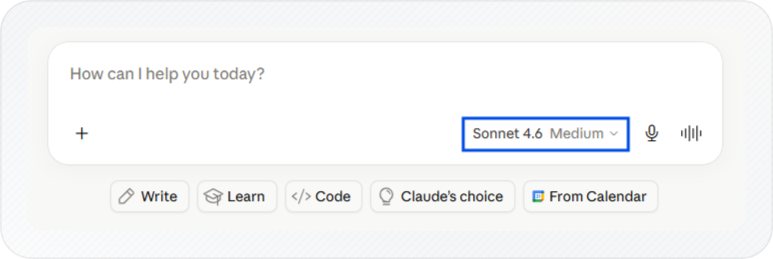
Click the model selector button at the bottom of the chat window. It shows your current model and effort level, for example Sonnet 4.6 Medium.
-
Read the description under each model name to pick the right one:
- Fable 5 for your toughest challenges
- Opus 4.8 for complex tasks
- Sonnet 4.6 for everyday tasks
- Haiku 4.5 for quick answers
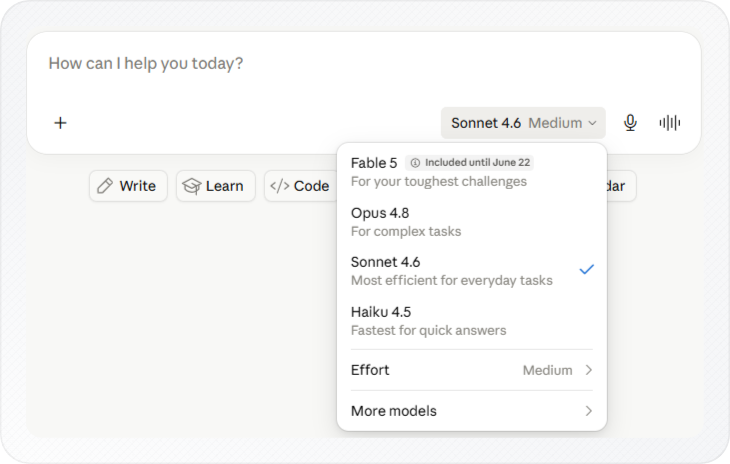
Note: Fable 5 is Anthropic's most capable model, designed for the hardest reasoning and analysis tasks. Use it when accuracy matters more than speed or cost.
- If none of these four fit, click More models at the bottom of the picker to see Opus 4.7, Opus 4.6, and Opus 3.
- Click the model you want.
All models available in Claude as of June 2026:
| Model | Best for |
|---|---|
| Fable 5 | Your toughest challenges |
| Opus 4.8 | Complex tasks |
| Opus 4.7 | Complex tasks (previous version) |
| Sonnet 4.6 | Everyday tasks |
| Opus 4.6 | Complex tasks (older version) |
| Opus 4.5 | Complex tasks (older version) |
| Haiku 4.5 | Quick answers |
| Sonnet 4.5 | Everyday tasks (previous version) |
The selector button shows your new model name. Claude remembers your last choice, so your next new chat starts on the same model.
Now that you have the right model selected, you can also adjust how much effort Claude puts into each response.
See How to Download Chat in Claude for every way to save a conversation.
Adjusting Effort and Thinking
The model picker controls two more settings alongside the model itself: Effort and Thinking. Together, they decide how much work Claude puts in before it answers, and you can adjust both for the same response.
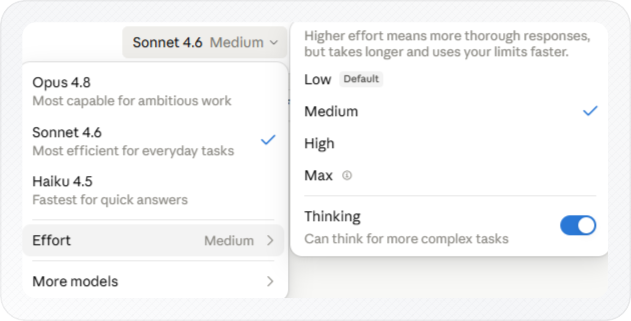
Effort sets the baseline. Click the Effort row in the picker. A submenu opens to the right with four levels:
- Low (default) - quick questions, summaries, and casual tasks
- Medium - a more considered answer without a long wait
- High - research, analysis, or anything with many moving parts
- Max - complex tasks where thoroughness matters more than speed
Thinking builds on top of whatever effort level you pick. Toggle Thinking on in the effort submenu below the effort levels to have Claude reason through a problem step by step before it answers. Use it for:
- Problems with multiple steps or no clear answer
- Decisions with trade-offs you want Claude to work through
When thinking is on, a Thinking section appears above Claude's answer. This shows Claude's reasoning process, useful if you want to check how it arrived at an answer, not just what the answer is.
For more on when to raise the effort level versus when to leave it on Low, see How to Prompt Claude Effectively.
Note: Higher effort levels and the Thinking toggle use your message limits faster.
If you're choosing models to manage your usage limits, see How to Reduce Token Usage in Claude.
Conclusion
You now know how to switch models, adjust effort, and turn thinking on or off so each chat gets the right amount of power for the task.
Once you have a response worth keeping, you can save the chat as a PDF or Word file. See How to Download Chat in Claude for all export options.