
How to Import ChatGPT Memory into Claude
Learn how to import your ChatGPT memory into Claude, check what carried over, and add anything that didn't.
Claude can import your memory from ChatGPT. Once imported, Claude already knows your tone, your projects, and the tools you use. You don't have to start from zero.
But the transfer needs a copy and paste step. There is no direct link between ChatGPT and Claude accounts. Claude also focuses on work topics, so some personal details may not carry over. The import feature is also new and still improving.
In this tutorial, you will learn how to import your memory from ChatGPT into Claude, check what came through, and add anything that didn't transfer.
Prerequisites
- A Claude account on the Free, Pro, Max, or Team plan
- Claude memory turned on
Importing Your Memory from ChatGPT
Claude provides a ready-made prompt for this, built to pull your full memory into one copyable block.
For the official guide from Anthropic, see memory import and export.
- In ChatGPT, click your profile icon in the bottom-left corner of the screen, then click Personalization from the menu that appears.
- Turn on Reference saved memories and Reference chat history if they are off.
With memory off, the export prompt below returns little or nothing.
- Open a new chat in ChatGPT.
- Go to claude.ai and sign in.
- Click your profile icon in the bottom left corner.
- Select Settings from the menu.
- Click Capabilities in the left sidebar. This is where you find all of Claude's feature and memory controls.
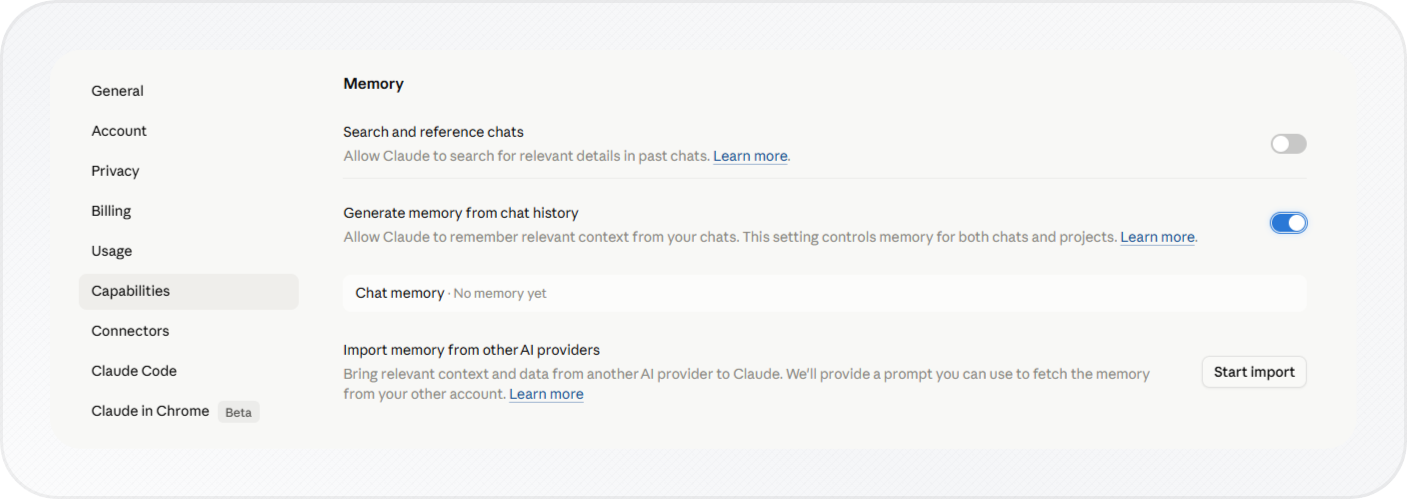
- Under the Memory section, click Start import.
- The Import memory to Claude flow opens. It shows a ready-made prompt at the top with a Copy button.
This prompt asks ChatGPT to export everything it knows about you. Click Copy.
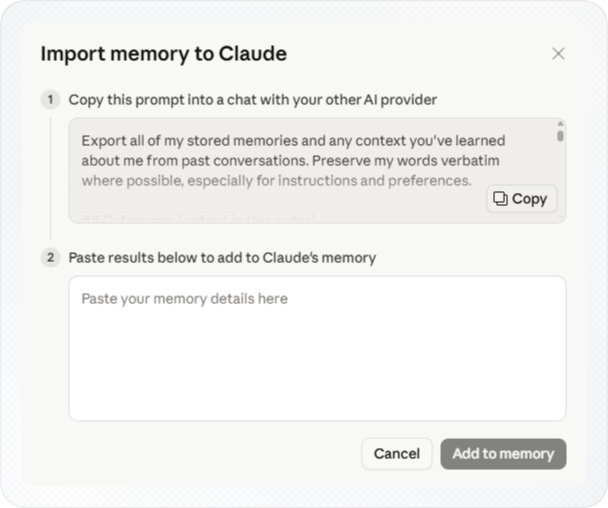
The prompt looks like this:
Export all of my stored memories and any context you've learned about me from past conversations. Preserve my words verbatim where possible, especially for instructions and preferences.
## Categories (output in this order):
1. **Instructions**: Rules I've explicitly asked you to follow going forward — tone, format, style, "always do X", "never do Y", and corrections to your behavior. Only include rules from stored memories, not from conversations.
2. **Identity**: Name, age, location, education, family, relationships, languages, and personal interests.
3. **Career**: Current and past roles, companies, and general skill areas.
4. **Projects**: Projects I meaningfully built or committed to. Ideally ONE entry per project. Include what it does, current status, and any key decisions. Use the project name or a short descriptor as the first words of the entry.
5. **Preferences**: Opinions, tastes, and working-style preferences that apply broadly.
## Format:
Use section headers for each category. Within each category, list one entry per line, sorted by oldest date first. Format each line as:
[YYYY-MM-DD] - Entry content here.
If no date is known, use [unknown] instead.
## Output:
- Wrap the entire export in a single code block for easy copying.
- After the code block, state whether this is the complete set or if more remain.
- Paste the prompt into your new ChatGPT chat and send it.
- Copy the code block from ChatGPT's response.
Tip: Remove any line you don't want to bring to Claude before copying. You can also ask ChatGPT to save the response as a Markdown file for your own backup.
- Paste the response into the text box in the Claude import flow.
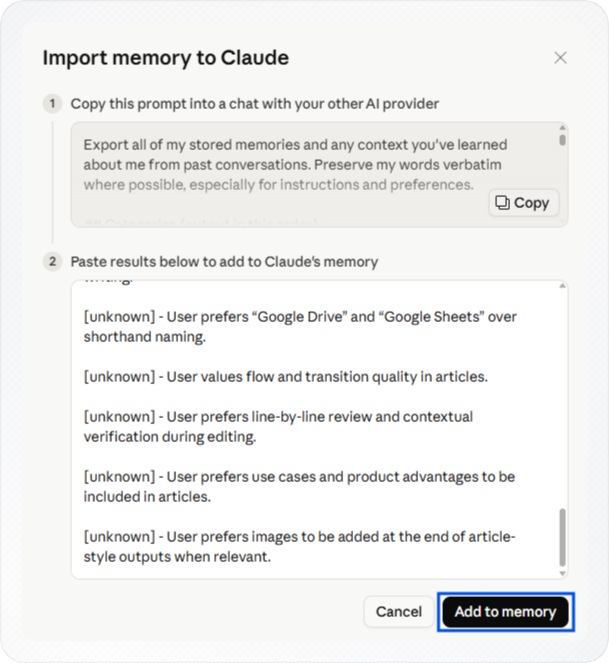
- Click Add to memory.
You now have your ChatGPT memory ready to paste into Claude.
If anything is missing, go to Settings > Capabilities, click View and edit your memory, and use the pencil icon to add it manually.
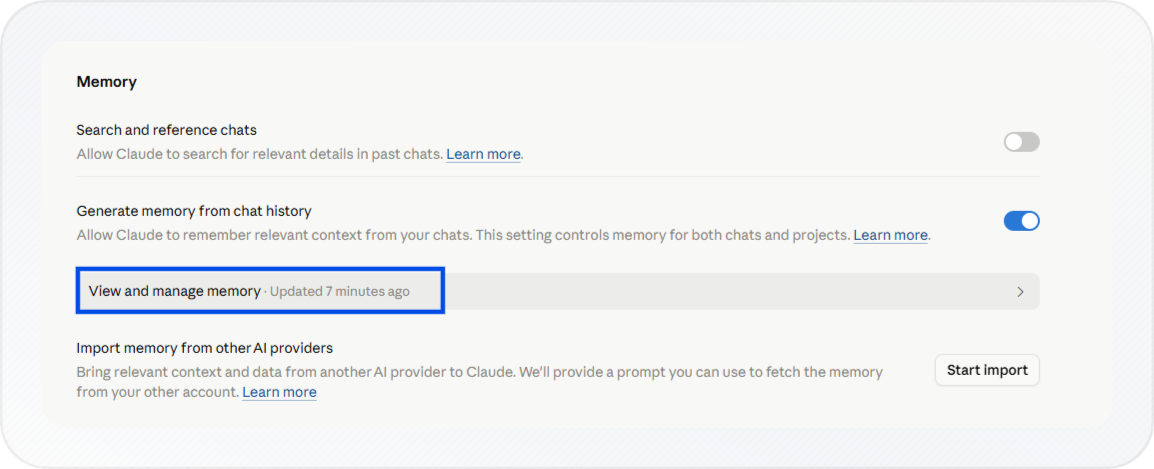
Note: You can import memory from Gemini the same way.
Checking What Claude Learned
Claude can tell you directly what it picked up from your import, so you don't have to guess whether the transfer worked. Reviewing this now can save you from re-explaining the same context later.
- Click See what Claude learned about you to open a new chat, or open a new chat yourself.
- Send this prompt: "I updated my memory. What did you learn about me?"
- Compare Claude's response with what ChatGPT or exported. Look for anything missing, like preferences, project notes, tone, or tools you use.
You can also ask Claude directly, see How to Enable Memory in Claude for how real-time corrections work.
Conclusion
You now have Claude working from your ChatGPT context, so you don't have to re-explain who you are or how you like things done. If anything still feels off, you can always tell Claude directly.