
How to Add Skills in Claude
Learn how to add skills in Claude to extend its behavior with custom instructions, reusable workflows, and task-specific guidance. No more repeating yourself in every chat.
Claude lets you customize how it behaves through Skills. A Skill is a reusable instruction file that tells Claude how to handle specific tasks, such as writing blog posts in your style, reviewing documents against a checklist, or generating scripts in a specific format.
But without skills, you'd have to re-explain your preferences and rules at the start of every chat because Claude does not retain them between conversations, unless you also enable memory. Any workflow logic, formatting rules, or step-by-step instructions you create disappear once a session ends.
Skills solve this by giving Claude reusable instructions it can automatically consult whenever a task matches the skill. For bundled skills with app connectors and complete workflows, see how to add plugins in Claude.
In this tutorial, you will learn three ways to add skills in Claude and when to use each one.
Prerequisites
- A Claude account (free or paid)
- Access to the Claude chat interface on desktop or web
- A
.mdor.skillfile ready on your device, if you plan to upload an existing skill (a.skillfile is a packaged skill that bundles instructions and supporting reference files into one download).
For an overview of what skills are, see What are skills?.
Opening the Skills Panel
You can find and manage all your Skills from Claude's sidebar. Every step in this tutorial, including browsing, uploading, and creating Skills, starts here.
For more details, see how to use Skills in Claude.
- Open Claude in your browser or desktop app.
- Click Customize in the left sidebar.
- Click Skills in the panel that opens.
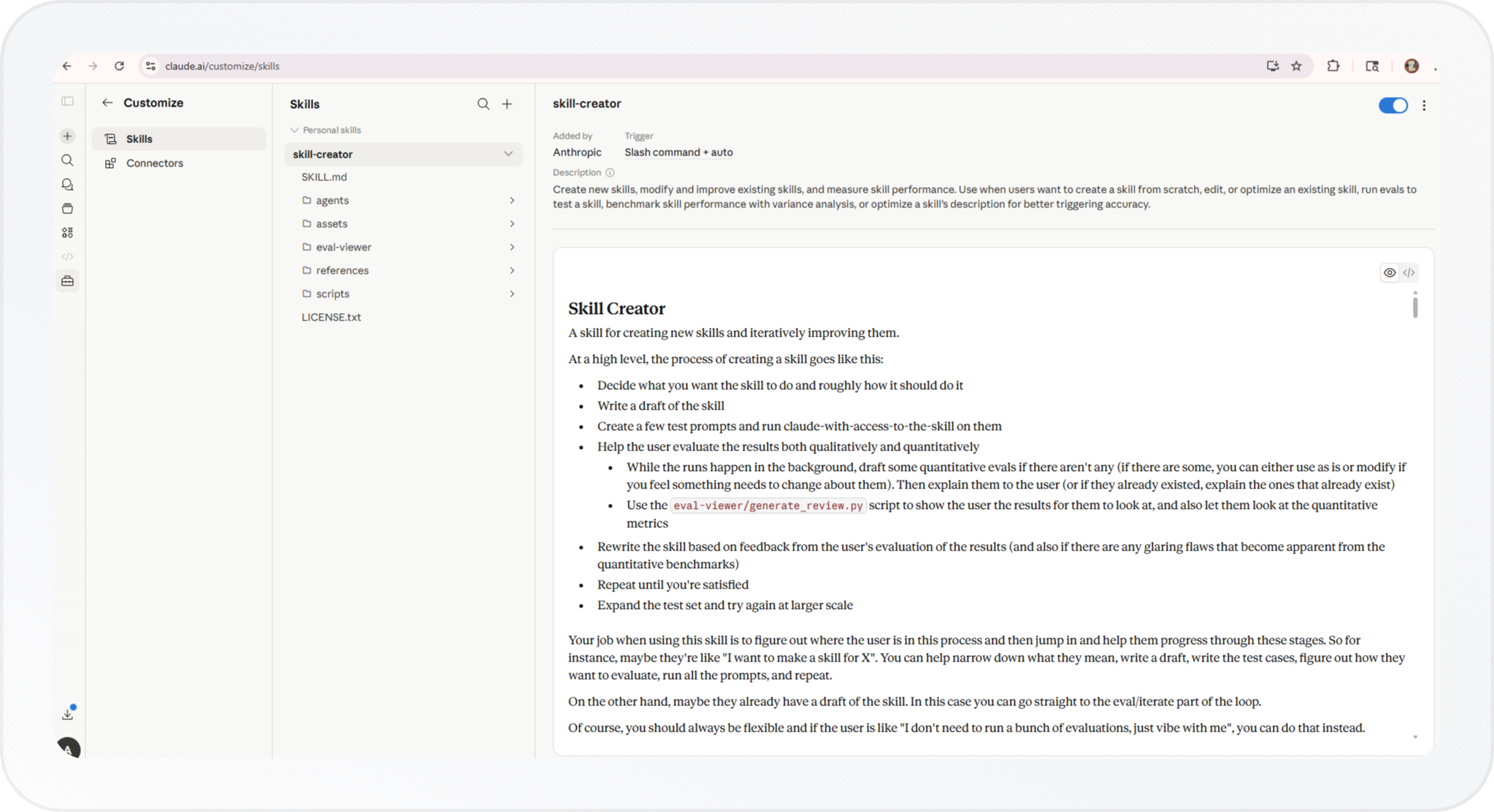
The Skills panel opens with a list of all your installed skills. If you haven't added any yet, you'll only see Skill Creator. This built-in skill helps you create and improve other skills directly inside Claude without editing files.
Browsing Existing Skills
You can add a pre-built skill from the skill library without writing a single line of instructions. The library includes skills for common workflows like writing blog posts, reviewing documents, generating scripts, and coding in specific styles.
- In the Skills panel, click the + button.
- Select Browse Skills to open the skill Directory.
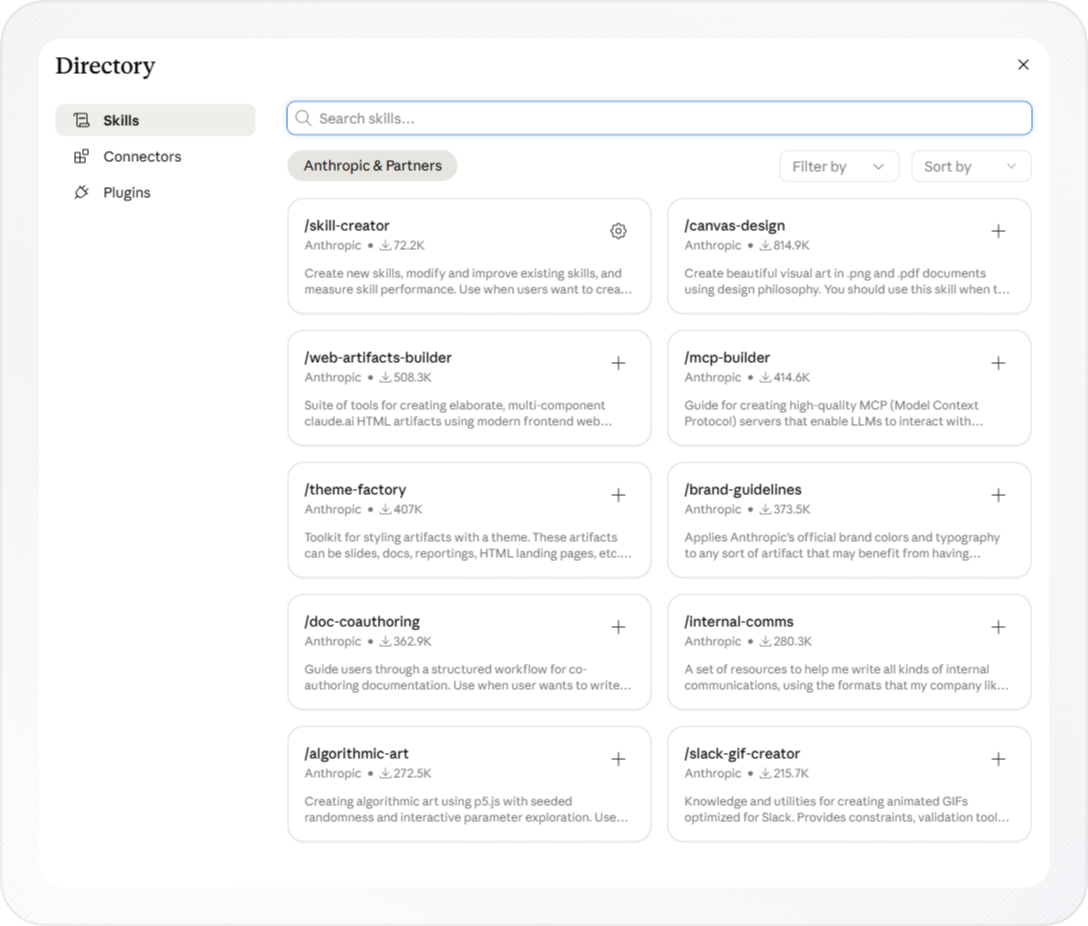
- Find the skill you want and click +.
Claude installs the skill immediately and it appears in your skills list. To confirm it's working, start a new conversation and ask Claude to do the task the skill covers. Claude will consult the skill automatically when your message matches the skill's trigger conditions.
If none of the pre-built skills fit your workflow, you can create your own. The next section covers all three ways to do that.
Creating a Skill
To create a new skill, click the + button at the top of the Skills panel. Claude then shows two options: Browse Skills and Create Skill.
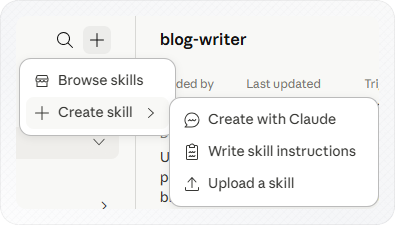
Select Create Skill to open the skill creation menu. Claude provides three ways to create a skill, depending on whether you want Claude to generate it for you, write the instructions yourself, or upload an existing skill file.
| If your situation is | Use this method |
|---|---|
| You want help writing the instructions | Create with Claude |
| You have an existing markdown or skill file | Upload a Skill |
| You want full control and prefer to write instructions yourself | Write Skill Instructions |
If you're adding a skill for the first time and aren't sure where to start, use Create with Claude. It walks you through the process and handles the file format for you.
Creating with Claude
You can use this method when you know what you want the skill to do but aren't sure how to structure the instructions. Claude will ask you questions and write the skill file for you.
Tip: Be specific about trigger conditions before you start. "Whenever I ask you to write a how-to article" is more useful than "for writing tasks."
-
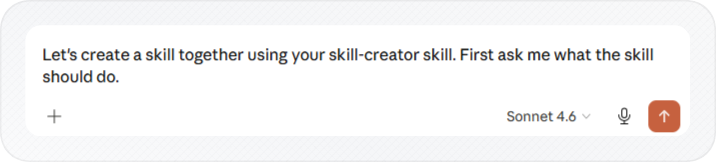
Choose Create with Claude.
-
Claude opens a chat with a pre-filled prompt. Click Send to continue.
-
Describe what you want the skill to do when Claude asks.
For example, you might type: "I want a skill that reviews my writing for passive voice and long sentences." Claude will ask clarifying questions: what tone to flag, whether to suggest rewrites, and which phrases should trigger the skill. Answer until Claude has enough to draft the file.

Once Claude finishes, it will show the packaged skill with two options. Click Save skill to add it to your skills list, or click the download button to save it as a .skill file if you want to share it or use it elsewhere.
Uploading a Skill
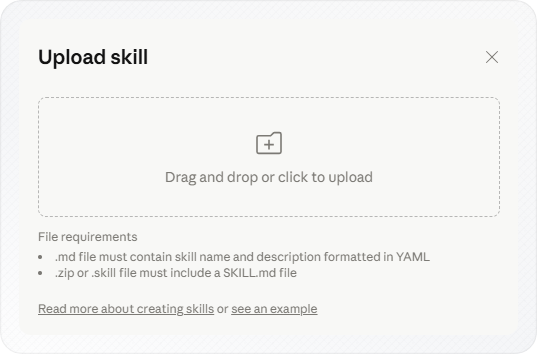
Use this method when you already have a skill written as a markdown file or a .skill package and want to install it without any editing.
For detailed formatting rules and setup examples, see Anthropic's official guide, How to Create Custom Skills. It explains how to structure a Skill.md file, add YAML frontmatter, include reference files, and package the skill correctly before uploading it to Claude.
-
In the Skills panel, click +.
-
Select Create Skill.
-
Choose Upload a Skill.
-
Click the upload area to browse your device, or drag and drop a
.mdor.skillfile into the window. -
Select your file from your device.
-
Click Upload to confirm.
Claude uses the name and description fields from your file's frontmatter. These two fields tell Claude when to consult the skill. Your file must include both at the top, like this.
---
name: blog-writer
description: Use this skill when the user asks to write a blog post or how-to article.
---
Include both fields so Claude knows when to use the skill.
Troubleshooting: If the skill does not appear after uploading, open the file in a text editor and check that the frontmatter starts on line 1 with --- and closes with a second --- before any other content. A blank line above the opening --- is the most common cause.
Note: A
.skillfile packages the mainSKILL.mdfile together with any reference documents, assets, or supporting files the skill needs. A plain.mdfile is enough for simpler skills that only require a single instruction document.
Writing Skill Instructions
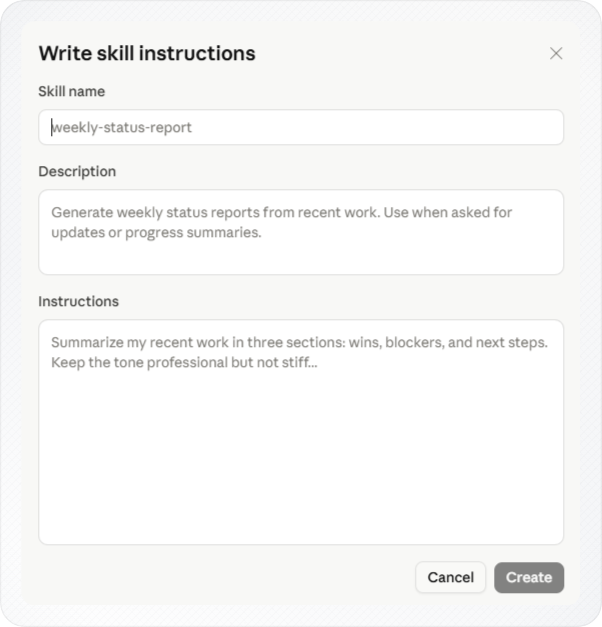
You can use this method when you want complete control over the skill content and prefer to write the instructions directly inside Claude, without AI assistance.
-
In the Skills panel, click + and select Create Skill.
-
Choose Write Skill Instructions.
-
Enter a name and description in the fields provided.
Note: The
descriptionfield helps Claude decide when to use the skill. Include what the skill does and the types of requests that should trigger it. -
Write your instructions in the body of the editor.
A simple skill body usually includes:
- when the skill should be used
- the steps Claude should follow
- the expected output format
Example:
Use this skill when the user asks to summarize a document.

Steps:
1. Read the full document.
2. Identify the three main points.
3. Write a 3-sentence summary in plain language.

Output: Three sentences, no bullet points, active voice.
- Click Create.
Tip: Start the description with a direct action statement, for example: "Use this skill when the user asks to write a product review", followed by any specific trigger phrases or edge cases.
For a full guide on writing effective skill descriptions and structuring the body, see the Agent Skills best practices in Anthropic's official documentation.
If a skill isn't triggering: the description field is almost always the cause, either too vague or using words you don't actually type. Ask the Skill Creator to tighten it for you.
Using Skills in Claude
Once a skill is installed, you can use it in three ways:
- Let Claude trigger it automatically
- Invoke it with a
/command - Select it from the
+menu in the chat input
No matter which method you use, the workflow is the same: activate the skill, give Claude a task, and Claude follows the skill's instructions when generating its response.
Automatic triggering
Once a skill is installed, just chat normally. Claude reads your message and compares it to each skill's description field. When your message matches, Claude applies that skill automatically, no command needed.
For example, if you installed a writing-reviewer skill, paste your text and say: "Review this for passive voice." Claude follows the skill's instructions and returns the review.
Using the / command
Type / in the chat input to see a list of your installed skills. Select a skill, then enter your prompt. Claude applies that skill to the message before generating a response.
If a skill needs the same reference files in every chat, store them in a Claude Project so the skill and the files stay together.
Using the + menu
Click + in the chat input, then select Skills and choose a skill. Enter your prompt, and Claude uses the selected skill when generating its response.
From the same menu, you can also open Manage skills to toggle skills on or off, or select Add skill to install a new one without leaving the chat.
If a skill isn't triggering automatically, try invoking it with / instead. If it still doesn't behave as expected, the trigger conditions in the skill's description may need tightening.
For ongoing work, add those chats to a project so your skills, files, and instructions stay together in one place.
Conclusion
Before relying on a new skill, test it in a fresh chat by asking Claude to perform the task it covers. If the results are not what you expect, refine the skill's description and instructions, then test again.
Once your first skill works properly, creating more becomes much easier. Start with one workflow you repeat often, then build additional skills over time. The more recurring tasks you turn into skills, the less time you spend explaining and the more time you spend getting work done.