
How to Use the Claude Chrome Browser Extension
Learn how to install the Claude Chrome extension and use it to run tasks, automate repetitive browser work, and get help across any webpage.
The Claude Chrome extension, also known as Claude in Chrome, brings AI assistance directly into your browser. You can open a side panel, describe what you need, and Claude will read the current webpage to help you complete the task without switching tabs or tools.
Unlike a simple toolbar chatbot, Claude can perform real actions inside the browser. It can click buttons, navigate pages, and interact with website elements on your behalf. To keep you in control, Claude shows a step-by-step plan and asks for your approval before taking any action by default, so you can review and confirm what it intends to do.
In this guide, you will learn how to install the Claude Chrome extension, use the side panel effectively, and run tasks across webpages with Claude’s assistance.
Prerequisites
- A paid Claude account: Pro, Max, Team, or Enterprise. The free plan does not include Claude in Chrome. If you do not have an account, create one at Claude.ai before continuing.
Installing the Claude Chrome Extension
You install the extension from the Chrome Web Store and complete a short setup before Claude is ready to use.
For Anthropic's official reference, see Get started with Claude in Chrome.
After these steps, you will have Claude running in a side panel, ready for your first task.
-
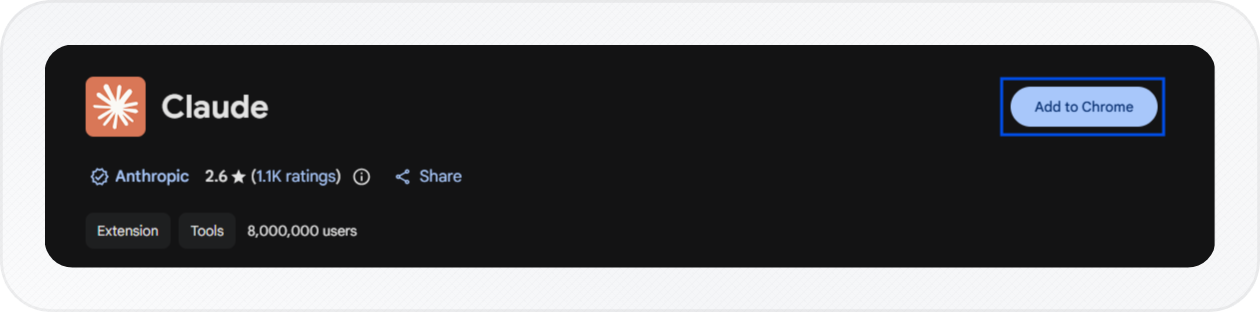
Open the Chrome Web Store and find the Claude extension.
-
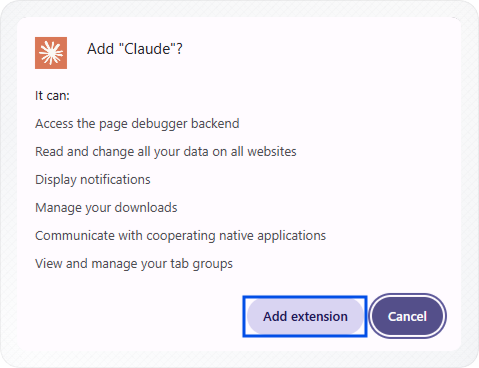
Click Add to Chrome, then click Add extension to confirm.
-
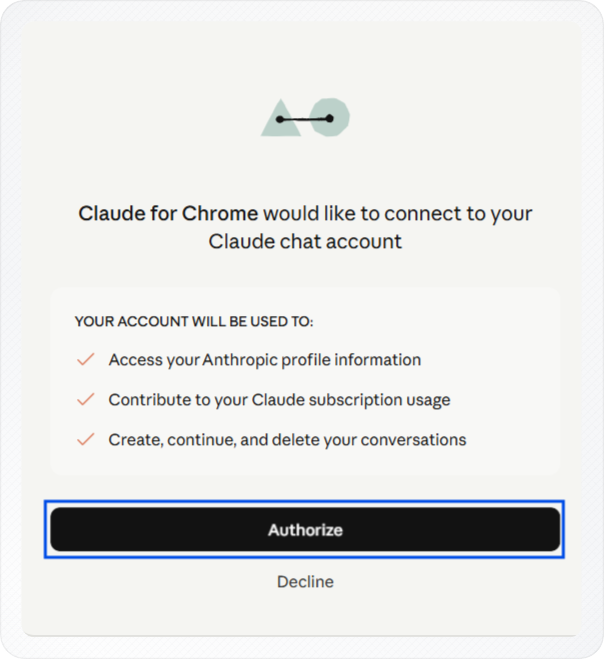
Claude for Chrome will ask to connect to your Claude chat account. It will use your account to access your profile, track subscription usage, and manage conversations. Click Authorize to continue.
-
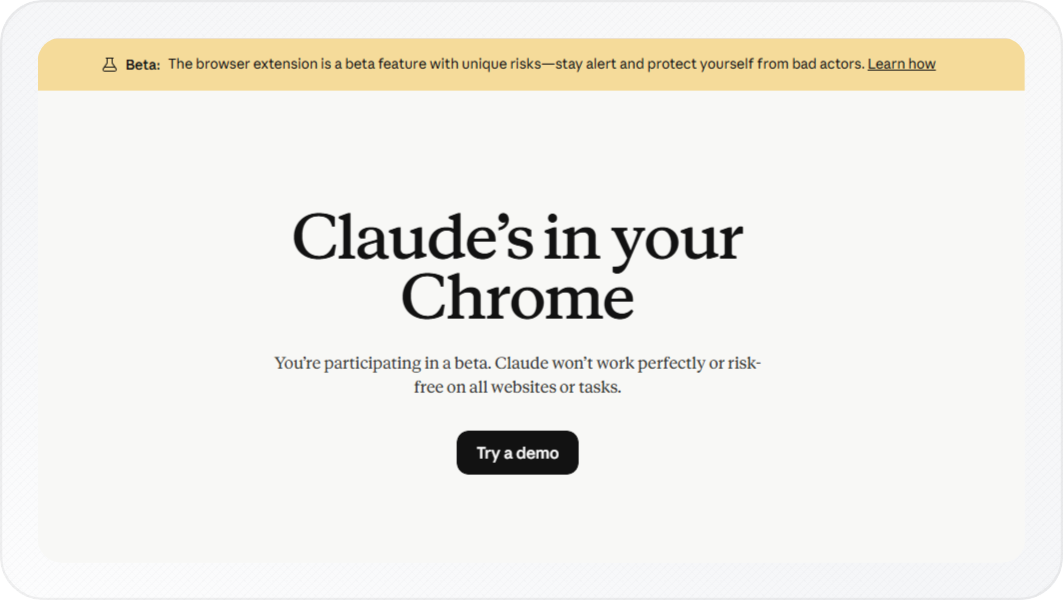
Claude will show a warning that this is a beta version. Click Learn more to read about the beta, or click Try a demo if you want to try it first.
-
Click the puzzle piece icon in the top-right corner of Chrome. Find Claude in the list and click the pin icon next to it to pin Claude to your toolbar.

-
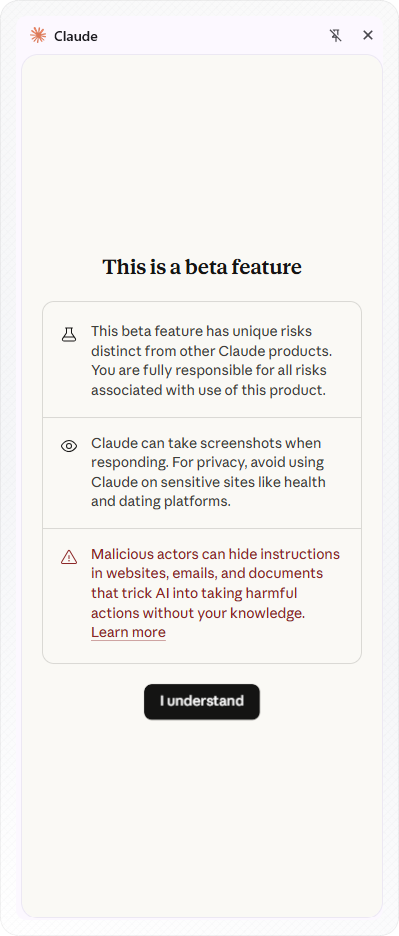
Click the Claude icon in your toolbar. A beta feature warning appears. Click I understand to continue.
-
Claude will explain what the extension can do. Read through the screens and click Next, then Next again, then click Let's Go.
You now have Claude running in a side panel. The panel shows a chat input at the bottom and a welcome message. Claude is ready for your first task.

Running Your First Task
Once the side panel is open, you can give Claude a task by typing it in plain English. Claude reads the current page and any additional context you provide, then completes the task or gathers the information you requested.
Choosing How Claude Takes Action
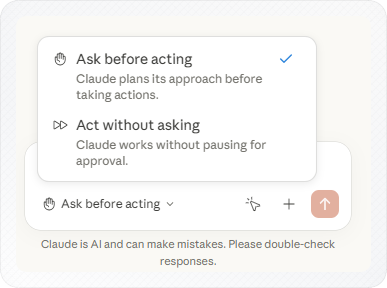
By default, Claude uses Ask Before Acting mode. When you give Claude a task, it first proposes a plan showing the actions it intends to take. You can review the plan, approve it, or select Make changes to modify the instructions before Claude proceeds.
You can also switch to Act Without Asking mode. In this mode, Claude does not request approval before carrying out actions.
Steps:
-
Enter your task in the chat input in plain English. For example: "Summarize the main points on this page" or "Find the contact email on this site."
-
Press Enter to send. An orange glow appears around the browser window while Claude is active.
Note: Before Claude takes any action, it shows you a plan and asks for your approval by default. The plan lists the sites Claude will visit and the steps it will take.
-
Review it before clicking Approve. If something looks wrong, click Make changes to revise your instruction.
-
The result appears in the side panel as text, a list, or links depending on what you asked for.
Example: You open a long product review page. You type: "What are the three biggest complaints in this review?" Claude reads the page, shows you a plan, and after you approve it, returns three bullet points pulled directly from the content, in about 30 seconds. You did not highlight, copy, or switch tabs.
You now have a completed task result in the side panel.
Using Claude in Chrome
The Claude Chrome extension works across any webpage. You can use it to read and summarise content, fill forms, research across tabs, automate repetitive tasks, and extract data from the side panel.
Reading and summarising: Open any article, report, or long page and ask Claude to summarise it, extract key points, or answer a specific question about the content.
Filling forms: Navigate to the form, then tell Claude what to enter. Claude fills in the fields on your behalf. Useful for repetitive forms you complete regularly.
Researching across tabs: Claude can work across multiple browser tabs at once. Claude creates a dedicated tab group in Chrome. Move the tabs you want Claude to analyze into that group, then ask it to compare, summarize, or compile information from all of them.
Automating repetitive tasks: If you do the same sequence of browser steps every day or every week, you can save that workflow as a shortcut and run it with a keystroke, or schedule it to run automatically at specific times.
Saved shortcuts and scheduled tasks use your regular usage quota, see How to Check Usage Limits in Claude to track how much they consume.
Extracting data: Ask Claude to pull specific information from a page (prices, names, dates, links) and present it in a structured format.
Conclusion
You now know how to install the Claude Chrome extension, open the side panel, and run tasks directly from your browser. Whether you need to summarize webpages, automate repetitive work, research across tabs, or extract information from websites, Claude helps you complete those activities without leaving Chrome.
While you are getting familiar with the extension, keep Ask Before Acting enabled so you can review Claude's plan before it takes action on your behalf. To monitor how the extension affects your usage quota, see how to check usage limits in Claude. To save conversations from claude.ai for editing or sharing, see how to export a Claude chat as a Word document or how to download chat in Claude.