
How to Add Connectors in Claude
Learn how to add connectors in Claude to link your apps and services, retrieve data, and take actions directly from a conversation.
A connector is a link between Claude and an external service that lets Claude securely access data and Work inside apps such as Gmail, Google Drive, Slack, GitHub, and Linear.
After you connect a service, Claude can search files, find emails, create tasks, send messages, and complete other work without leaving the chat. Claude can only access the data and permissions already available to your account.
This is useful when researching, writing, or solving problems that require information from multiple apps at once.
In this tutorial, you'll learn two ways to add connectors and how to use them in a chat.
Browsing Connectors from the Directory
Claude has a built-in directory of connectors for common services like Gmail, Google Drive, Linear, Slack, and GitHub. Use the directory when the service you need is already listed.
To add a connector from the directory:
- Open claude.ai in your browser.
- Click Customize in the left sidebar.
- Click Connectors.
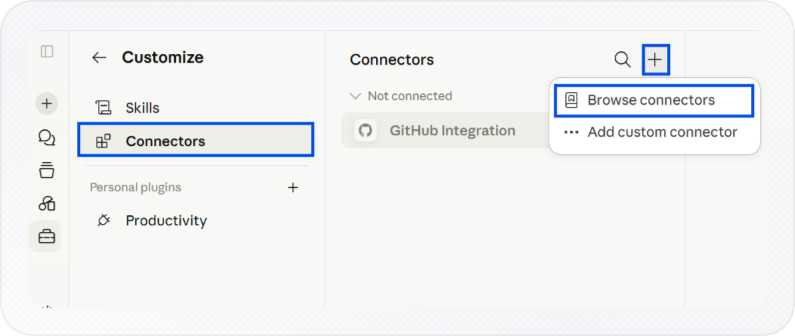
- Click the + button and select Browse connectors.
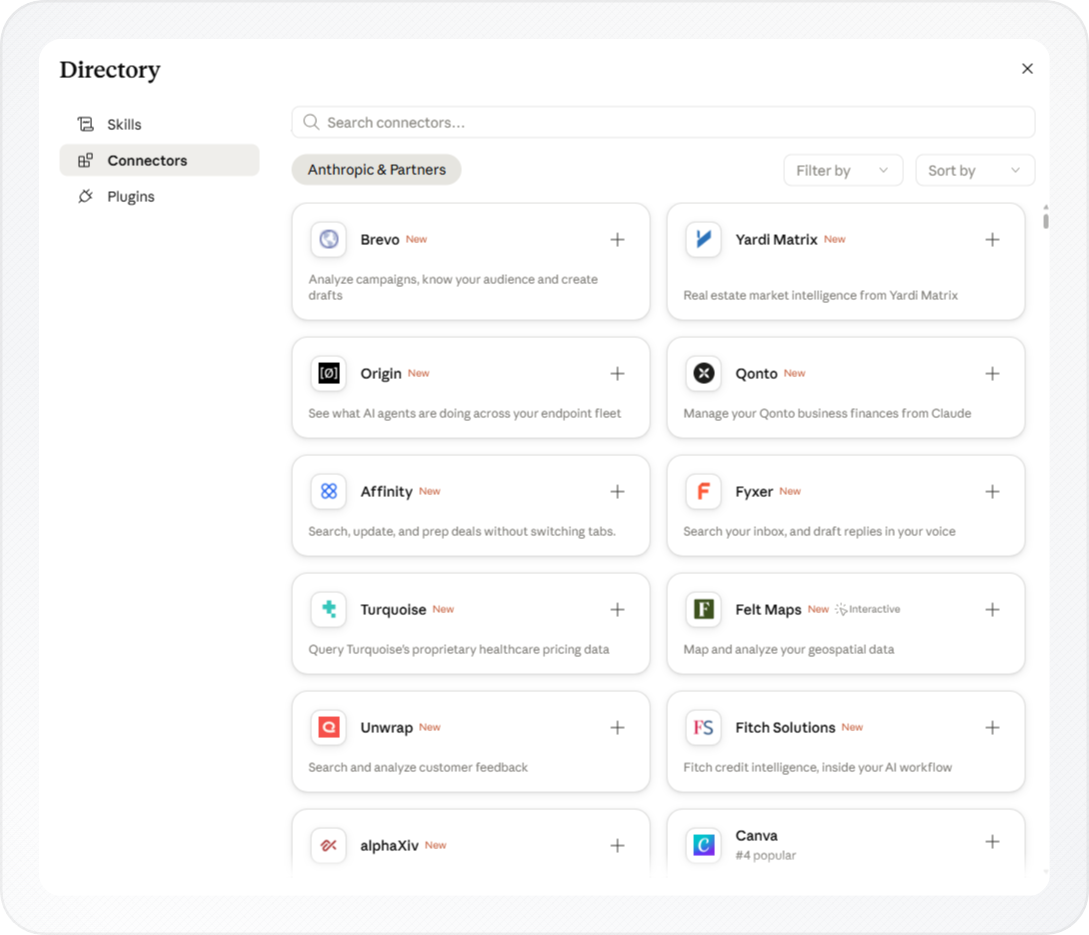
-
Search for or browse the connector you want.
-
Click the + icon next to the connector.
-
A pop-up or new tab opens. Sign in to the service and approve the access Claude is requesting.
The connector is now installed and appears in your Connectors list.
Each connector page shows:
- Read-only: Can view your data but can't change anything.
- Read/write: Can view data and take actions like sending messages or creating files.
Connector installed but unavailable in chat: Open + > Connectors and make sure it's turned on for the current conversation. If it already is, disconnect and reconnect it from Customize > Connectors to refresh the sign-in.
Adding a Custom Connector
Add a custom connector when the service you need isn't available in the directory.
This is mainly for internal tools your team hosts. The tool must support MCP (Model Context Protocol), the open standard Claude uses to connect to external services. A regular website or API link won't work.
-
Open claude.ai and go to Customize > Connectors.
-
Click the + button.
-
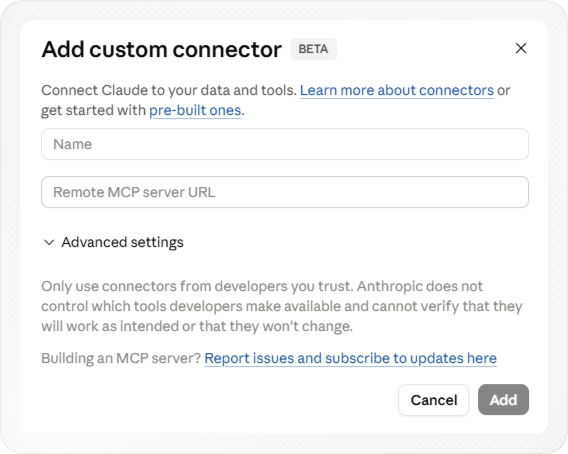
Select Add custom connector.
-
Enter the connector's name and URL (where your server lives).
-
Click Add.
Times out or won't connect? Your server must be reachable from the public internet. See Get started with custom connectors using remote MCP for network requirements.
Using a Connector in a Chat
Once a connector is installed, it becomes available in your chats. You can then turn it on or off for individual conversations.
Active connectors add extra context to your messages, which can increase usage. Toggle it off for a specific conversation if you don't need it there.
Turning Off a Connector for Your Chat
If you want to disable a connector for a chat:
- Open a chat in Claude.
- Click + in the message box.
- Hover over Connectors.
- Toggle off the service you want to disable.
Claude no longer uses that connector for this conversation. Toggle it back on anytime to restore access.
Manage connector permissions: Open Customize > Connectors, select the connector, then adjust Tool permissions. Choose Always allow, Needs approval or Blocked. These settings can only reduce access beyond what your source account already allows.
Once you've connected the services you need, you can bundle them with skills and settings into one installable package. See how to add plugins in Claude for that workflow.
Conclusion
You now know what connectors are, how they work, and two ways to add them: browse the directory or add a custom connector. Once enabled in a chat, connectors let Claude use your app's data and actions without leaving the conversation.
Test any new connector with a small, safe request first to make sure it works as expected.