
How to Create Shortcuts in Claude in Chrome
Learn how to create shortcuts in Claude in Chrome using three methods, so you can reuse your best prompts and workflows with a single slash command.
A shortcut in Claude in Chrome is a saved prompt or recorded workflow. You run it again by typing / in the chat. Instead of retyping the same instructions every session, you select a saved shortcut and Claude repeats it.
But there's more than one way to create a shortcut. Each method fits a different situation.
In this tutorial, you will learn how to create a shortcut in Claude in Chrome using three methods, along with guidance on when to use each one.
Prerequisites
- Claude in Chrome installed and pinned in Google Chrome. New to the extension itself? See the Claude in Chrome setup guide first.
- An active paid Claude plan (Pro, Max, Team, or Enterprise)
Note: Claude in Chrome is not available on free plans or on non-Chrome browsers such as Brave, Arc, or Firefox.
Creating a Shortcut from Settings
Use this method when you know the exact prompt you want to save and want to set it up before you need it.
-
Click the Claude icon in your Chrome toolbar to open the side panel.
-
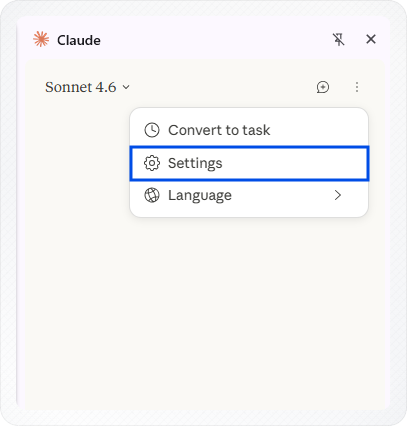
Click the three-dot button in the top right corner of the panel.
-
Select Settings.
-
Select Shortcuts from the left menu.
-
Click + Create shortcut.
-
Enter a name in the Name field. This name appears after the
/prefix in chat.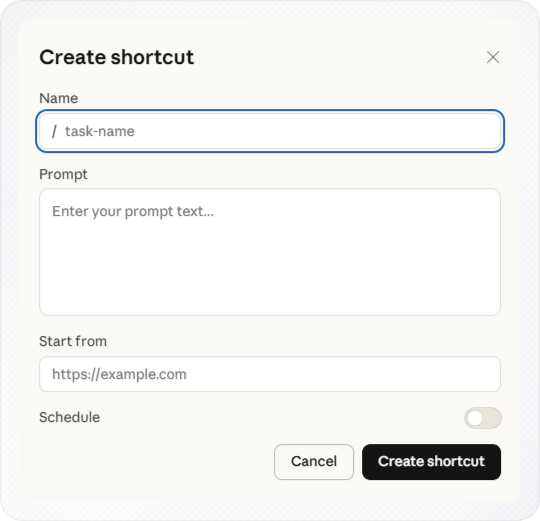
-
Enter your prompt in the Prompt field.
-
Enter a URL in the Start from field if the shortcut should open a specific page first. Leave it blank to run on whichever page you're already on.
-
Toggle Schedule on if you want this shortcut to run automatically. Leave it off to run it manually.
Tip: Turning Schedule on reveals four fields: frequency (Once, Daily, Weekly, Monthly, or Annually), date, time, and which model runs the task.
-
Click Create shortcut.
Your shortcut now appears in the Shortcuts panel and is ready to use. Type / in the Claude side panel chat to see it listed alongside any other shortcuts you have saved.
Creating a Shortcut by Recording a Workflow
Use this method when your task involves clicking, navigating, or filling forms across a website, not just a text prompt.
-
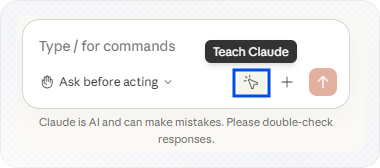
Click Teach Claude in the extension panel.
-
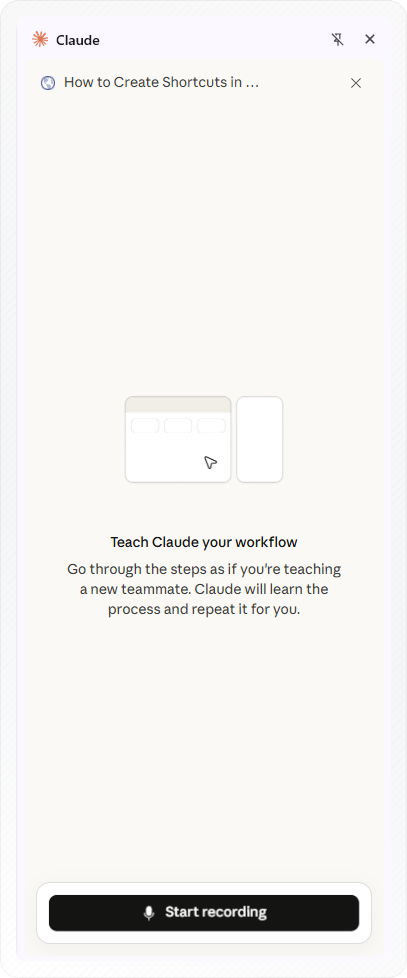
Click Start Recording.
-
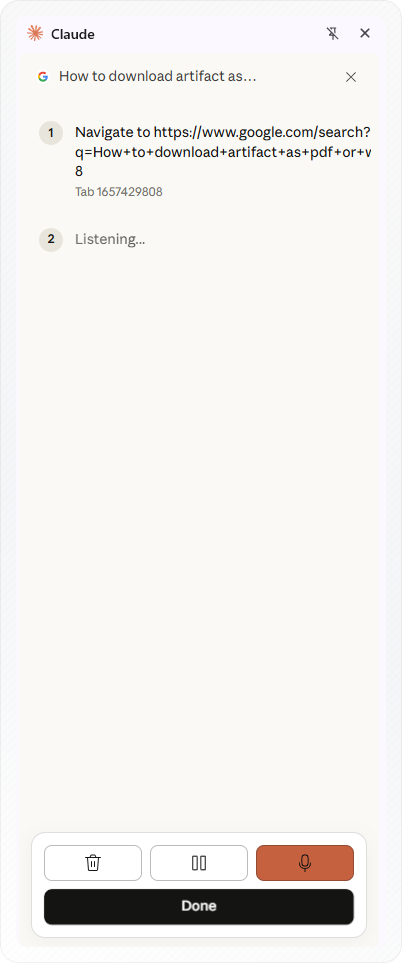
Perform the steps you want Claude to learn. Voice narration is on by default, so describe what you're doing as you go.
-
Click the microphone icon if you want to turn off narration partway through.
-
Click the trash icon to discard the recording and start over, or the pause icon to pause it. There's no way to remove a single step once it's recorded, so pause if you're unsure partway through.
-
Click Done when you finish.
Clicking Done opens the Create shortcut dialog with the Name and Prompt fields already filled in. You can edit either field before saving.
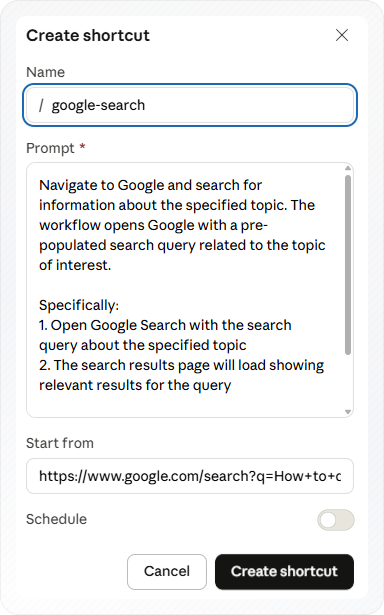
- Review the Start from field. Leave it as is to run the shortcut on the page where you started recording, or enter a different URL.
- Toggle Schedule on if you want this workflow to run automatically. Leave it off to run it manually.
- Click Create shortcut.
Claude repeats the exact steps you recorded the next time you run this shortcut from / in the chat.
Creating a Shortcut from Chat
Use this method right after a prompt you typed in chat produces the result you want, so you can save it without switching to settings.
-
Hover over the message you sent in the Claude in Chrome chat. Two options appear: Save as shortcut and Copy.
-
Click Save as shortcut.
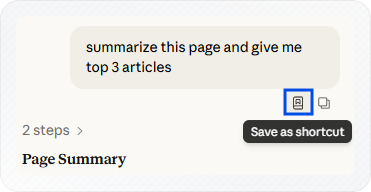
The Create shortcut dialog opens with the Name and Prompt fields already filled in based on your message.
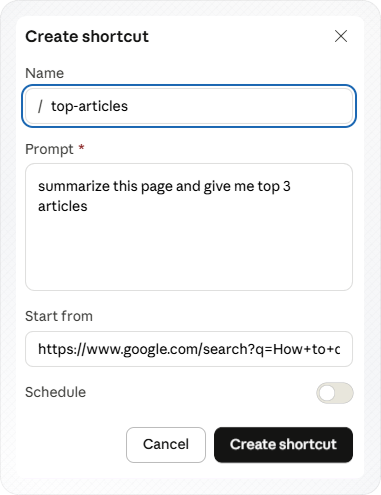
- Review the Start from field. Leave it blank to run on whichever page you're on, or enter a specific URL.
- Toggle Schedule on if you want this shortcut to run automatically. Leave it off to run it manually.
- Click Create shortcut.
This method captures the exact prompt that already worked, so there's no risk of retyping it differently the second time.
Conclusion
You now have three ways to create a shortcut in Claude in Chrome. Use the settings panel, record a workflow, or save a prompt directly from chat. Use settings when you're planning ahead. Use recording for multi-step browser tasks. Use the chat method when a prompt already proved itself.
Before relying on a scheduled shortcut for important tasks, run it once manually to confirm it produces the result you expect.