
How to Use Claude in Microsoft Word
Learn how to install Claude for Word and use it to write, edit, and review documents directly inside Microsoft Word, without switching tabs.
Claude for Word brings Claude directly into Microsoft Word. It reads your full file, including comments, tables, and footnotes, so you can draft new sections, rewrite existing ones, and catch inconsistencies without leaving Word.
No copy-pasting into a browser. No switching tabs. Everything happens inside your document, with full context of what is already there.
In this guide, you will learn how to install Claude for Word and use it to create and edit content directly inside your document.
Video tutorial: Use Claude in Microsoft Word
Step-by-step walkthrough for this guide.
Prerequisites
- A Claude account on the Pro, Max, Team, or Enterprise plan (Free plan is not supported). Not sure which plan you have? See How to Check Usage Limits in Claude.
- Word for Windows with Microsoft 365 subscription
The add-in supports Opus 4.7, Opus 4.6, and Sonnet 4.6. You can switch models from inside the sidebar.
Installing Claude for Word
You install Claude for Word directly from inside Word. Open a new or existing document before you start. The Claude sidebar attaches to your open document.
-
Open a new or existing Word document.
-
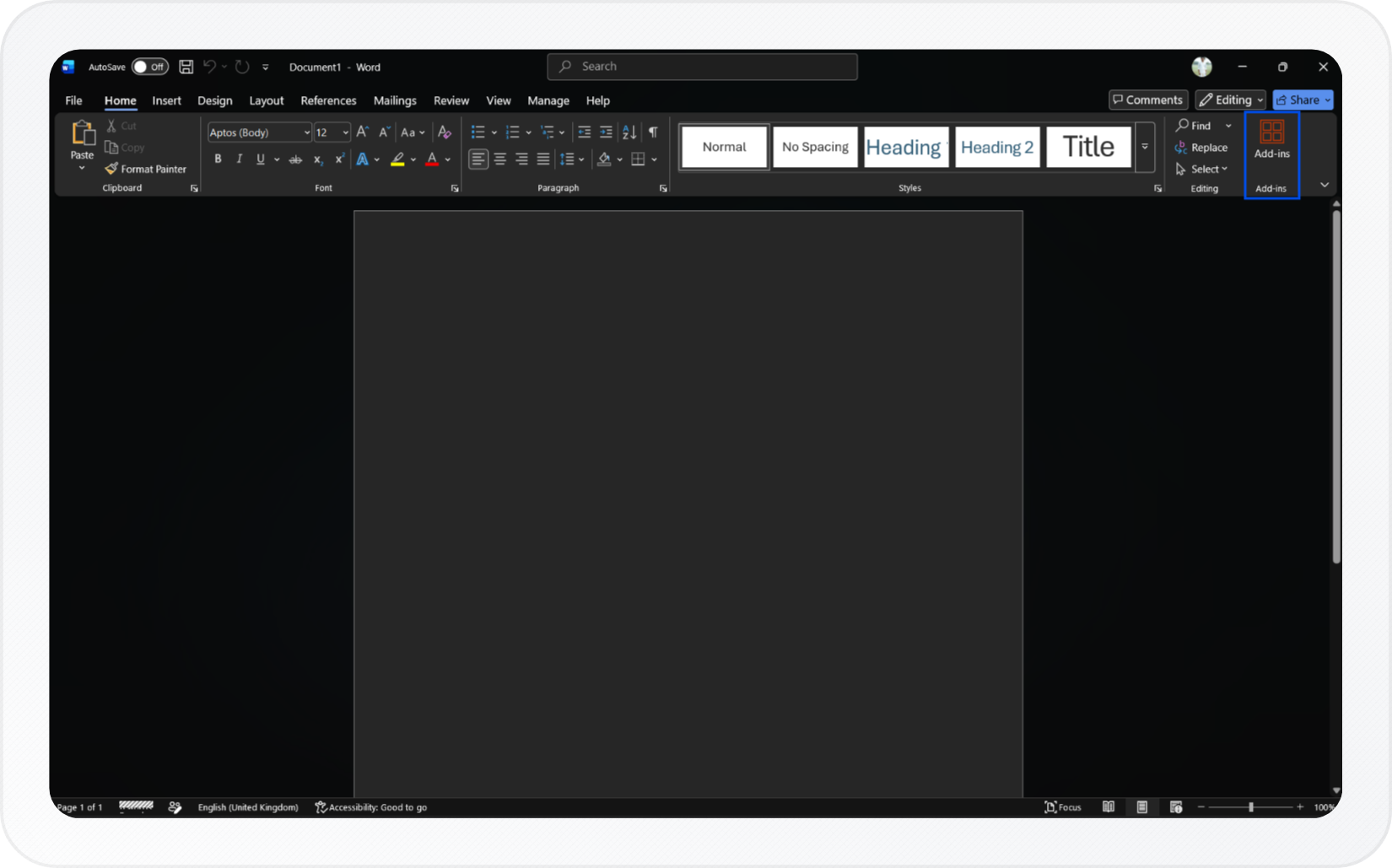
In the Home tab, click Add-ins in the right corner of the ribbon.
-
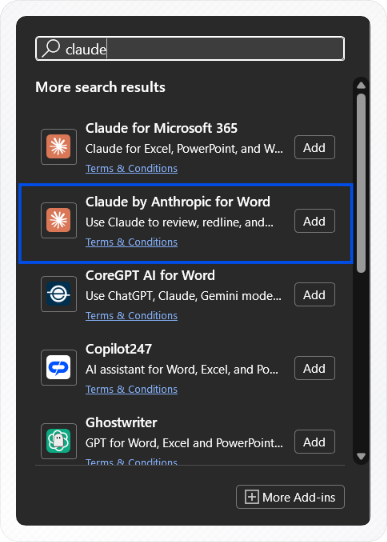
Search for Claude by Anthropic for Word, then click Add.
-
Click Login and sign in with your Claude paid plan account.
-
Click Continue and authorize the add-in in the browser.
-
Return to Word and read through the initial setup screens. Click Next to proceed through each one.
-
Click I understand.
The Claude sidebar opens on the right side of your document window.
Now that the add-in is installed, you're ready to create and edit content inside your document.
Creating Content
You can use Claude for Word to draft content in a new document or add to an existing one. Type your request into the message box in the Claude sidebar and Claude will generate a response.
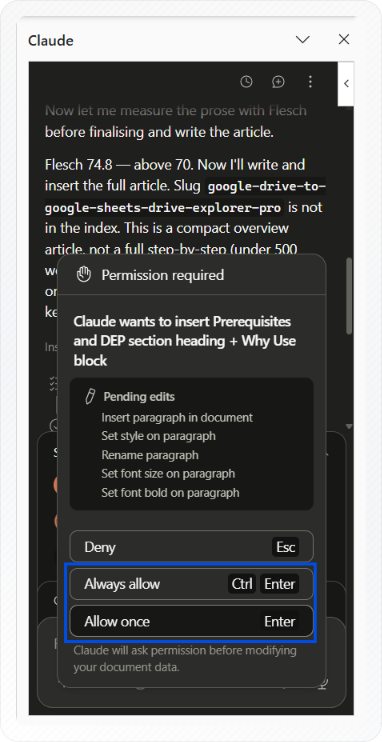
Before making any changes to your document, Claude will show you a plan and ask for permission. Read the plan, then click Allow to proceed.
Example prompts to try:
- "Write an introduction for a report on renewable energy"
- "Draft a project summary with three key objectives"
- "Create a table comparing four project risks by likelihood and impact"
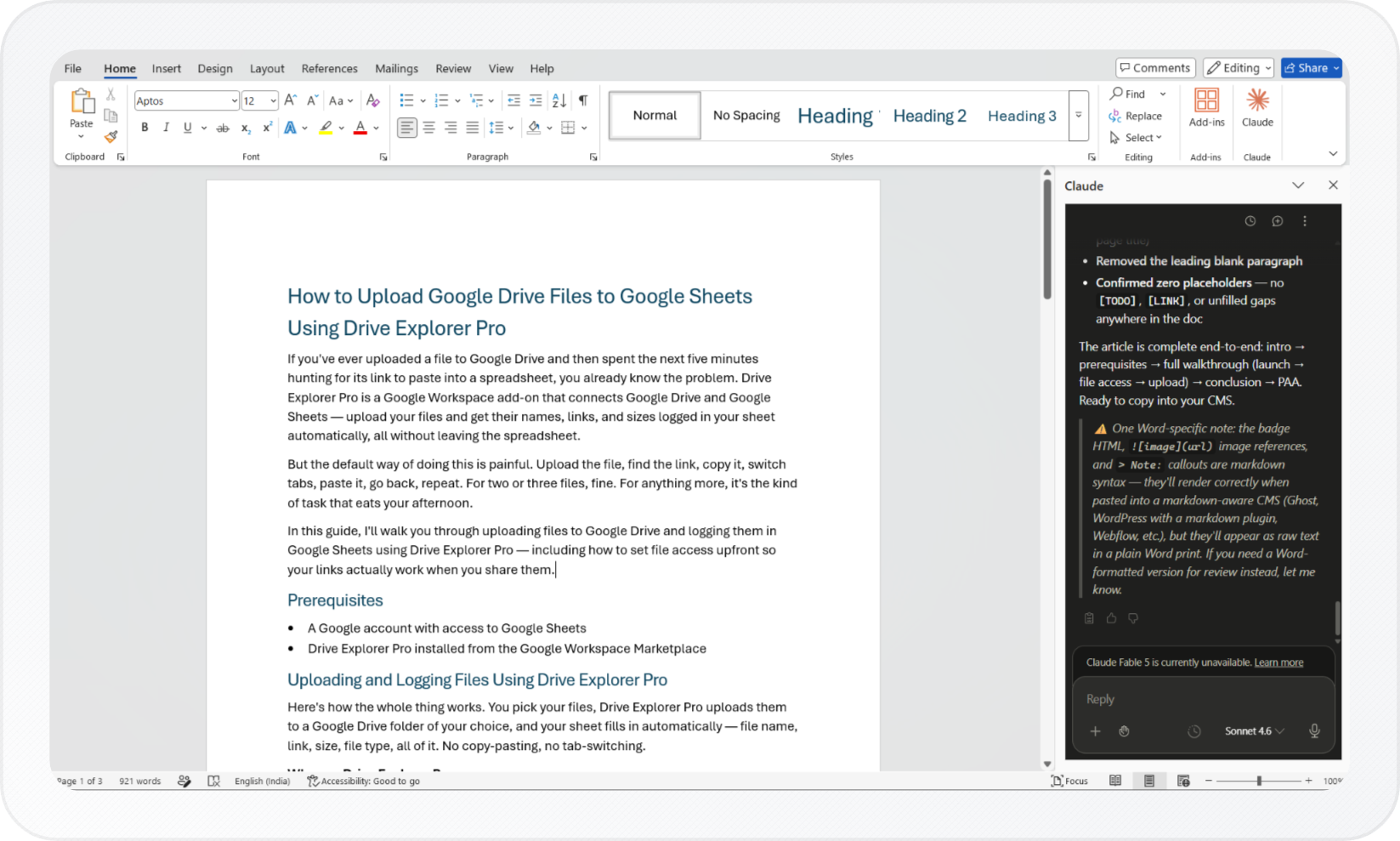 You can also upload a reference file to give Claude additional context. Click the + icon in the chat panel, select your file, then include it in your prompt.
Example prompts with a reference file:
- "Using the uploaded style guide, write an executive summary in that tone"
- "Pull the figures from the uploaded report and add them to a summary table"
For more on what file types Claude accepts, see How to Upload Files to Claude.
Important: Always review Claude's edits before keeping them. Claude can make mistakes, and final decisions on document content are yours.
Editing Content
You can ask Claude to edit any part of your existing document. Claude reads your full document, including footnotes, tables, comments, and tracked changes.
Highlight the text you want to change and it will be automatically selected in the chat. Type your instruction and Claude will edit only that passage. The rest of the document stays the same.
- Highlight the text you want to edit in your document.
- Type your instruction in the Claude message box.
- Click Send.
Claude edits only the selected passage. It keeps the surrounding styles, numbering, and formatting intact.
Example prompts for editing:
- "Tighten this paragraph and remove passive voice"
- "Simplify this for a general audience"
- "Make this sentence more specific"
Important: Only use Claude for Word with files you created or control. A file from an outside source could contain hidden text that causes Claude to act in ways you did not ask for. For full details, see the official Claude for Word documentation.
Use Cases
Writing reports and memos
Draft sections, populate tables, and fill templates without leaving your document.
- "Draft the Key Risks section with four risks in the template's style"
- "Write an introduction for a report on renewable energy"
- "Populate the summary table with revenue, gross margin, and net retention"
Editing and rewriting
Highlight any passage and ask Claude to rewrite, simplify, or tighten it. Claude edits only the selected text and keeps the surrounding formatting intact.
- "Tighten this paragraph and drop the passive voice"
- "Rewrite this for a non-technical audience"
- "Make the indemnification clause mutual"
Reviewing documents
Use tracked changes mode to review Claude's edits before accepting them. Ask Claude to work through comment threads or summarize incoming redlines.
- "Work through all my open comments"
- "Summarize what the other side changed and flag anything worth discussing"
- "Rewrite section 4 and show every change as a tracked revision"
Finding content by theme
Ask Claude to find every section in your document that touches a specific topic. You get thematic matches with clickable citations, not just keyword hits.
- "Find every section that mentions termination"
- "Where does this document address data retention?"
Working across Microsoft 365
Claude for Word shares context with Claude for Excel and Claude for PowerPoint. Work across all three apps in a single conversation.
- "Pull the revenue figures from the open Excel file and add them to the summary table"
- "Summarize this Word document into three PowerPoint slides"
To keep building this workflow, see how to export a Claude chat as a Word document if you want to move a claude.ai conversation into a file.
Conclusion
You now have Claude set up in Microsoft Word. Use the sidebar to create content, edit selected text, and upload reference files, all without leaving your document. Each time Claude wants to make a change, it will show you a plan first. Nothing changes in your document without your approval.