
How to Use Claude in Microsoft Excel
Learn how to install Claude for Excel and use it to create spreadsheets, analyze data, and edit workbooks directly inside Microsoft Excel.
Claude for Excel brings Claude directly into Microsoft Excel. It reads your full workbook, including cells, formulas, and multiple tabs. You can build models, analyze data, and fix errors without leaving your spreadsheet.
No copy-pasting into a browser. No switching tabs. Everything happens inside your workbook, with full context of what is already there.
In this guide, you will learn how to install Claude for Excel and use it to create and edit content directly inside your workbook.
Prerequisites
- A Claude account on the Pro, Max, Team, or Enterprise plan (Free plan is not supported). Not sure which plan you have? See How to Check Usage Limits in Claude.
- Excel for Windows with Microsoft 365 subscription
The add-in supports Opus 4.7, Opus 4.6, and Sonnet 4.6. You can switch models from inside the sidebar.
Installing Claude for Excel
You install Claude for Excel directly from inside Excel. Open a new or existing workbook before you start. The Claude sidebar attaches to your open workbook.
- Open a new or existing Excel workbook.
- In the Home tab, click Add-ins in the right corner of the ribbon.
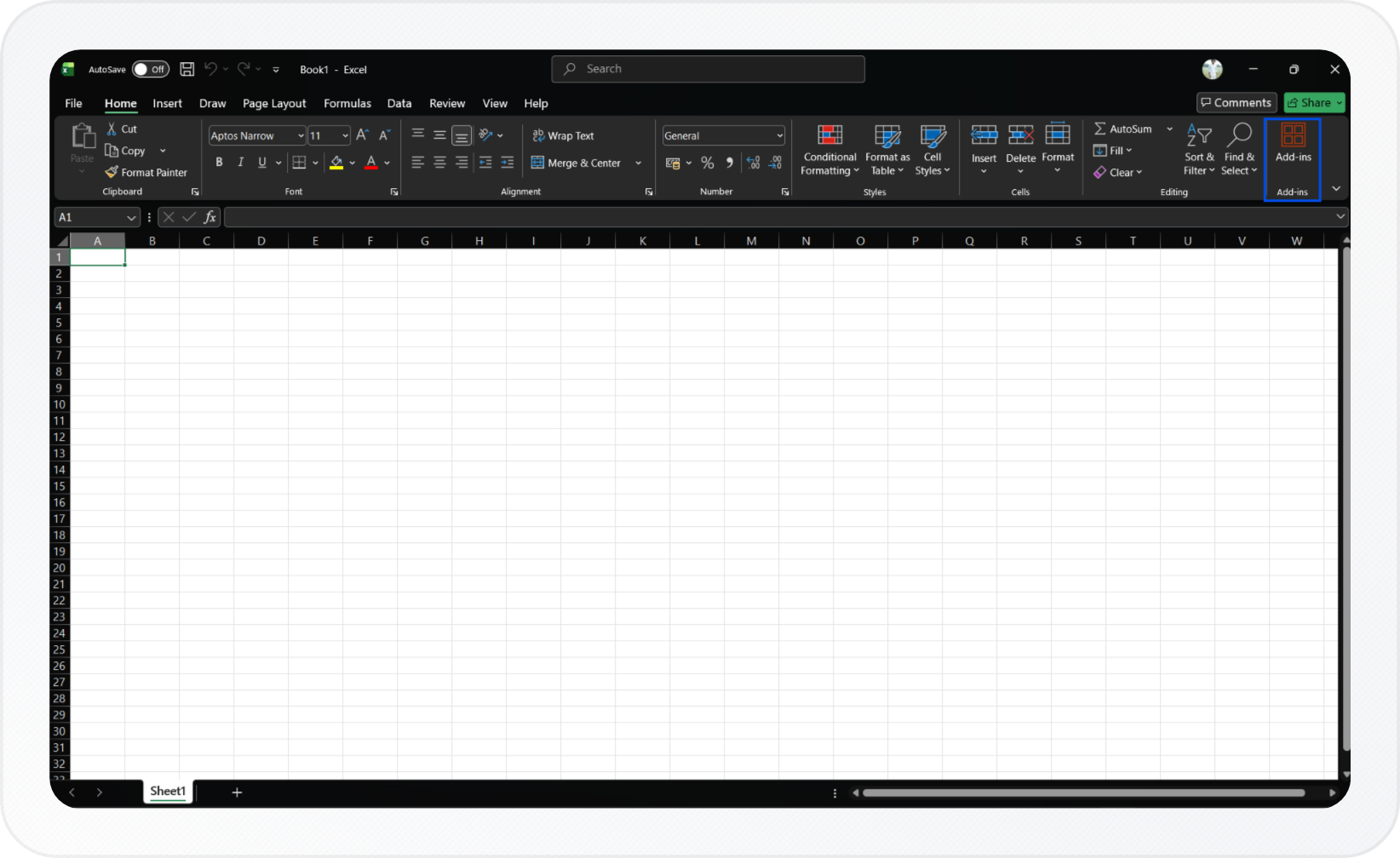
- Search for Claude by Anthropic for Excel, then click Add.

- Click Login and sign in with your Claude paid plan account.
- Click Continue and authorize the add-in in the browser.
- Return to Excel and read through the initial setup screens. Click Next to proceed through each one.
- Click I understand.
The Claude sidebar opens on the right side of your workbook window.
Now that the add-in is installed, you're ready to create and edit content inside your workbook.
Creating Content
You can use Claude for Excel to build a new spreadsheet from scratch or add content to an existing one. Type your request into the message box in the Claude sidebar and Claude will generate a response.
Before making any changes to your workbook, Claude will show you a plan and ask for permission. Read the plan, then click Allow to proceed.
Example prompts to try:
- "Build a three-month budget tracker with income and expense categories"
- "Create a summary table showing monthly revenue by region"
- "Add a chart comparing Q1 and Q2 sales figures"
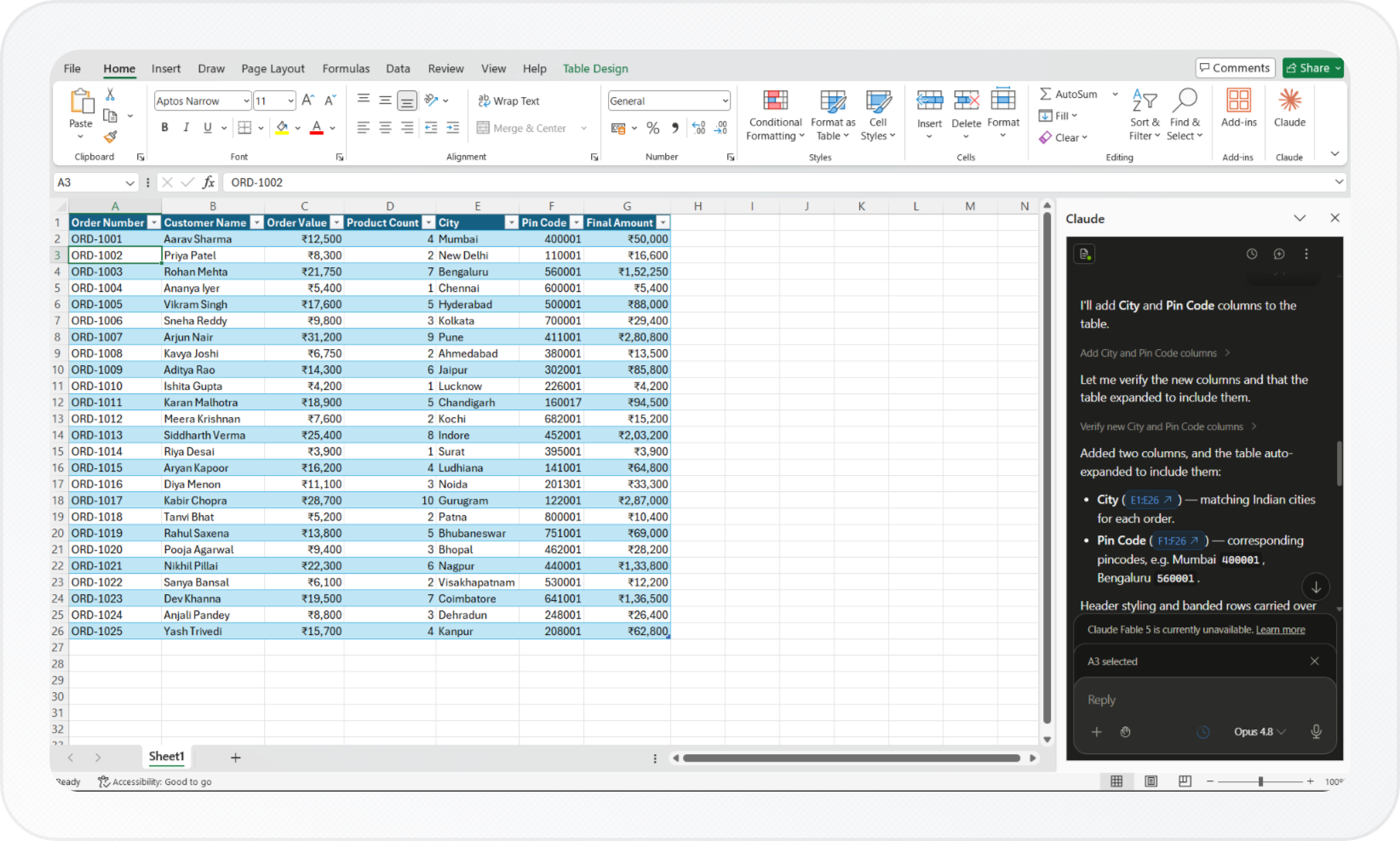
You can also upload a reference file to give Claude additional context. Click the + icon in the chat panel, select your file, then include it in your prompt.
For more on what file types Claude accepts, see How to Upload Files to Claude.
Example prompts with a reference file:
- "Pull the revenue figures from the uploaded report and add them to this summary sheet"
- "Fill this template with the data from the uploaded CSV"
Important: Always review Claude's changes before saving or sharing your workbook. Claude can make mistakes, and final decisions on spreadsheet content are yours.
Editing Content
You can ask Claude to edit any part of your existing workbook. Claude reads your full workbook, including cells, formulas, and tab structure across multiple sheets.
Type your instruction in the message box and Claude will make only the changes you ask for. Claude highlights every cell it updates so you can see exactly what changed.
Example prompts for editing:
- "Update the growth rate assumption in B3 to 8% and show the impact"
- "Fix the #VALUE error in column D"
- "Find all hardcoded values that should be formulas"
Important: Only use Claude for Excel with spreadsheets you created or control. External files can contain hidden instructions that trick Claude into leaking or corrupting your data. For full details, see the official Claude for Excel documentation.
Use Cases
Building financial models and trackers Build spreadsheets from scratch, fill templates, or add new sections to existing workbooks.
- "Build a three-month budget tracker with income and expense categories"
- "Build a three-statement financial model for a SaaS company"
- "Fill this DCF template with data from the uploaded report" Analyzing data Ask questions about your workbook and get answers with clickable cell-level citations.
- "What assumptions drive the revenue forecast in Q3?"
- "Identify the top 10 customers by revenue and their growth rates"
- "Compare actuals to budget and explain the largest variances" Debugging formulas and fixing errors Ask Claude to explain formulas in plain language, trace them to their source inputs, or find and fix errors.
- "Why is cell B4 returning a #VALUE error?"
- "Find all circular references in this workbook"
- "Find all hardcoded values that should be formulas" Formatting and organizing Sort and filter data, apply conditional formatting, edit pivot tables, set data validation, and prepare workbooks for printing.
- "Sort this table by revenue, descending"
- "Highlight all cells below the target threshold in red"
- "Set up a dropdown for the status column with options: Active, Pending, Closed" Working across Microsoft 365 Claude for Excel shares context with Claude for Word and Claude for PowerPoint. Work across all three apps in a single conversation.
- "Pull the revenue figures from this workbook and add them to the open Word memo"
- "Build a slide summarizing the Q3 data from this sheet"
To keep building this workflow, see how to use Claude in Microsoft Word if you want the same AI assistance inside your documents.
Conclusion
You now have Claude set up in Microsoft Excel. Use the sidebar to build spreadsheets, edit data, debug formulas, and upload reference files, all without leaving your workbook. Each time Claude wants to make a change, it will show you a plan first. Nothing changes in your workbook without your approval.