
How to Export Your Claude Chat History
Learn how to export Claude chat data using the built-in data export from account settings for a full backup of your conversation history.
Claude lets you export a backup of your conversation history and account data from your account settings.
The export is delivered as a JSON file containing all conversations at once. Because JSON is a raw data format, it is not designed for reading like a PDF or Word document. If you need a file you can read and share, see how to export chats as PDF or Word instead.
In this guide, you'll learn how to export your Claude chat history using Claude's built-in data export feature.
Prerequisites
- A Claude account (free, Pro, or Max)
Note: The built-in data export is available on the Claude web app and Claude Desktop only. You cannot run an export from the Claude iOS or Android app.
Exporting Claude Data Using Account Settings
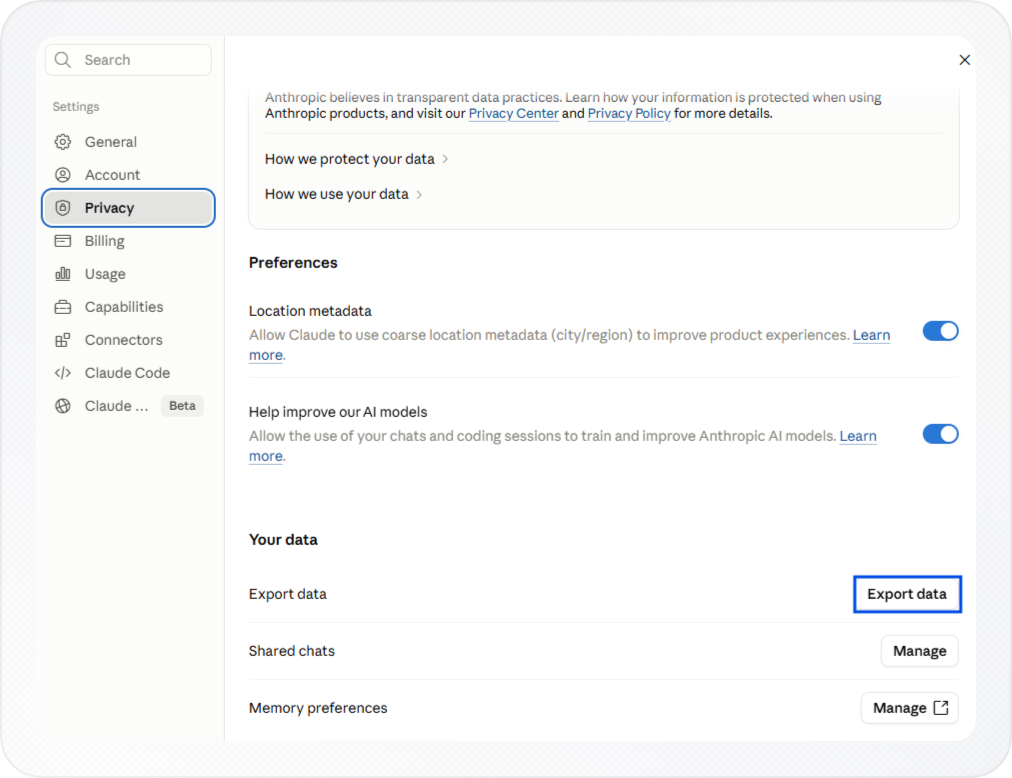
You can export all your Claude conversation data from Settings > Privacy. Claude prepares your export and sends a download link to your email.
Use this method when you need a full backup of your chat history. You will end up with a file containing all your conversations in JSON format.
If you want to keep individual chats long-term rather than a full account backup, see how to download chat in Claude.
-
Click your initials in the lower-left corner, then select Settings.
-
Click Privacy.
-
Click Export data.
-
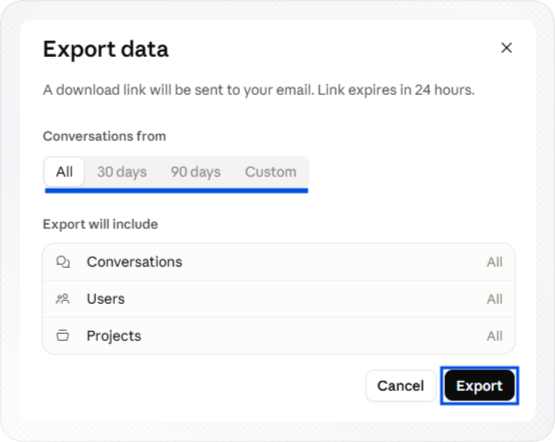
Select the conversation date range you want to include in the export.
You can choose:
- All conversations
- Conversations from the last 30 days
- Conversations from the last 90 days
- A Custom date range
-
Click Export.
-
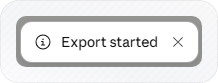
Claude displays a confirmation message in the top-right corner indicating that your export request has been received.
For a complete guidance, see Anthropic's official documentation on how to export your Claude data.
Receiving Your Export After Requesting It
After you click Export data, Claude prepares your export package in the background.
When the export is ready, Claude sends a download link to the email address associated with your account. Delivery time depends on the size of your conversation history, so it may take a few minutes.
The export is provided as a single JSON file containing your conversations and related metadata. Because JSON is a structured data format, you'll typically view it in a code editor or text editor rather than read it like a document.
The file can be used for backup, migration, or data analysis purposes.
Important: The download link expires after 24 hours.
If you don't receive the email, check your spam or junk folder. If it's still missing, return to Settings > Privacy and submit a new export request.
Limitations
-
One export per request: Exports include all conversations at once; you cannot select individual chats.
-
JSON format only: The export is provided as a JSON file intended for backup, migration, or data processing. It is not formatted for reading like a PDF or Word document.
-
Need a readable file? For a readable copy of a single chat, see how to download chat in Claude for PDF, Word, Google Docs, and Markdown exports.
Conclusion
Claude's built-in data export feature provides a complete backup of your conversations and account data in JSON format. After submitting an export request from Settings > Privacy, Claude prepares the file and sends a download link to your email. Remember to download the file within 24 hours because the link expires after that period.