
How to Connect Google Drive to Claude
Learn how to connect Google Drive to Claude and use it to search, read, and work with your files directly in chat.
Claude can read your Google Drive files and answer questions about them. No downloading or uploading needed. Ask "Summarise the Q3 report in my Drive" and Claude finds and reads the document in chat.
But the Google Drive connector doesn't come switched on. It needs a one-time setup in Settings, which includes signing in with your Google account.
In this guide, you will learn how to connect Google Drive to Claude, search your Drive from chat, and read or summarise your files without leaving the conversation.
Prerequisites
- A Claude account on any plan, including Free
- A Google account with Google Drive
Connecting Google Drive to Claude
This is a one-time setup. Once connected, Google Drive works in every new chat.
-
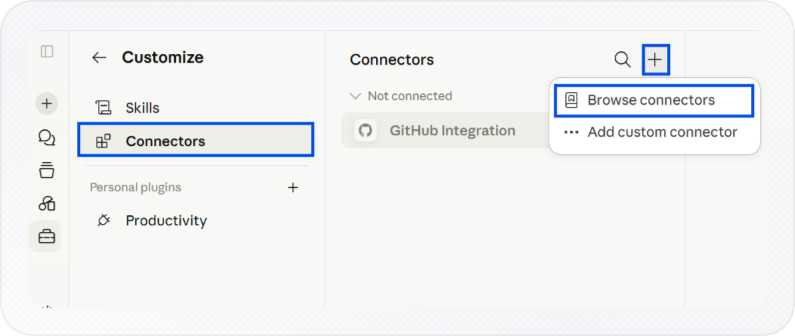
Click Customize in the left sidebar.
-
Select Connectors, then click the + icon at the top.
-
Click Browse connectors.
-
Search for Google Drive and click the + icon next to it. A Google sign-in window opens.
-
Select your Google account and click Continue.
-
Click Allow on the permissions screen.
-
Back in Claude, check the Connectors page. Google Drive appears as connected when the setup is complete.
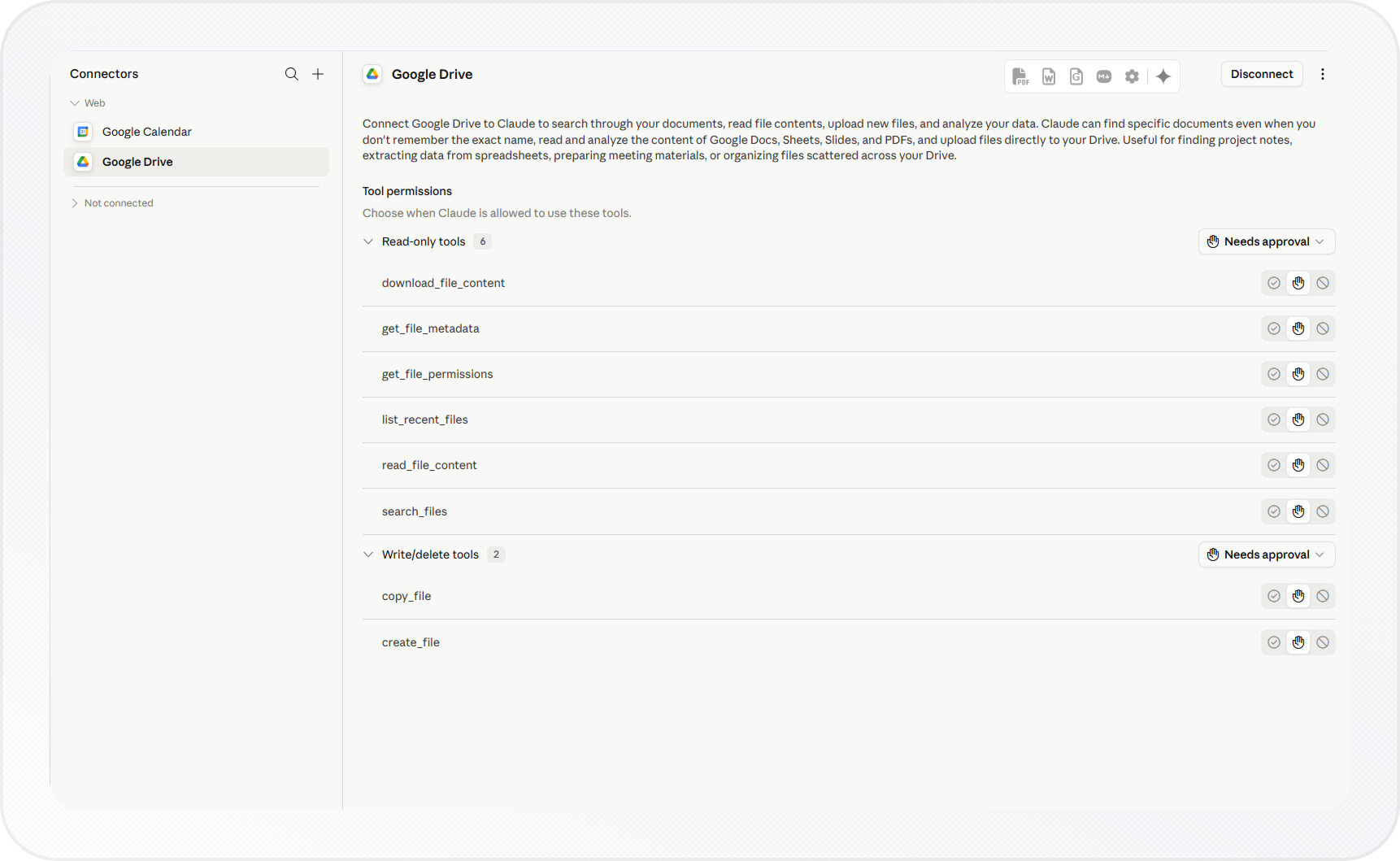
Open the Google Drive entry on the Connectors page to find the Tool permissions controls. Toggle each action to Always allow, Needs approval, or Blocked.
For the full list of what the connector can do, see Google Workspace connectors on Anthropic's help site.
Google Drive is now connected and ready to use in any chat.
Searching Your Drive with Claude
Open any Claude chat and ask a question about your files. You don't need a command or a special mode.
Good questions to try:
- "Find the Q3 report from last month and summarise the key deadlines"
- "What files did my team change in Drive this week?"
- "Show me the latest version of the product roadmap"
- "Find all documents shared with me by Priya last Tuesday"
Claude searches your Drive and replies with a summary. Each response includes a citation that links back to the original file in Drive.
If Claude can't find the file, your question is likely too vague. Add a file name, a sender, or a date. Instead of "Find the project doc," try "Find the project brief Priya shared last week."
Reading and Summarising Drive Files with Claude
Claude can pull a specific document from your Drive and answer questions about it in chat. Use this when you know which file you need but don't want to open it, scroll through it, or copy sections out manually.
Reading a Drive File
Ask Claude to open a file by name or describe what you're looking for. Claude finds the file in your Drive, reads it, and responds in chat.
Good questions to try:
- "Open the client onboarding doc and list the steps under Section 3"
- "Read the Q3 budget sheet and tell me the total spend by category"
- "What does the product roadmap say about the Q4 launch?"
Claude responds with the answer and includes a citation linking back to the original file in Drive. You don't need to know the exact file name. A description or folder name works too.
Summarising a Drive File
Ask Claude to summarise a document when you need the key points without reading the full file. This works for long reports, meeting notes, proposals, or any document where you need a quick answer.
Ask something like "Summarise the board meeting notes from last Thursday" or "Give me the three main takeaways from the strategy doc in the Leadership folder." Claude reads the full document and returns a focused summary in chat.
Claude extracts text content only. If the key information is in a chart, image, or embedded graphic, Claude won't see it. Copy that data into a text format first, then ask your question.
Knowing the Google Drive Connector's Limits
Claude accesses your Drive only when your message needs it. Anthropic does not train its models on Google Drive connector data.
A connected Drive account adds context to each message, which can use more of your usage limit. See How to Reduce Token Usage in Claude for ways to manage this.
Conclusion
You now have Google Drive connected to Claude. You can search your Drive, read documents, and get summaries without leaving the chat.
Keep in mind that Claude reads text only. Questions about charts or images inside your files won't return results. Once set up with Drive, connect Gmail and Google Calendar too so Claude can work across your documents, inbox, and schedule in one place.